10 Ways to Secure Your Home Network

HighSpeedOptions prides itself on providing honest, quality content. While we may be compensated when you make a purchase through links on our site, all opinions are our own. Here's how we make money.

If you’re wondering how to secure your home network, you’re not alone. Between laptops, phones, smart TVs, gaming consoles, and smart home devices, your Wi-Fi manages a lot of devices, and each one is a way into your digital life.  

The good news is that you do not need to be an expert to secure your home network. Simple changes in your Wi-Fi router settings can make it difficult for anyone to snoop, use your internet bandwidth, and access any private information in your household. 

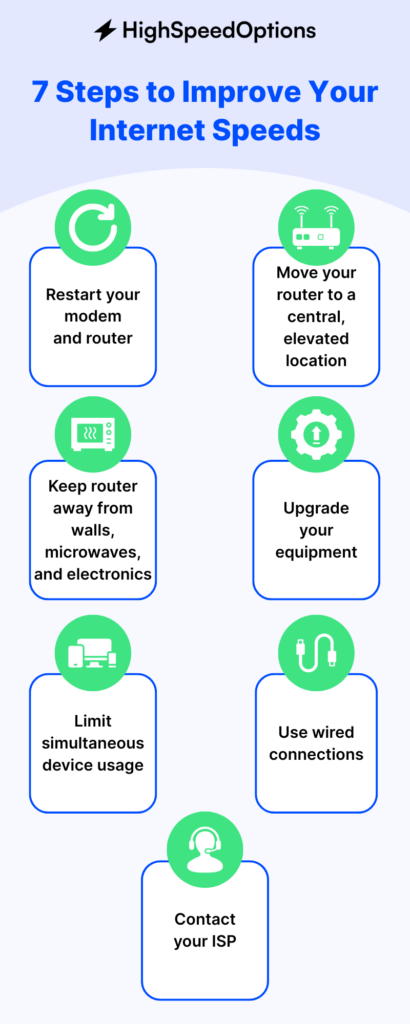
Here are 10 easy step-by-step tips you can use to secure your home Wi-Fi network and data. 

Search top internet providers for the best experience on your home network.

internet graphic

Key Takeaways: How to Secure Your Home Network 

  • Change default passwords. Update your router admin login and Wi-Fi password to strong, unique passphrases.
  • Turn on strong Wi-Fi encryption. Use WPA3 if your router supports it, or at least WPA2 with AES. 
  • Keep everything updated. Turn on automatic updates for your router, computers, phones, and smart home devices.
  • Segment your network. Use guest and/or IoT networks so visitors and smart devices aren’t on the same network as your personal devices.
  • Disable risky features. Turn off WPS, remote management, and other features you don’t actively use.
  • Make security a habit. Do a “Wi-Fi checkup” every month to review devices and settings 

Why Is Securing Your Home Network So Important?

Your home network is the backbone of your digital life. It’s how you: 

If your home Wi-Fi network isn’t secure, it can:

  • Expose sensitive information like passwords, banking info, and personal documents
  • Let strangers steal your internet connection and slow down your speeds
  • Allow for illegal activity tied to your IP address

The goal isn’t perfection, it’s protection. Making a few simple changes can reduce the chances of anyone accessing your home Wi-Fi network or devices. 

10 Practical Ways to Secure Your Home Network 

laptop phone and tablet device image

These tips work with almost any modern router and Wi-Fi setup. You don’t have to do them all at once. Pick a few to start and the rest when it’s convenient for you. 

Each step includes what it does and how to set it up. 

1. Change Your Login & Wi-Fi Password 

Most routers have default usernames and passwords like “admin/admin.” Change them as soon as you can to establish your first, and easiest, line of defense. 

How to do it 

  • Look for the sticker on your router with the router’s admin web address (often something like 192.168.0.1 or 192.168.1.1).
  • Type that address into your browser and log in with the admin username and password, which are on the same sticker as the admin web address.
  • Find the Administration or System section and:
    • Change the admin username (if allowed).
    • Change the admin password to a long, unique passphrase (12+ characters; mixing letters, numbers, and characters is best).
  • Then, in the Wireless or Wi-Fi section:
    • Change your Wi-Fi password, making it as strong as possible.
    • Use a password manager to store both passwords so you don’t have to memorize them. 

Pro tip: Update your Wi-Fi and router passwords every few months or if you think too many people have the current password.

2. Keep Your Router and Devices Updated

Why it matters 

Your router has a built-in operating system called firmware. Just like your phone or computer, it needs security updates to patch bugs and vulnerabilities. Outdated firmware is an easy target for cybercriminals

How to do it

  • Log into your router’s admin page (see step 1).
  • Look for a Firmware, Update, or System section.
  • Check if there’s a newer version available and follow the prompts to update.
  • If your router offers automatic updates, turn that option on so you won’t have to worry about it in the future.
  • While you’re at it, set up automatic updates on all of your devices (phone, laptop, tablet, etc.).

Pro tip: If your router is more than 5 years old and no longer gets updates, it may be time to upgrade to a newer model that supports current security standards and offers improved networking. 

3. Change the SSID Broadcast Name

Why it matters 

Your network name, or Service Set Identifier (SSID), is what you see when looking at a list of available Wi-Fi networks from your phone or laptop. Default names can reveal the router brand and model, which only makes a hacker’s job easier. It’s best to change it to a unique name, and to protect your privacy, do not include your address or last name. Anyone within range of your network can see your SSID as an available network. 

How to do it 

  • Log into your router admin page (see step 1).
  • Go to the Wireless or Wi-Fi settings.
  • Find the field labeled SSID or Network Name.
  • Change it to something unique but not personally identifying (“BookNookWiFi,” not “SmithFamilyWiFi” or your street address).
  • Save changes and reconnect your devices to the new network name. 

At the very least, we recommend updating your username and password on your Wi-Fi router. This is an easy first line of defense.

4. Use Strong Wi-Fi Encryption (WPA3 or WPA2-AES)

Why it matters 

Encryption scrambles the traffic on your Wi-Fi so other people can’t easily snoop or steal. Older standards like WEP are weak and can be exploited in minutes. 

How to do it 

  • In your router admin page, go to Wireless, Wi-Fi, or Security settings.
  • Find Security Mode, Encryption, or Authentication.
  • Choose:
    • WPA3-Personal if available (best option), or
    • WPA2-Personal (AES) as the minimum you should use.
  • Avoid  WEP, TKIP, or “Open” network options. 

Pro tip: If older devices can’t connect after you switch to WPA2-AES or WPA3, it may be time to retire those devices for your security. 

5. Install Security Software on Your Devices

Why it matters 

Even with a secure home network, malware and viruses can still sneak in through downloads, apps, and websites. Security software helps block malicious files, unsafe websites, and suspicious activity on your devices. 

How to do it 

  • On Windows or Mac computers:
    • Use built-in tools (like Windows Security) and install a reputable antivirus or internet security suite.
  • On phones and tablets:
    • Keep the operating system updated and consider security apps from trusted providers.
  • Turn on browser protections like:
    • Safe browsing, anti-phishing filters, and tracking protection.

Pro tip: Avoid running more than one antivirus suite. More than one will slow down your system and cause conflicts.  

6. Create a Guest Wi-Fi Network

Why it matters 

Guests and smart devices (such as IoT devices like cameras, smart plugs, light bulbs, and thermostats) don’t need direct access to your personal computers and files. Creating a guest network and putting devices on a separate network helps contain any security issues if a device is compromised. 

How to do it 

  • In your router’s settings, look for ‘Guest Network’ or ‘Guest Wi-Fi’.
  • Turn on the guest network and:
    • Give it a separate network name (SSID).
    • Set a unique password (different from your main network).
  • If your router supports it, set up a dedicated IoT network and move smart devices there.
  • Make sure the guest and IoT networks cannot access local devices (like shared folders or printers) on your main network if possible.

7. Turn Off WPS and Unnecessary Remote Features

Why it matters 

Wi-Fi Protected Setup (WPS) makes it easy to connect devices, but it also exposes security holes. Other features like Universal Plug and Play (UPnP) and remote management can give attackers ways into your home network if they’re enabled and not secured. 

How to do it 

  • Log into your router admin page (see Step 1).
  • Look for WPS and set it to Off or Disabled.
  • Find UPnP and turn it off unless a specific device or app truly requires it.
  • Locate Remote Management, Remote Access, or similar, and disable it if you don’t actively use it. 

Pro tip: If you do need remote access to your network, use a vendor app with strong passwords and multi-factor authentication (MFA), or consider using a virtual private network (VPN) instead of open remote management. 

8. Watch Out for Phishing and Scams

Why it matters 

Many attacks don’t target your router directly; they target you. Phishing emails, texts, pop-ups, and fake websites try to trick you into sharing login details or downloading malware. 

How to do it 

  • Be suspicious of messages that:
    • Urgently demand payment or password resets.
    • Claim to be from your bank, government, or a package delivery service you weren’t expecting. 
  • Always double-check the sender’s email or phone number and the website address before entering credentials.
  • Go directly to a company’s website or app instead of clicking links in emails or texts.
  • Use your email provider’s “Report phishing” function to help filter future scams.

Pro tip: Teach everyone in your household, even the kids, how to spot fake messages. Encourage them to ask you before clicking on anything that seems off. 

9. Use a VPN When You Need Extra Privacy

Why it matters 

A VPN (virtual private network) encrypts your internet traffic and routes it through a secure server. That makes it harder for others to see what you’re doing online and can keep your data safer. We highly recommend using a VPN while on a public Wi-Fi

How to do it 

  • Choose a reputable VPN provider or app with good reviews and a clear privacy policy.
  • Install the VPN app on devices you use outside the home (laptop, phone, tablet).
  • Turn the VPN on when:
    • You’re on public Wi-Fi (cafes, airports, hotels).
    • You’re traveling and using unfamiliar networks.

Pro tip: At home, a VPN can add another layer of privacy, but it doesn’t replace strong router security. You still need strong passwords and updated software. 

10. Turn On Your Router Firewall and Monitor Your Network

Why it matters 

Most routers include a built-in firewall that can block unwanted traffic. If it’s turned off or misconfigured, your network may be exposed. Keep an eye on the devices that are connected to your Wi-Fi to catch intruders. 

How to do it 

  • In your router admin page, look for Firewall, Security, or Advanced settings.
  • Make sure your router firewall is turned On.
  • Locate the Connected Devices, Attached Devices, or Client List section.
  • Look through the list for anything you don’t recognize:
    • If you see unknown devices, change your Wi-Fi and router admin passwords immediately.
    • Reconnect your own devices with the new password. 

Pro tip: Put a reminder on your calendar once a month for a quick “home Wi-Fi security check” to review connected devices and settings.


Quick Home Network Security Checklist 

Use this checklist to confirm your home Wi-Fi network is secure: 

  • I changed the default router admin username and password.
  • I’m using a strong, unique Wi-Fi password.
  • My Wi-Fi encryption is set to WPA3 or WPA2-AES (not WEP or “open”).
  • My router firmware and devices are set to update automatically.
  • I created a guest network (and an IoT network if possible) for visitors and smart devices.
  • WPS, UPnP, and remote router management are turned off (unless I truly need them).
  • I use security software and phishing protection on my main devices.
  • I periodically check my router’s connected devices list for anything unfamiliar.

If you’ve done most of these, your home network security is already in better shape than many households. 

Keep Your Home Network Locked Down 

Your home network powers almost everything you do online: work, school, streaming, gaming, shopping, and more. Leaving it exposed is a bit like leaving your front door unlocked and hoping nobody tries the handle. 

The good news is that securing your home network doesn’t have to be complicated. Changing default passwords, enabling strong Wi-Fi encryption, updating device software, and using guest or IoT networks go a long way toward keeping your data and devices safe. 

Treat these steps as a routine, not a one-time project. Do a quick Wi-Fi checkup each month, and you’ll stay one step ahead of the most common threats. 

If you’re ready to take the next step, you can also check internet providers in your area to see if any offer more secure Wi-Fi options, such as newer gateways, better equipment, or upgraded plans that support your smart home. 

FAQ

FAQs: Securing Your Home Network

Start with your router. Change the default admin login and your Wi-Fi password to long, unique passphrases, and turn on strong encryption, WPA3 if available, or at least WPA2-AES. Keep your router firmware and all connected devices updated and disable extras like WPS and remote management if you don’t need them. Whenever you can, use separate guest and IoT networks for visitors and smart devices, install reputable security software, and stay alert for phishing emails and fake websites trying to trick you into giving up passwords.

For most home networks, WPA3-Personal is the most secure Wi-Fi encryption option. It offers stronger protection against password-guessing and eavesdropping than older standards. If your router doesn’t support WPA3, choose WPA2-Personal with AES encryption; that’s still considered secure for typical home use. Avoid older options like WEP, WPA with TKIP, or “open” networks that don’t use any encryption at all, as these can often be cracked quickly or allow anyone nearby to see your traffic. If your router can’t support at least WPA2-AES, it’s probably time to upgrade.

Plan to change your Wi-Fi password and router admin password every three to six months. Regularly updating these credentials helps limit how long an old or leaked password can be used against you. You should also change them right away if you’ve shared your Wi-Fi password with a lot of people over time, or if you suspect someone is using your network without permission. When you update passwords, make sure they’re strong, unique passphrases rather than simple words or reused logins from other accounts.

To spot unwanted guests on your Wi-Fi, log into your router’s admin page and look for a section called something like “Connected Devices,” “Attached Devices,” or “Client List.” This will show you the names or MAC addresses of devices currently using your network. If you see devices you don’t recognize, or far more devices than you own, someone else may be on your Wi-Fi. When that happens, the safest move is to change both your Wi-Fi password and your router admin password, then reconnect only your own devices. While you’re in the settings, make sure your network is using WPA3 or WPA2-AES encryption for better security.

You need a virtual private network (VPN) most when you’re on public or unsecured Wi-Fi, because it encrypts your connection and helps keep snoopers from seeing what you’re doing. At home, a VPN can still add an extra layer of privacy by hiding your activity from your provider and making it harder for websites to track you, but it’s not a replacement for basic security. A VPN won’t fix weak passwords, outdated firmware, or risky router settings; it works best on top of the other steps in this guide. Think of it as an optional extra shield rather than the foundation of your home network security.

Yes, a guest Wi-Fi network is generally more secure for both visitors and smart home devices. It keeps their devices separate from your main network, which helps protect your personal computers, phones, and files if a guest device is infected with malware. Many smart homes and IoT devices don’t have strong built-in security, so placing them on a guest or dedicated IoT network limits the damage if one of them is compromised. You can also turn the guest network off when no one is visiting for extra peace of mind. It’s a simple change that adds a lot of separation and control to your home network setup. 

The fastest way to secure your home Wi-Fi network is to make a few quick changes in your router’s settings. Log into the router’s admin page, change the default admin login and Wi-Fi password to long, unique passphrases, and set your Wi-Fi security to WPA3 (or WPA2-AES if WPA3 isn’t available). Then, turn off WPS and any remote management features you don’t use, and enable automatic firmware updates if your router supports them. These steps will close the most common ways attackers get into home networks.

Keith Carlson
Written By
Keith Carlson
Written By
Keith Carlson
Keith is a Contributing Writer for HighSpeedOptions with a background in writing, SEO, GEO, and marketing. He has written for and contributed to organizations in the non-profit, financial, and enterprise internet and cable service industries. At HighSpeedOptions, Keith covers everything from broadband news to emerging technologies and how they complement different lifestyles and budgetary needs. In his free time, Keith enjoys spending time with his family, reading as many books as he can, and photography.

What is 5G Home Internet?

HighSpeedOptions prides itself on providing honest, quality content. While we may be compensated when you make a purchase through links on our site, all opinions are our own. Here's how we make money.

5G home internet is a form of fixed wireless internet that comes from a nearby 5G cell tower instead of a cable or fiber line to the home. The internet provider sends a wireless signal over cellular frequencies from the tower to a receiver, called a gateway, in your house, which functions like a modem. Most 5G home internet gateways have integrated Wi-Fi routers, which distribute internet access to all your devices.

Aside from the way it delivers internet to your home, 5G home internet functions similarly to any other internet connection. Here we’ll take a close look at how it works, how it compares to other internet options, and the benefits and shortfalls of 5G home internet.

Key Takeaways About 5G Home Internet

  • Typical speeds: 100–300 Mbps download, 10–30 Mbps upload (varies by address)
  • Latency: 10–40 ms, fluctuates with network congestion
  • Availability: address-specific; rapidly expanding access
  • Install: self-install gateway (takes about 15 minutes)
  • Pricing: $40–$60/mo, equipment included (plan-dependent)
  • Network mgmt: possible deprioritization after 1.2TB/mo during congestion (T-Mobile).

How Does 5G Home Internet Work?

5G home internet is delivered wirelessly over a cellular network to a gateway in your home that sends and receives data from the 5G internet provider. Your devices connect to it, or a Wi-fi router connected to the gateway, for internet access. 

  1. From the Tower to Your Home: A nearby 5G cell tower sends a wireless signal to a small box in your home called a gateway (integrated modem and Wi-Fi router).
  2. Gateway Placement: Place the gateway where the signal is strongest, near a window or on a higher floor, using the provider’s app to guide you.
  3. From the Gateway to Your devices: The gateway creates your Wi-Fi network (and offers Ethernet ports) so phones, TVs, laptops, and consoles can connect.
  4. Your Internet Traffic’s Path: Data flows from your device, to the gateway, to the tower, on to your provider’s fiber network, and finally out to the wider internet, and back the same way when receiving data.
  5. Automatic Fallback: If 5G is weak or congested, the gateway can switch to 4G LTE, allowing you to stay online—often at lower speeds.

Why Does 5G Home Performance Vary?

5G home internet performance changes with signal strength, distance to the tower, obstacles (walls and trees), and tower congestion; repositioning the gateway in your home can noticeably improve speeds.

The 5G Spectrum: Three “Lanes,” Three Trade-offs

Think of 5G like a highway with slow, medium, and fast lanes. Providers mix lanes to balance coverage and speed.

  • Low-band (great coverage, modest speeds): Roughly 600–850 MHz. Travels far, penetrates walls well, and can reach more homes (good for rural and suburban areas). Speeds are solid for everyday use, but not the fastest.
  • Mid-band (the sweet spot for home internet): About 2–6 GHz (e.g., 2.5 GHz, C-band 3.7–3.98 GHz). Shorter range than low-band but much more capacity; often delivers speeds of 100 Mbps and up.
  • mmWave / high-band (very fast, very close): 24–39 GHz and up. It can deliver fiber-like bursts at short range, but struggles through walls and needs a clear line-of-sight. It works well in densely populated areas and certain apartment buildings.

Most 5G home services blend these bands (and LTE when needed) for optimal performance at your specific address.

5G Home Internet vs. Fixed Wireless Internet: Are They the Same?

5G home internet is a type of fixed wireless internet, but the wireless technologies differ. 5G home internet uses newer 5G cellular networks, while other fixed wireless services may use radio-based frequencies. This requires a clear line of sight between the tower and your home, which may require an outdoor antenna and professional installation.

How are 5G Home Internet and Fixed Wireless Internet Similar?

  • Both deliver internet over the air from a nearby tower to a device at your home.
  • Faster setup vs. cable and fiber, and typically can be self-installed.
  • Good as a second option where fiber isn’t available or cable is too expensive.
  • Performance depends on signal quality, distance to the tower, and network congestion.

How are 5G Home Internet and Fixed Wireless Internet Different?

Their wireless technologies, availability, equipment, installation, pricing, and contracts are some of the major differences between 5G home internet and fixed wireless. Following is a closer look at the differences between the two:

5G Home InternetFixed Wireless Internet
What they useRuns on carrier 5G (with LTE fallback).Uses LTE/4G or other point-to-multipoint radios from local WISPs.
Who offers itNational carriers (e.g., T-Mobile, Verizon; some AT&T areas).Regional WISPs, co-ops, and rural providers.
EquipmentIndoor gateway (modem + Wi-Fi in one).Outdoor antenna or radio, plus indoor router.
InstallationUsually self-install (takes about 15 minutes).Often requires professional installation to secure a clear line-of-sight.
Speeds & latencyCommonly 70–300 Mbps download; latency varies with tower load.25–200 Mbps; varies by gear and line of sight.
CoverageAddress-specific within carrier 5G footprints.Targets rural and fringe areas; coverage is hill-by-hill, line-of-sight dependent.
Pricing & termsFlat-rate, no annual contract; equipment typically included.Terms vary; install fees, equipment rental, and data policies may apply.
Network managementMay be deprioritized during congestion (heavy users impacted first).Policies vary; caps, priority tiers, and sector limits by provider.
What they use
5G Home InternetRuns on carrier 5G (with LTE fallback).
Fixed Wireless InternetUses LTE/4G or other point-to-multipoint radios from local WISPs.
Who offers it
5G Home InternetNational carriers (e.g., T-Mobile, Verizon; some AT&T areas).
Fixed Wireless InternetRegional WISPs, co-ops, and rural providers.
Equipment
5G Home InternetIndoor gateway (modem + Wi-Fi in one).
Fixed Wireless InternetOutdoor antenna or radio, plus indoor router.
Installation
5G Home InternetUsually self-install (takes about 15 minutes).
Fixed Wireless InternetOften requires professional installation to secure a clear line-of-sight.
Speeds & latency
5G Home InternetCommonly 70–300 Mbps download; latency varies with tower load.
Fixed Wireless Internet25–200 Mbps; varies by gear and line of sight.
Coverage
5G Home InternetAddress-specific within carrier 5G footprints.
Fixed Wireless InternetTargets rural and fringe areas; coverage is hill-by-hill, line-of-sight dependent.
Pricing & terms
5G Home InternetFlat-rate, no annual contract; equipment typically included.
Fixed Wireless InternetTerms vary; install fees, equipment rental, and data policies may apply.
Network management
5G Home InternetMay be deprioritized during congestion (heavy users impacted first).
Fixed Wireless InternetPolicies vary; caps, priority tiers, and sector limits by provider.

Where Is 5G Home Internet Available Today?

5G home internet is frequently available in dense urban and suburban areas, but is also expanding into rural areas. Its ease of use, minimal infrastructure, and convenience make it one of the fastest-growing internet options today. Here are the top 5G home internet providers available now:

T-Mobile Home Internet

  • Simple 15‑minute self‑install
  • No monthly equipment fees or annual contracts
  • Worry‑free 15‑day test drive
  • Available to about 70 million households across the country. That works out to roughly 60% of U.S. households per recent coverage updates.
  • Availability is address-specific; eligibility can change as the network expands.

Verizon 5G Home Internet

  • Fast symmetrical speeds
  • Fiber-optics network
  • No annual contracts
  • Frequently available in metro and suburban areas; check your specific address.
  • Verizon is pushing deeper into multi-dwelling units (apartments and condos) and dense urban footprints.

AT&T (Internet Air)

  • Variety of plans
  • Wide availability
  • Fiber internet speeds
  • 5G-based fixed wireless home internet is offered in select markets; availability varies by address.

Starry (urban, ultra-local)

  • 5G Fixed Wireless Provider
  • Contract buyout up to $200
  • Pause or cancel anytime for free
  • Historically focused on MDUs in Boston, NYC, DC, Denver, and LA with building-by-building availability.
  • Now under a definitive acquisition agreement with Verizon, aimed at boosting Verizon’s dense-building coverage, so availability remains hyper-limited but may appear under Verizon branding going forward.

Availability is address-specific and can change as towers are upgraded. Enter your ZIP code below to see what 5G home internet providers are available in your area.

Find 5G Home Internet.

How to Set Up 5G Home Internet

When you sign up, the provider ships (or lets you pick up) a 5G gateway. After plugging it in, you’ll use an app to help find an ideal location (Placement matters: near a window or on the highest floor usually yields the best speeds). Once in position, the gateway connects to the 5G network. 

From there, name your Wi-Fi network and you’re online. Most self-installations can be completed in about 15 minutes, all without a technician visit. That “plug-n-play” experience is a huge part of the appeal versus cable internet or DSL installs, which can require drilling, appointments, and waiting around for a tech.

Why No Cable or Wires Matters

  • Renters and apartment or condo dwellers: You don’t have to get landlord approval to run new wiring or mount anything permanently. In most cases, you’re placing a gateway on a shelf.
  • Rural and small-town addresses: If you’re in an area where laying fiber or upgrading old copper lines is expensive, 5G home internet can still reach you because it’s broadcast over the air from existing towers. That means you might finally have something better than slow DSL internet or expensive satellite internet, without waiting for someone to dig trenches down your road.
  • No long-term install cost: Because the “last mile” is wireless, providers don’t have to send a crew or bury a line just for you. That’s a big reason plans are showing up with simple flat pricing, no annual contract, and included equipment. They’re treating internet connectivity more like a wireless service than a legacy utility hookup.

How Fast Is 5G Home Internet Compared to Cable and Fiber?

5G home internet speed is dependent on the underlying technology (5G, 4G/LTE, or radio waves) and the quality of your signal acquisition. Considering all variables, here are the typical speed ranges of 5G home internet:

  • Download: 70–250 Mbps
  • Upload: 10–30 Mbps
  • Latency: 10–40 ms

Comparing 5G Home Internet to Cable and Fiber Internet

Category5G Home InternetCable InternetFiber Internet
InstallSelf-install gateway (about 15 min)Tech visit or self-install via coaxTech visit; ONT and router
Typical Download / Upload100–300 Mbps / 10–30 Mbps (address-specific; can fall back to LTE)200–1200 Mbps / 10–100 Mbps (tier-dependent)300 Mbps–2+ Gbps / equal upload (symmetrical)
Latency10–40 ms; can spike with tower congestion10–30 ms; generally steady5–15 ms; very steady
ReliabilityVaries by signal and tower loadGenerally consistent; node congestion possibleHighly consistent and resilient
Contracts / FeesOften no annual contract; equipment typically includedPromo pricing common; equipment/activation fees varyContracts vary; equipment may be included; fewer surprise fees
Network ManagementPossible deprioritization during congestion; CG-NAT common (public IPs uncommon)Traffic shaping possible; public IP usually availableMinimal shaping; public/static IP options common
Ideal UserRenters, budget-minded homes, “good-enough” broadband without wiringMost households needing high, steady speeds at wide availabilityPower users, creators, multi-remote-work homes, low-latency gamers; most future-proof
CategoryInstall
5G Home InternetSelf-install gateway (about 15 min)
Cable InternetTech visit or self-install via coax
Fiber InternetTech visit; ONT and router
CategoryTypical Download / Upload
5G Home Internet100–300 Mbps / 10–30 Mbps (address-specific; can fall back to LTE)
Cable Internet200–1200 Mbps / 10–100 Mbps (tier-dependent)
Fiber Internet300 Mbps–2+ Gbps / equal upload (symmetrical)
CategoryLatency
5G Home Internet10–40 ms; can spike with tower congestion
Cable Internet10–30 ms; generally steady
Fiber Internet5–15 ms; very steady
CategoryReliability
5G Home InternetVaries by signal and tower load
Cable InternetGenerally consistent; node congestion possible
Fiber InternetHighly consistent and resilient
CategoryContracts / Fees
5G Home InternetOften no annual contract; equipment typically included
Cable InternetPromo pricing common; equipment/activation fees vary
Fiber InternetContracts vary; equipment may be included; fewer surprise fees
CategoryNetwork Management
5G Home InternetPossible deprioritization during congestion; CG-NAT common (public IPs uncommon)
Cable InternetTraffic shaping possible; public IP usually available
Fiber InternetMinimal shaping; public/static IP options common
CategoryIdeal User
5G Home InternetRenters, budget-minded homes, “good-enough” broadband without wiring
Cable InternetMost households needing high, steady speeds at wide availability
Fiber InternetPower users, creators, multi-remote-work homes, low-latency gamers; most future-proof

Availability and actual speeds vary by address and network.

How does 5G home internet handle common online activities?

  • Streaming: 4K streaming generally needs about 25 Mbps per stream, so a 100–250 Mbps 5G connection can handle multiple TVs.
  • Video conferencing: HD calls need only a few Mbps of download and upload speed, so 5G home internet typically clears this comfortably. But, latency spikes during peak usage hours can cause brief hiccups.
  • Casual gaming & smart home: Many users find latency acceptable for casual gaming and smart devices. Inconsistent speeds are common if the tower gets congested.
  • Power users: Creators, frequent uploaders, multi-person households, and remote workers often outgrow 5G home internet upload speeds and latency. Fiber is the best option in these cases, given its symmetrical upload and download speeds, multi-gig tiers, and stable low latency.

Bottom line: 5G home internet is fast enough for everyday streaming, school, work calls, and casual gaming, but speeds and latency can vary with tower congestion and signal quality. If you’re a power user or creator, fiber remains the safest bet where available.

What Are the Pros and Cons of 5G Home Internet?

Pros

  • Flat-rate pricing (averages $40–$60/mo), no annual contract, equipment included, long-term price guarantees
  • Fast enough for streaming and remote work in many areas
  • Real alternative if you don’t have access to fiber or cable

Cons

  • Speeds can drop at busy times (towers prioritize some traffic and may slow heavy users after 1.2TB in a billing cycle)
  • Coverage depends on location and address
  • Rural fringe and heavily obstructed locations might not qualify or might only see LTE-level speeds

What’s Next for 5G Internet?

5G home internet availability will continue to broaden as carriers expand networks, performance reliability will improve, and dense urban areas will have a boost in coverage. Carriers are lighting up new sectors and adding capacity, so availability can shift address by address, even within the same neighborhood. Verizon’s planned acquisition of Starry (announced in October 2025, targeting early-2026 close) aims to strengthen dense-building and multi-dwelling unit coverage for renters in big cities.

At the same time, the line between wireless and wired is blurring as T-Mobile (via its joint venture with EQT/Lumos) and Verizon expand fiber builds, increasing competitive pressure on legacy cable internet. With the FAA’s C-band safeguards and 2024 aircraft upgrades in place, aviation interference isn’t expected to slow 5G expansion.

Should You Switch to 5G Home Internet?

If fiber is available at a competitive price, choose fiber for its stability and speed. If not, and your address qualifies for 5G Home, it’s often the easiest, most affordable upgrade from DSL or cable internet. Consider 5G home internet if your

  • Renters & apartment/condo dwellers: self-install gateway, no drilling or landlord approvals, easy to take with you when you move.
  • Cord-cutters & everyday streamers: typical 5G home speeds handle multiple HD/4K streams, smart TVs, and smart-home gear.
  • Rural/small-town homes stuck on DSL or pricey satellite: if your address qualifies, 5G fixed wireless can be a big step up in speed and price.
  • Budget-conscious households tired of promo games: flat pricing, equipment included, and no annual contracts are common.

Stick with (or upgrade to) fiber if you need maximum performance:

  • Heavy uploaders & creators: fiber’s symmetrical speeds (e.g., 500/500, 1/1+ Gbps) are better for cloud backups, livestreaming, and large file transfers.
  • Households with multiple remote workers or serious gamers: ultra-stable latency and multi-gig headroom minimize hiccups during peak hours.
  • Anyone building a long-term, high-capacity network: if fiber is available, it remains the most future-proof option.
FAQ

FAQs About 5G Home Internet

It’s home Wi-Fi delivered over a nearby cellular tower (5G, with 4G/LTE fallback). A small gateway in your home picks up the wireless signal and creates your Wi-Fi; no coax or fiber line needed.

Typical plans land around 100–300 Mbps download with 10–30 Mbps upload, but it varies by address, tower load, and signal. Some locations see faster speeds; fringe areas can be slower.

Yes, for most households: multiple HD or 4K video streams and video conferencing are usually fine. Performance can dip at busy times if your tower is congested.

Casual and console online gaming is usually fine. Competitive gamers may prefer fiber’s low latency or fast cable because latency and jitter on wireless can fluctuate when towers are busy.

The gateway acts as both a modem and a Wi-Fi router. Many support Ethernet if you want to connect your own mesh or router; just check the provider’s bridge or passthrough options.

Plans are typically marketed as “unlimited data,” but providers may manage speeds during network congestion or after extremely high monthly usage. Check the fine print for thresholds and deprioritization language.

Signal strength, building materials, trees, hills, and distance to the tower all matter. Heavy congestion (not rain) is the more common cause of slowdowns. Placement of the gateway can noticeably improve speeds.

Availability is address-specific and changes as carriers add capacity. Your home can be eligible while a neighbor’s isn’t (or vice versa). Always run an address check, then recheck monthly.

  • Fiber: Best for stability, symmetrical uploads, and multi-gig speeds; ideal for creators and multi-remote-work households.
  • Cable: Generally higher and steadier speeds than wireless, especially uploads on newer DOCSIS tiers—availability is broad.
  • 5G home internet: Easiest setup, flat pricing, and a strong “good-enough” alternative for many homes—performance varies by location.

Usually yes. Plug your mesh base into the gateway via Ethernet and set the gateway to bridge or passthrough mode if available (or disable its Wi-Fi).

They work as they would on any other home internet, same Wi-Fi, same apps. If devices are far from the gateway, add a mesh node or move the gateway for better coverage.

Many 5G home plans use CG-NAT, which can prevent inbound connections (hosting servers, some security cams, strict NAT gaming). VPNs (virtual private network) usually work; true static IPs are uncommon—check your provider.

Most offers are no-annual-contract with equipment included and simple, flat pricing. Always confirm taxes and internet fees, return windows, and any autopay requirements.

For typical doc sharing and HD calls, yes. If you routinely upload large files, live-stream, or need rock-steady latency, fiber is the safer pick.

No. Phone hotspots are a temporary feature tied to your mobile plan limits. 5G home internet is a dedicated home service with its own gateway and (usually) fewer restrictions.

It depends on your address and needs. 5G Home is usually cheaper, contract-free, and “good enough” for streaming, school, and work calls. Cable internet typically delivers more consistent speeds (especially uploads) and steadier latency, better for competitive gaming or heavy uploads. If you can get fiber internet, that usually beats both.

Usually, yes. The 5G gateway includes Wi-Fi, but you can plug your router or mesh nodes in via Ethernet. For best results, enable bridge or passthrough (or use DMZ) on the gateway to avoid double-NAT. Steps and availability vary by provider and gateway model.

Not like a travel hotspot. Service is tied to your registered address and radio conditions at that location; moving the gateway can violate terms and may not work elsewhere. If you move homes, you’ll need to re-check eligibility and update your service address. For true on-the-go use, look at mobile hotspot plans instead.

Explore 5G Options Near You

5G Home Internet is a viable broadband internet option for many users. Click below to enter your zip code for a listing of available services in your area.

Keith Carlson
Written By
Keith Carlson
Written By
Keith Carlson
Keith is a Contributing Writer for HighSpeedOptions with a background in writing, SEO, GEO, and marketing. He has written for and contributed to organizations in the non-profit, financial, and enterprise internet and cable service industries. At HighSpeedOptions, Keith covers everything from broadband news to emerging technologies and how they complement different lifestyles and budgetary needs. In his free time, Keith enjoys spending time with his family, reading as many books as he can, and photography.

What is Net Neutrality?

HighSpeedOptions prides itself on providing honest, quality content. While we may be compensated when you make a purchase through links on our site, all opinions are our own. Here's how we make money.

Net neutrality is the principle that internet providers treat all lawful online traffic equally (no blocking, no slowing down, and no “fast lanes” for those who pay extra), except for clearly disclosed, reasonable network management.

The Three Rules of Net Neutrality

  • No blocking: Your ISP does not block lawful websites, apps, or services.
  • No throttling: Your ISP does not throttle, or slow down, specific sites or apps relative to others.
  • No paid prioritization (“fast lanes”): Your ISP does not sell premium delivery to favored sites or apps.

What is Reasonable Network Management?

Reasonable network management is limited to transparent measures that internet providers can take to resolve technical problems (e.g., DDoS, short-term congestion), and not to favor business interests or disadvantage competitors.

What net neutrality does and does not do

  • Covers: Fixed home internet and mobile broadband—the path between you and the open internet.
  • Does not set prices: It governs how traffic is treated, not what your plan costs.
  • Does not guarantee a minimum speed: Your plan and “typical speeds” are displayed on the Broadband Consumer Label; neutrality ensures equal treatment at the speed you purchase.

Common net neutrality terms

  • Zero-ratingWhat it is: Data from a specific app/service doesn’t count against your plan’s data cap. Why it matters to neutrality: It can favor certain apps over competitors and may raise concerns under certain state or federal frameworks.
  • Data capWhat it is: A monthly limit on how much data you can use before slowdowns, fees, or overage rules apply. Why it matters to neutrality: Caps can interact with zero-rating or traffic management in ways that privilege certain services.
  • Managed servicesWhat it is: ISP-controlled services (e.g., certain IPTV/VoIP) that are delivered outside the public open internet path. Why it matters to neutrality: They’re evaluated differently from general internet traffic and, if expanded, could sidestep open-internet, equal-treatment expectations.

Quick examples of net neutrality in action

  • Neutral: Your 300 Mbps plan streams HD video, online games, and video calls similarly, unless the network is legitimately congested and any management is disclosed.
  • Not neutral: Your streaming video service buffers every evening while other traffic flies, or a rival app gets visibly faster delivery because it paid your ISP for priority.

Shopping tip: Before you buy, open each plan’s Broadband Consumer Label and compare typical speeds, all-in monthly cost, fees, data caps, and contract terms. This tells you what performance to expect. Net neutrality tells you how that performance should be applied across everything you use.

Current Status of Net Neutrality

  • April 25, 2024 — The FCC voted 3–2 to restore net neutrality rules by reclassifying broadband under Title II (bans on blocking, throttling, or paid prioritization).
  • May 22, 2024 — The order was published in the Federal Register, starting the 60-day clock to effectiveness.
  • July 22, 2024 — Most rules were slated to take effect.
  • January 2, 2025 – The Sixth Circuit set aside the FCC’s 2024 order, ruling the FCC lacked clear authority to re-impose those rules. State protections (e.g., California’s SB-822) remain in force.
  • You still get the Broadband Consumer Label (price, speed, and fees) at the point of sale. (Major internet providers since April 10, 2024; smaller providers since October 10, 2024.)
  • Today, you can compare plans with the labels, watch for blocking or throttling, and use your state’s protections (where applicable).

Why is Net Neutrality Controversial?

Net neutrality sounds simple (treat all internet traffic fairly), but people disagree on whether we need strict rules to make that happen. The debate is about how to get there, who should enforce the rules, and what trade-offs come with each approach. Here are the main arguments for and against net neutrality.

Arguments for net neutrality

  • Consumer protection: Clear rules deter blocking, throttling, and paid fast lanes.
  • Open competition: Startups can compete on product quality, not paid priority.
  • Anti-gatekeeping: ISPs don’t decide what loads smoothly; you do.
  • Accountability: Enforceable standards support complaints and investigations.
  • Limited choice areas: Rules matter where switching providers isn’t realistic.

Arguments against net neutrality

  • Investment concerns: Utility-style rules may raise uncertainty and costs.
  • Existing tools: FTC and antitrust laws address deception and competition harms.
  • Over-breadth risk: Bright-line bans can sweep in legitimate technical practices.
  • Markets + transparency: Competition plus Labels may let customers vote with their feet.
  • Policy whiplash: Rules flipping by administration creates long-term uncertainty.

Who’s in Charge of Net Neutrality, the FCC or the FTC?

With Title II, the FCC can set bright-line conduct rules; without it, the FTC or DOJ addresses deception and antitrust harms case-by-case.

The Federal Communications Commission (FCC)

Supporters want the FCC to write clear, telecom-style rules that ban blocking, throttling, and paid prioritization and give the FCC power to investigate and penalize violations. Legally, this usually means treating broadband internet like a communications service under Title II of the Communications Act—similar to how phone lines have been regulated. The upside, they argue, is bright-line protections, specialized technical oversight, and a single national standard.

The Federal Trade Commission (FTC)

Opponents say broadband isn’t a public utility and shouldn’t be put under Title II without new legislation from Congress. They prefer relying on general consumer protection and competition laws, primarily the FTC for deception or unfair practices and the Department of Justice (DOJ) for antitrust. In this model, the government doesn’t pre-write strict conduct rules; instead, it uses transparency requirements plus case-by-case enforcement if a provider lies, misleads, or harms competition. The upside, they argue, is less regulatory burden and fewer disincentives to invest in network upgrades.

What is Title II?

Title II of the Communications Act lets the FCC regulate broadband more like a utility. When broadband is classified under Title II, the FCC can set and enforce clear conduct rules and investigate violations.

Why it matters to you.

An FCC-led approach aims for clear, uniform consumer protections you can point to if service feels unfair. An FTC-led approach leans on disclosures and after-the-fact enforcement, which may work best where competition is strong and shoppers can switch providers.

How to think about net neutrality as a shopper

  • If you have limited ISP choices, the pro-rules case is stronger—rules are a backstop when switching isn’t realistic.
  • If you have strong competition and care most about rapid upgrades, the anti-rules case—that transparency and market pressure can work—may resonate more.
  • Either way, use the Broadband Consumer Label to compare all-in price, typical speeds, data caps, and fees before you buy, and keep records if performance consistently falls short.

Bottom line: Net neutrality controversy isn’t about whether an open internet is good, it’s about how to protect it without hurting investment or choice, and which referee (FCC, FTC, states, or Congress) should blow the whistle.

What Does Net Neutrality Mean for Me?

Your provider can’t play favorites with the sites, apps, or services you use because it’s about fair treatment of your internet traffic. Here’s how that translates into everyday choices and actions.

  • No blocking or slow-lanes for specific apps or sites, aside from reasonable network management.
  • Equal treatment across services you use, such as streaming, gaming, and cloud backups, at the speeds you pay for.
  • Clear disclosures about how your provider manages congestion or security.

The same neutrality ideas apply to mobile data in many frameworks. For you, that means: look for the mobile plan’s label and traffic disclosures, know any hotspot limits, and watch for video-quality downgrades during congestion.

Net neutrality red flags

If you notice any of the following while using your internet connection, your internet provider may be violating net neutrality rules.

  • You can’t find the Broadband Consumer Label at checkout.
  • A single app or service is consistently slow while everything else is fine.
  • “Typical speeds” on the label don’t match your real-world results, outside of peak usage hours.

What to do if your internet feels unfair

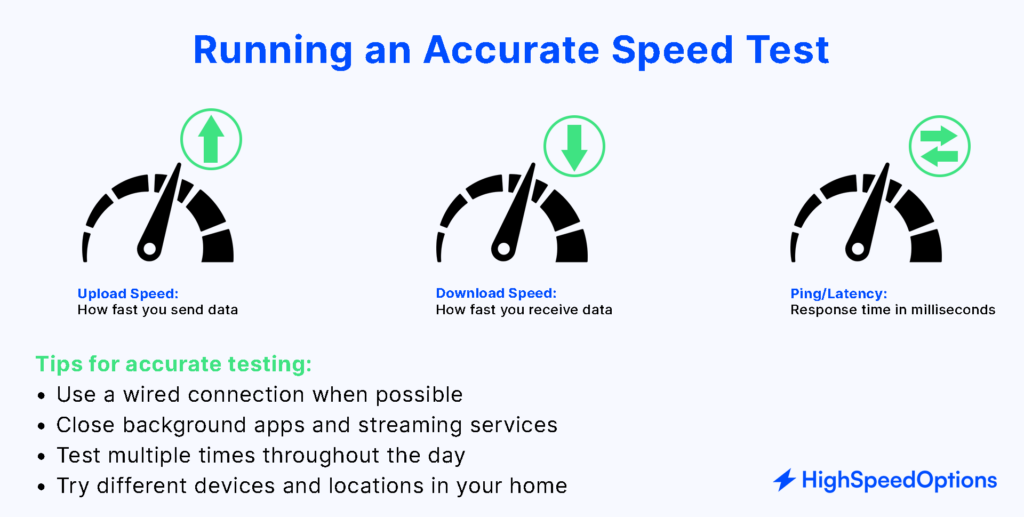
  1. Baseline test: Run an internet speed test on Ethernet (or next to the router on Wi-Fi 6 or 6E). Save a screenshot with the date and time.
  2. A/B check: Try the same app with a VPN on, then off; if a single service gets better or worse only with VPN, note it.
  3. Device & network sanity checks: Reboot your modem and router, try another device, and test at an off-peak time.
  4. Compare to your Label: Are your typical speeds consistently lower at normal times? Save proof.
  5. Escalate: Contact your ISP with the evidence. If unresolved, file a consumer complaint (and, if your state has its own net-neutrality law, notify your state attorney general or utility regulator).

Bottom line: Net neutrality aims to keep you in control so your provider doesn’t decide which apps win or lose on your connection. Use the Label to choose wisely, keep simple records when performance dips, and don’t hesitate to escalate if something feels off.

Where Net Neutrality Stands Today

As of October 21, 2025, there are no federal conduct rules; some state laws apply; and Broadband Consumer Labels remain nationwide. On January 2, 2025, the U.S. Court of Appeals for the Sixth Circuit set aside the FCC’s 2024 “Safeguarding and Securing the Open Internet” order (Sixth Circuit opinion (PDF) January 2025), concluding the agency lacked clear statutory authority (a decision shaped by the Supreme Court’s Loper Bright ruling on agency deference).

How we got here (2024 → 2025):

  • April 25, 2024: FCC voted to restore net neutrality by reclassifying broadband under Title II.
  • May 22, 2024: Order published in the Federal Register; most provisions slated to take effect 60 days later.
  • January 2, 2025: Sixth Circuit vacated the order; federal rules paused unless Congress acts or a future court reverses.

States may enforce their own open-internet protections. The Ninth Circuit allowed California’s SB-822 to stand in 2022 (California SB-822 decision, February 2022), so Californians still have state-level bans on blocking, throttling, and paid prioritization. Other states vary.

Shopping transparency (still active nationwide): Regardless of the court ruling, the Broadband Consumer Label is required to show prices, typical speeds, fees, and data caps. Large internet providers have complied since April 10, 2024; smaller providers since October 10, 2024. Use these labels to compare plans apples-to-apples.

What this means for you (quick actions):

  • Check the Label before you buy: look for all-in monthly price, typical download and upload speeds, data caps, and equipment and ETF fees.
  • Know your state: If you’re in a state with its own net-neutrality law (California), those protections still apply while federal rules are paused.
  • If something feels unfair: Save screenshots of speed tests and app performance, contact your provider, and consider filing a complaint with your state AG or utility regulator or the FCC’s consumer help center. (Even without federal NN rules, agencies can investigate patterns.)

Example of the FCC Broadband Consumer Label

FCC broadband nutrition label

What’s Next for Net Neutrality?

The most durable path is Congressional legislation; until then, expect state-level protections, Broadband Labels, and FTC and DOJ case-by-case tools.

What remains true right now

  • State laws continue where enacted. California’s SB-822 remains in force; other states vary by statute and enforcement posture.
  • Broadband Consumer Labels remain nationwide. Providers must show price, typical speeds, fees, and data caps at checkout (large ISPs since April 10, 2024; smaller ISPs since October 10, 2024).
  • General consumer-protection and competition tools still apply. The FTC (deception or unfair practices) and DOJ (antitrust) can pursue cases case-by-case, even without federal net-neutrality conduct rules.

What to do as a consumer

  • Compare plans using the Label and save screenshots with date and time. This informative guide describes how to check if your provider is throttling your internet service.
  • If a specific site or app is consistently slow while others aren’t, document it (speed tests, timestamps) and contact your provider.
  • In states with their own rules, you can also alert your state AG or utility regulator; elsewhere, you can file an FCC consumer complaint about billing or service issues, so that patterns get visibility.

Bottom line: Until Congress acts, protections are a patchwork—driven by state law, Labels, and FTC or DOJ enforcement. Use the Label to choose wisely and keep basic records so you can act quickly if something feels off.

Net Neutrality Timeline

DateEvent
2015FCC adopts net-neutrality rules under Title II.
2017FCC repeals the 2015 rules.
2022Ninth Circuit allows California’s SB-822 to stand.
April 25, 2024FCC votes 3–2 to restore rules via Title II.
May 22, 2024Order published in the Federal Register (60-day clock).
July 22, 2024Most provisions are slated to take effect.
January 2, 2025Sixth Circuit sets aside the 2024 order; no federal conduct rules.
Date2015
EventFCC adopts net-neutrality rules under Title II.
Date2017
EventFCC repeals the 2015 rules.
Date2022
EventNinth Circuit allows California’s SB-822 to stand.
DateApril 25, 2024
EventFCC votes 3–2 to restore rules via Title II.
DateMay 22, 2024
EventOrder published in the Federal Register (60-day clock).
DateJuly 22, 2024
EventMost provisions are slated to take effect.
DateJanuary 2, 2025
EventSixth Circuit sets aside the 2024 order; no federal conduct rules.

Key Takeaways About Net Neutrality

  • Definition: Net neutrality = ISPs treat lawful traffic equally; no blocking, throttling, or paid fast lanes; technical, disclosed management only.
  • Status (Oct 21, 2025): No federal conduct rules; some state laws (e.g., California) are active; Broadband Consumer Labels are required nationwide.
  • Enforcement model: Without Title II, cases rely on FTC/DOJ (deception/antitrust) and state AGs/regulators.
  • Consumer action: Use the Label to compare prices, internet speeds, fees, and data caps; document persistent, app-specific slowdowns; escalate to ISP, then regulators.
  • Next: Durable national rules most likely require Congressional legislation.
FAQ

Frequently Asked Questions About Net Neutrality

Key waypoints:

  1. In 2015, the FCC adopted rules under Title II
  2. 2017 repeal
  3. In 2022, courts upheld California’s state law
  4. 2024 FCC votes to restore rules
  5. January 2, 2025 federal rules are set aside by the Sixth Circuit; state laws and Broadband Consumer Labels remain.

The history of net neutrality shows rules can flip at the federal level; for now, your practical tools are state protections (where they exist), Broadband Consumer Labels, and case-by-case FTC or DOJ enforcement.

When broadband is classified under Title II, the FCC can set bright-line conduct rules; without that, the FTC and DOJ handle deception and antitrust issues case-by-case.

As of October 2025, there are no federal conduct rules in effect; rely on state laws where available and Broadband Consumer Labels nationwide.

Yes, states like California enforce bans on blocking, throttling, and paid prioritization; other states vary, so check your state’s current rules.

Labels don’t guarantee neutrality, but they make shopping transparent: compare prices, typical speeds, fees, and data caps, then watch for behavior (like unexplained slowdowns).

Run baseline internet speed tests (wired if possible), test with and without a virtual private network (VPN) on the same app, compare results to your Label’s “typical speeds,” and document persistent, app-specific slowdowns. If you notice disparity in speed and performance versus what your plan states, your internet provider may be throttling your connection.

“Zero-rating” (certain apps not counting against a data cap) can raise neutrality questions; treatment depends on the current federal status and your state’s law.

The most durable next step is a Congressional statute that bans blocking, throttling, and paid fast lanes and requires transparency; until then, expect state rules, Labels, FTC, and DOJ tools.

Look for plain-language explanations that chart the net neutrality history from 2015 to today, highlighting each policy turn and what stayed consistent for consumers (like Labels and general consumer-protection laws).

Keith Carlson
Written By
Keith Carlson
Written By
Keith Carlson
Keith is a Contributing Writer for HighSpeedOptions with a background in writing, SEO, GEO, and marketing. He has written for and contributed to organizations in the non-profit, financial, and enterprise internet and cable service industries. At HighSpeedOptions, Keith covers everything from broadband news to emerging technologies and how they complement different lifestyles and budgetary needs. In his free time, Keith enjoys spending time with his family, reading as many books as he can, and photography.

Complete Guide to Internet Speed 2025

HighSpeedOptions prides itself on providing honest, quality content. While we may be compensated when you make a purchase through links on our site, all opinions are our own. Here's how we make money.

Choosing an internet plan shouldn’t feel like guesswork. Start with our Quick Picks to see recommended download, upload, and latency targets for homes like yours (single occupant, remote work, family, online gamers, creators, smart home). Then follow a 2-minute decision tree to confirm whether you need a faster plan—or just a better Wi-Fi setup.

This guide explains the essentials—download vs. upload, latency and jitter, Mbps vs. MB/s—and shows how much speed you actually need for 4K streaming, video calls, gaming, backups, and smart-home devices. We also compare today’s connection types and what internet providers actually deliver at your address, so you know what’s realistic to expect.

Quick Picks: Choosing Internet Speed by Users and Activities

Household profileTypical activitiesDownloadUploadLatency targetWhy this tier
Single userWeb, email, one HD stream50–100 Mbps10–20 MbpsUnder 50 msSmooth browsing and HD video without slowdowns.
Couple / remote workTwo video calls, HD/4K stream, cloud docs200–300 Mbps20–50 MbpsUnder 40 msHeadroom for concurrent calls and streaming.
Family mixed-use3–5 people, multiple 4K streams, big downloads, smart home500–800 Mbps50–100 MbpsUnder 35 msKeeps several 4K streams and updates running smoothly.
Gamer householdOnline gaming, party chat, 4K streaming, large patches300–500 Mbps25–50 MbpsUnder 30 ms*Latency and jitter matter more than raw speed after 300 Mbps.
Content creator or power userLarge cloud backups, frequent 4K uploads, many video calls800–1000+ Mbps100–200+ MbpsUnder 30 msHigh sustained uploads and parallel tasks benefit from higher, ideally symmetrical, speeds.
Smart-cam heavy6–12 security cameras with continuous upload300–500 Mbps50–100 MbpsUnder 40 msMultiple upstream video feeds need steady upload headroom.
Household profileSingle user
Typical activitiesWeb, email, one HD stream
Download50–100 Mbps
Upload10–20 Mbps
Latency targetUnder 50 ms
Why this tierSmooth browsing and HD video without slowdowns.
Household profileCouple / remote work
Typical activitiesTwo video calls, HD/4K stream, cloud docs
Download200–300 Mbps
Upload20–50 Mbps
Latency targetUnder 40 ms
Why this tierHeadroom for concurrent calls and streaming.
Household profileFamily mixed-use
Typical activities3–5 people, multiple 4K streams, big downloads, smart home
Download500–800 Mbps
Upload50–100 Mbps
Latency targetUnder 35 ms
Why this tierKeeps several 4K streams and updates running smoothly.
Household profileGamer household
Typical activitiesOnline gaming, party chat, 4K streaming, large patches
Download300–500 Mbps
Upload25–50 Mbps
Latency targetUnder 30 ms*
Why this tierLatency and jitter matter more than raw speed after 300 Mbps.
Household profileContent creator or power user
Typical activitiesLarge cloud backups, frequent 4K uploads, many video calls
Download800–1000+ Mbps
Upload100–200+ Mbps
Latency targetUnder 30 ms
Why this tierHigh sustained uploads and parallel tasks benefit from higher, ideally symmetrical, speeds.
Household profileSmart-cam heavy
Typical activities6–12 security cameras with continuous upload
Download300–500 Mbps
Upload50–100 Mbps
Latency targetUnder 40 ms
Why this tierMultiple upstream video feeds need steady upload headroom.

* For gamers, aim for jitter less than 10 ms.

Tip: If you meet these numbers but performance still stutters, your Wi-Fi is likely the bottleneck—consider Wi-Fi 6/6E/7 or a mesh system with Ethernet backhaul.

Are you wondering what the fastest internet is in your area?

internet graphic

What is Internet Speed?

Internet speed is the rate at which data moves between your home and the internet, shown as download and upload speeds in Mbps; download affects streaming and file downloads, and upload affects video calls, backups, and cameras.

Under the hood, what people call “speed” is really throughput—how much data per second actually gets through. The bandwidth (plan capacity) is the maximum a connection can carry. Throughput varies moment to moment; bandwidth is the ceiling.

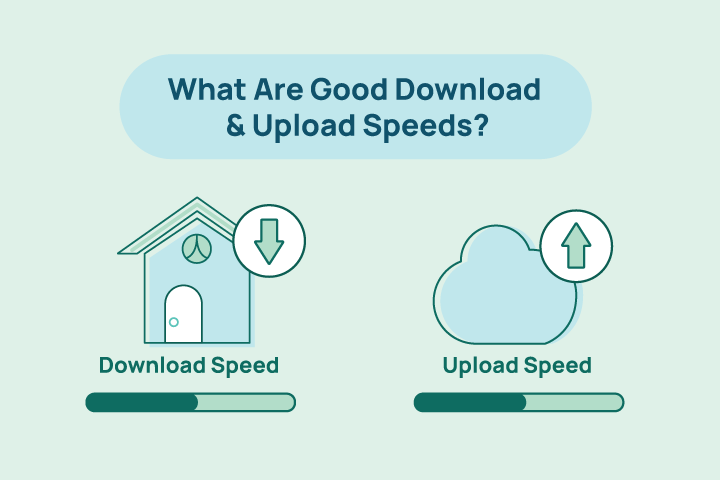
Download vs. Upload: Which Matters Most?

As more homes work, create, and secure content from home, upload speed often becomes the bottleneck, especially during busy hours or when multiple devices are active. If users in your home have regular video conferences, use cloud services, have cameras, or stream live content, don’t select an internet plan based solely on download speeds. Choose an upload speed that matches your busiest hour, and go one tier up if you routinely multitask.

upload download graphic

When to prioritize upload

  • Multiple video calls at once
  • Cloud backups and file syncing (OneDrive/Google Drive/Dropbox)
  • Security cameras streaming to the cloud
  • Live streaming (YouTube, Twitch), remote presentations
  • Sharing large media (photos, videos) with clients or collaborators

Practical upload targets per activity
(Choose the higher end if you want headroom or run tasks concurrently.)

ActivityUpload Speed Target
1× HD video call (1080p)10–20 Mbps per active participant
1× 4K video call (where supported)20–35 Mbps per active participant
Live stream @ 1080p608–12 Mbps sustained
Live stream @ 4K20–35+ Mbps sustained
Cloud backup while you work (snappy feel)25–50+ Mbps sustained
Security cameras (per 1080p cam, cloud upload)2–5 Mbps per camera
Remote screen-share + file syncing15–30 Mbps per active user
Concurrency tip: Add the numbers for tasks happening simultaneously, then add ~20–30% headroom to ensure calls stay clear while backups or uploads run.
Activity1× HD video call (1080p)
Upload Speed Target10–20 Mbps per active participant
Activity1× 4K video call (where supported)
Upload Speed Target20–35 Mbps per active participant
ActivityLive stream @ 1080p60
Upload Speed Target8–12 Mbps sustained
ActivityLive stream @ 4K
Upload Speed Target20–35+ Mbps sustained
ActivityCloud backup while you work (snappy feel)
Upload Speed Target25–50+ Mbps sustained
ActivitySecurity cameras (per 1080p cam, cloud upload)
Upload Speed Target2–5 Mbps per camera
ActivityRemote screen-share + file syncing
Upload Speed Target15–30 Mbps per active user
Concurrency tip: Add the numbers for tasks happening simultaneously, then add ~20–30% headroom to ensure calls stay clear while backups or uploads run.

What is the difference between internet speed and bandwidth?

Bandwidth is your plan’s maximum capacity (“lane size”). At the same time, speed (throughput) is the real-time data rate you experience, which fluctuates with Wi-Fi quality, peak hour congestion, and device activity.

What are Symmetrical Internet Speeds?

Symmetrical internet plans deliver equal download and upload speeds. On most plans, download speed is significantly faster than upload speed. Symmetrical speed is most common on fiber internet, with select cable markets beginning to offer symmetry via DOCSIS 4.0 (Recent cable internet standard that offers multi-gig, symmetrical speeds in select markets). If you create or share large files, livestream, or run several security cams, faster upload speed often feels like a bigger upgrade than increasing download speed.

Internet Speed: What is the Difference Between Mbps vs. MB/s?

Mbps is a measurement of how much data your connection can move, and MB/s is how fast it can move it.

  • Mbps: megabits per second (what internet providers advertise).
  • MB/s: megabytes per second (what file downloaders often show).
  • Conversion: MB/s is equal to Mbps ÷ 8 (because 1 byte = 8 bits)

For example, a 300 Mbps plan moves data at a rate of 37.5 MB/s (300 ÷ 8 = 37.5 MB/s). Real downloads are typically 10–20% lower after overheads (protocols, Wi-Fi, etc.), so you might see an average of 30–34 MB/s.

Mbps vs. MB/s Quick Reference Table

Plan (Mbps)Max MB/s (÷8)Typical real-world MB/s*
10012.510–11
30037.530–34
50062.550–56
1000 (1 Gbps)125100–115
*Ballpark after normal overhead; varies by Wi-Fi, Ethernet, server limits, and household activity.
Plan (Mbps)100
Max MB/s (÷8)12.5
Typical real-world MB/s*10–11
Plan (Mbps)300
Max MB/s (÷8)37.5
Typical real-world MB/s*30–34
Plan (Mbps)500
Max MB/s (÷8)62.5
Typical real-world MB/s*50–56
Plan (Mbps)1000 (1 Gbps)
Max MB/s (÷8)125
Typical real-world MB/s*100–115
*Ballpark after normal overhead; varies by Wi-Fi, Ethernet, server limits, and household activity.

Connection Types

There are six types of internet connections to choose from: fiber, cable, DSL, satellite, 5G home internet, and fixed wireless internet. Not all services are available everywhere. Drop your ZIP code into our provider search tool to see available services in your area.

Internet Connection Type icons

Fiber Internet

What it is: Internet over strands of glass using light pulses instead of electric pulses to transmit data.

Typical performance:

  • Download: 500 Mbps–5 Gbps+
  • Upload: 500 Mbps–5 Gbps+ (usually symmetrical)
  • Latency: often ~5–20 ms (lowest among mass-market fixed tech).

What it handles well: 4K/8K streaming, multiple simultaneous video calls, creator workloads (large uploads), camera fleets, cloud gaming.

Limitations: Availability varies by address; use a high-quality fiber internet Wi-Fi router for optimal performance on all of your devices.

Notes: Fiber commonly offers symmetrical tiers; it’s the baseline for low-latency, high-upload service. The FCC’s Measuring Broadband America (MBA) data has consistently shown fiber with the lowest idle latency among fixed access types.

Cable Internet

What it is: Broadband internet over cable TV infrastructure (coax) to the home, often supported by a fiber optic backbone (provider’s primary network).

Typical performance (2025):

  • Download: 300 Mbps–1.2 Gbps
  • Upload: 10–100 Mbps (depending on the market and DOCSIS 4.0 rollout)
  • Latency: often 12–30 ms at idle.

What it handles well: Multiple 4K streams, large downloads, and working from home.

Limitations: Upload is the pinch point on DOCSIS 3.1; performance can vary during peak usage hours.

Notes: DOCSIS 4.0 is live in select markets and can deliver multi-gig symmetrical tiers—still limited by location today.

DSL Internet

What it is: Internet over telephone pairs; speed depends heavily on line length/quality.

Typical performance:

  • Download: 5–100 Mbps (often less than 30 Mbps in many areas)
  • Upload: 0.5–10 Mbps
  • Latency: 23–40 ms at idle.

What it handles well: Light streaming and browsing, single-user homes.

Limitations: Much slower uploads, performance drops as distance from the provider’s hub increases; many providers are phasing it out.

Satellite Internet— LEO (e.g., Starlink)

What it is: Internet service delivered by constellations of low-Earth-orbit satellites; shorter round-trip path than GEO.

Typical performance:

  • Download: 45–280 Mbps
  • Upload: 10–30 Mbps
  • Latency: 25–60 ms

What it handles well: Streaming, video calls, and general household use where terrestrial options are absent.

Limitations: Weather and obstructions can hamper performance; capacity is shared; equipment cost is higher than terrestrial.

Satellite Internet— GEO (e.g., Viasat, HughesNet)

What it is: Geostationary satellites ~35,786 km up; very long round-trip path.

Typical performance:

  • Download: 25–100 Mbps (plan-dependent)
  • Upload: single-digit to 20 Mbps
  • Latency: Averages 600 ms due to distance.

What it handles well: Email, browsing, streaming (with buffering).

Limitations: High latency impacts gaming, real-time apps; data caps and fair-use policies are common.

Fixed Wireless Internet

What it is: A radio link from a nearby tower or rooftop to your home CPE; not cellular 5G.

Typical performance:

  • Download: 25–200 Mbps (higher in ideal line of sight setups)
  • Upload: 5–50 Mbps
  • Latency: 20–60 ms

What it handles well: General streaming, WFH, and small-office needs where wired options are limited.

Limitations: Line-of-sight, weather/interference, and tower load affect performance. (Latency and jitter vary with overall system design.)

5G Home Internet

What it is: A fixed broadband service using mobile 5G (sometimes 4G fallback) via an indoor or outdoor gateway.

Typical performance (varies by provider):

  • Download: 118–402 Mbps
  • Upload: 6–33 Mbps
  • Latency: 15–50 ms

What it handles well: 4K streaming, general WFH, typical households (especially where fiber/cable aren’t available).

Limitations: Performance varies with signal, tower load, and network management (possible deprioritization).

Comparing Internet Connection Types Side-by-Side

Ranges below summarize the typical real-world service characteristics in 2024 – 2025, not theoretical peaks. Local results vary by provider, plan, and network conditions.

Connection typeTypical downloadTypical uploadTypical latencyBest suited for
Fiber500 Mbps–5 Gbps+500 Mbps–5 Gbps+ (symmetrical)5–20 msEverything: heavy remote work, content creators, multi-4K, low-lag gaming.
Cable300 Mbps–1.2 Gbps10–100 Mbps (market-dependent)12–30 msMost homes: multi-4K, big downloads; uploads improving with upgrades.
DSL5–100 Mbps0.5–10 Mbps23–40 msLight streaming and browsing; legacy areas.
Satellite (LEO)45–280 Mbps10–30 Mbps25–60 msSolid all-around where wired isn’t available; mind capacity and weather.
Satellite (GEO)25–100 MbpsUp to 20 Mbps600 msCoverage almost anywhere; OK for streaming, not great for real-time.
Fixed wireless25–200 Mbps5–50 Mbps20–60 msRural and suburban LOS installs; everyday streaming and remote work.
5G Home Internet120–400 Mbps (varies by band)6–33 Mbps (higher in some cells)15–27 ms (T-Mobile); 37–57 ms (Verizon)Great mainstream option where available; performance varies by signal and load.
Symmetry note: Fiber almost always offers symmetrical plans; cable is adding DOCSIS 4.0 tiers with symmetrical multi-gig in select markets (availability varies by market).
Connection typeFiber
Typical download500 Mbps–5 Gbps+
Typical upload500 Mbps–5 Gbps+ (symmetrical)
Typical latency5–20 ms
Best suited forEverything: heavy remote work, content creators, multi-4K, low-lag gaming.
Connection typeCable
Typical download300 Mbps–1.2 Gbps
Typical upload10–100 Mbps (market-dependent)
Typical latency12–30 ms
Best suited forMost homes: multi-4K, big downloads; uploads improving with upgrades.
Connection typeDSL
Typical download5–100 Mbps
Typical upload0.5–10 Mbps
Typical latency23–40 ms
Best suited forLight streaming and browsing; legacy areas.
Connection typeSatellite (LEO)
Typical download45–280 Mbps
Typical upload10–30 Mbps
Typical latency25–60 ms
Best suited forSolid all-around where wired isn’t available; mind capacity and weather.
Connection typeSatellite (GEO)
Typical download25–100 Mbps
Typical uploadUp to 20 Mbps
Typical latency600 ms
Best suited forCoverage almost anywhere; OK for streaming, not great for real-time.
Connection typeFixed wireless
Typical download25–200 Mbps
Typical upload5–50 Mbps
Typical latency20–60 ms
Best suited forRural and suburban LOS installs; everyday streaming and remote work.
Connection type5G Home Internet
Typical download120–400 Mbps (varies by band)
Typical upload6–33 Mbps (higher in some cells)
Typical latency15–27 ms (T-Mobile); 37–57 ms (Verizon)
Best suited forGreat mainstream option where available; performance varies by signal and load.
Symmetry note: Fiber almost always offers symmetrical plans; cable is adding DOCSIS 4.0 tiers with symmetrical multi-gig in select markets (availability varies by market).

What can I do with it? Choosing an Internet Service by Activity

  • Casual households (HD streaming, web, school): Fiber, Cable, 5G Home Internet, solid Fixed Wireless, LEO Satellite.
  • Multi-4K streaming and large downloads: Fiber or Cable; 5G Home Internet if signal is strong.
  • WFH with multiple HD calls: Fiber (best) or Cable; 5G Home Internet if signal is strong and stable.
  • Content creators, frequent large uploads, Smart homes: Fiber first (symmetry); Cable with higher-upload tiers or DOCSIS 4.0 where available; LEO Satellite acceptable if uploads 20–30 Mbps are steady.
  • Low-lag competitive gaming: Fiber, then Cable; 5G Home Internet can work but is more variable; LEO better than GEO; GEO not recommended for twitch games.

How Much Internet Speed Do I Need?

That depends on how you use the internet and how many users there are in your household. For context, the average U.S. household usage reached 698 GB of data per month in 4Q24, which is an 8.9% increase from 2023

You can use the per-activity minimums below, then add up all simultaneous activities in your home to find an estimate of how much bandwidth your household uses. Add 25–30% headroom for busy-hour traffic, Wi-Fi limitations, and app spikes. Use that figure to gauge how much speed you need. If you routinely multitask, opt for more speed, especially upload speed, if possible.

Household Download Speed Targets

Activity1  user2–3 concurrent4–6 concurrent
Web browsing / social5–10 Mbps15–25 Mbps30–50 Mbps
Music streaming1–2 Mbps3–6 Mbps6–12 Mbps
HD video (1080p)5–10 Mbps15–30 Mbps30–60 Mbps
4K video (UHD)15 Mbps (min); 25 Mbps with headroom40–75 Mbps80–150 Mbps
Cloud game downloads and updates50–100+ Mbps (faster means shorter waits)150–300+ Mbps300–600+ Mbps
Large file downloads (work and school)25–100+ Mbps100–300+ Mbps300–600+ Mbps
ActivityWeb browsing / social
1  user5–10 Mbps
2–3 concurrent15–25 Mbps
4–6 concurrent30–50 Mbps
ActivityMusic streaming
1  user1–2 Mbps
2–3 concurrent3–6 Mbps
4–6 concurrent6–12 Mbps
ActivityHD video (1080p)
1  user5–10 Mbps
2–3 concurrent15–30 Mbps
4–6 concurrent30–60 Mbps
Activity4K video (UHD)
1  user15 Mbps (min); 25 Mbps with headroom
2–3 concurrent40–75 Mbps
4–6 concurrent80–150 Mbps
ActivityCloud game downloads and updates
1  user50–100+ Mbps (faster means shorter waits)
2–3 concurrent150–300+ Mbps
4–6 concurrent300–600+ Mbps
ActivityLarge file downloads (work and school)
1  user25–100+ Mbps
2–3 concurrent100–300+ Mbps
4–6 concurrent300–600+ Mbps

Household Upload Speed Targets

Activity (uplink)1 user2–3 concurrent4–6 concurrent
HD video call (1080p)10–20 Mbps per caller25–50 Mbps50–100 Mbps
4K video call (where supported)20–35 Mbps per caller50–90 Mbps100–180 Mbps
Live stream (1080p60)8–12 Mbps sustained20–30 Mbps35–60 Mbps
Live stream (4K)20–35+ Mbps sustained50–80 Mbps80–150+ Mbps
Cloud backup or file sync (smooth while you work)25–50+ Mbps sustained60–120+ Mbps120–200+ Mbps
Security cameras (per 1080p cam)2–5 Mbps each6–15 Mbps (3 cams)12–30+ Mbps (6 cams)
Activity (uplink)HD video call (1080p)
1 user10–20 Mbps per caller
2–3 concurrent25–50 Mbps
4–6 concurrent50–100 Mbps
Activity (uplink)4K video call (where supported)
1 user20–35 Mbps per caller
2–3 concurrent50–90 Mbps
4–6 concurrent100–180 Mbps
Activity (uplink)Live stream (1080p60)
1 user8–12 Mbps sustained
2–3 concurrent20–30 Mbps
4–6 concurrent35–60 Mbps
Activity (uplink)Live stream (4K)
1 user20–35+ Mbps sustained
2–3 concurrent50–80 Mbps
4–6 concurrent80–150+ Mbps
Activity (uplink)Cloud backup or file sync (smooth while you work)
1 user25–50+ Mbps sustained
2–3 concurrent60–120+ Mbps
4–6 concurrent120–200+ Mbps
Activity (uplink)Security cameras (per 1080p cam)
1 user2–5 Mbps each
2–3 concurrent6–15 Mbps (3 cams)
4–6 concurrent12–30+ Mbps (6 cams)

Concurrency tip: If you mix activities, add the rows that happen at the same time and then add 25–30% headroom so calls stay clear while streams/backups run.

Quick example: Two 4K streams (2 × 25 = 50 Mbps), one HD call (15 Mbps up), and a light backup (25 Mbps up).

  • Download target: 50 Mbps × 1.3 is about 65 Mbps (round up to 100 Mbps for headroom and future growth).
  • Upload target: (15 + 25) × 1.3 is roughly 52 Mbps (choose a plan with at least 50 Mbps upload; symmetry ideal).

Notes

  • Per-stream minimums: Netflix lists 15 Mbps for a single 4K stream; our 25 Mbps figure bakes in busy-hour and Wi-Fi overhead.
  • Gaming: Competitive online gaming cares far more about latency/jitter than raw Mbps; make sure your plan/router can keep latency low while others stream.
  • If your plan meets these numbers but performance still stutters, the bottleneck is usually Wi-Fi, consider better placement, mesh with Ethernet backhaul, or a newer Wi-Fi 6/6E/7 router.

Other Internet Speed Factors: Latency & Jitter

Latency is a measurement of how long it takes a packet of data to make a round trip between your device and the provider’s nearest hub in milliseconds (ms). It is also called ping rate, lag, and delay. Jitter is a measurement of consistency, or how much the delay varies. Online gaming and video conferencing suffer most from high, inconsistent latency. Frozen frames, voice distortion or syncing issues, and delayed reactions in a fast-paced online game are symptoms of lag and jitter. For an in-depth look at latency, jitter, and packet loss, check out our latency resource.

How Do I Test My Internet Speed?

Performing a speed test is free and easy. Visit testmyspeed.com, and when the test tool loads, click “Go.” When the test is done, you’ll have download, upload, ping, and jitter results.

Internet Speed Testing Tips

  1. Use Ethernet from a modern device to the router or gateway (Wi-Fi adds its own bottlenecks).
  2. Run multiple tests at different times, especially during evening peak usage.
  3. Note what else is using the network.

See our internet speed test guide to see how to interpret your results, what might cause poor results, and tips to improve overall performance.

Why is My Internet Slow?

slow internet graphic

Many factors, from provider network issues to poor router placement, can affect how your internet connection performs. Below are the most common causes of slow internet that you can easily fix. See our guide about a persistent slow internet connection for detailed information and solutions.

Equipment Location

Place your router or modem in a central location and free of obstructions for optimal performance.

Rarely Restart Your Router

Restart your modem and router at least once a month to clear out caches and reset device connections. Doing so keeps the router working at peak performance and reduces drag on the network.

Network Congestion

Evening hours are typically the busiest time for internet activity. The increased traffic during peak usage hours creates congestion and decreased performance. To offset provider network congestion, limit the number of devices using your connection or set priority access levels in your router’s settings for critical devices.

Not Enough Bandwidth

If these steps don’t make a difference, it may be time to upgrade your internet plan. Factor in your internet needs and the number of users and devices in your household, then enter your ZIP code in our provider search tool to find the best internet service in your area.

How to Speed Up Your Connection

WiFi extender graphic

We recommend following our thorough guide on how to fix slow internet, but here are a few quick tips that might help immediately.

  1. Reposition your router
    Put it centrally and high, away from TVs, metal, and appliances. Use 5 GHz or 6 GHz for nearby devices; reserve 2.4 GHz for devices further away and IoT (Internet of Things) devices. Upgrade to a new router if yours is 10 years or older.
  2. Upgrade Wi-Fi, not just your plan.
    Move to a Wi-Fi 6/6E/7 mesh with an Ethernet connection when possible. This fixes room-to-room drops and keeps latency stable when the house is busy.
  3. Check your modem or gateway health.
    Reboot your equipment periodically. Confirm signal strength, firmware, and provisioning in the admin app or web user interface.
  4. Use extenders only as a last resort.
    They halve throughput and add latency when connected wirelessly. If you must use them, wire them via Ethernet, MoCA (internet over existing coax cabling), or Powerline to avoid the wireless penalty.
  5. Escalate to your internet provider if issues persist.
    Share wired (Ethernet) test results from a peak hour, note latency and jitter spikes, and ask them to check their network, splitters, and node congestion.

Next Steps: Find the Internet Speed Your Household Needs

You’ve got the essentials—what internet speed is, how download and upload differ, why latency/jitter matter, and what each connection type can handle. Now turn that clarity into a smoother, faster everyday experience.

  1. Pick your profile in Quick Picks and choose a plan that meets the download, upload, and latency targets for your busiest hour (go one tier up if you multitask).
  2. Verify it: run a wired speed test at a busy hour to confirm real-world performance.
  3. Fix bottlenecks first: optimize Wi-Fi placement, upgrade to a mesh network, and update aging equipment; upgrade your plan only if those steps don’t close the gap.

Still too slow? Compare providers at your address: enter your ZIP code to see fiber, cable, 5G Home, satellite, and fixed wireless options to find internet speeds that actually fit your life.

FAQ

Frequently Asked Questions About Internet Speed

Internet speed is the rate data moves between your home and the internet. It’s usually shown as download and upload in Mbps (megabits per second). Download affects streaming and downloads; upload affects video calls, cloud backups, and cameras.

Think of bandwidth as the lane size (your plan’s capacity) and speed or throughput as the traffic flow you actually see. Throughput changes with Wi-Fi quality, peak hour congestion, and what else is using your network.

It depends on use. Streaming video and big game downloads lean on download; video calls, live streaming, backups, and security cameras lean on upload. If you work from home, create, or run many cameras, don’t choose on download alone.

Symmetrical plans provide equal download and upload speeds (common on fiber; appearing in select cable markets). They’re excellent for creators, remote teams, and camera-heavy homes because uploads stay fast even at busy hours.

List the all simultaneous activities in your home, total their minimums for download and upload speeds, then add 25–30% headroom for busy-hour traffic and Wi-Fi overhead; if you multitask often, choose the next tier up.

For video calls: latency less than 40–50 ms, jitter under 15 ms. For online gaming: latency less than 30 ms, jitter under 10 ms. Stable latency usually matters more than fast speeds once you’re above a few hundred Mbps.

If Ethernet tests look good but Wi-Fi devices are slow, the issue is in-home Wi-Fi (placement, interference, old gear). A Wi-Fi 6/6E/7 mesh network with Ethernet backhaul usually beats adding more speed.

Only if you truly saturate a gigabit today (multi-4K streams  and large downloads across many devices) or you want ultra-fast LAN transfers to wired devices. If you go multi-gig, make sure your router and key devices have 2.5G or faster Ethernet.

Both are wireless last-mile. 5G Home Internet uses cellular networks (great where wired is limited); fixed wireless internet from WISPs uses point-to-multipoint radios (often line-of-sight). Performance varies with signal quality and tower load.

No. Data caps limit how much you can use before fees or slowdowns. Deprioritization means you may be slowed during congestion after a threshold, even without a hard cap. Check both before choosing a plan.

It’s less about a device count and more about concurrent heavy tasks and Wi-Fi quality. Ten idle devices browsing lightly are easy; three 4K streams plus two HD calls need real capacity—and good Wi-Fi placement and mesh network.

Sometimes. Wireless extenders can halve throughput and add latency. If you must use one, prefer a wired extender (Ethernet, MoCA, or Powerline) or upgrade to a true mesh network with Ethernet backhaul.

Keith Carlson
Keith is a Contributing Writer for HighSpeedOptions with a background in writing, SEO, GEO, and marketing. He has written for and contributed to organizations in the non-profit, financial, and enterprise internet and cable service industries. At HighSpeedOptions, Keith covers everything from broadband news to emerging technologies and how they complement different lifestyles and budgetary needs. In his free time, Keith enjoys spending time with his family, reading as many books as he can, and photography.

First-Time Internet Buyer’s Guide

HighSpeedOptions prides itself on providing honest, quality content. While we may be compensated when you make a purchase through links on our site, all opinions are our own. Here's how we make money.

There’s a lot to consider if you’re moving into your first apartment or to a new home. Buying your first internet service shouldn’t be overwhelming. Use this first-time internet buyer’s guide to understand what to look for in an internet plan and how to calculate your monthly cost.

Key Insights: First Time Internet Buyers

  • Start with availability: Run a ZIP code check to see if fiber, cable, fixed wireless, 5G home internet, DSL, or satellite are available in your area.
  • Price after promo: Get the intro and post-promo rates in writing, plus equipment, install, and ETF details.
  • Speed baseline: Aim for 100/20 Mbps; scale to 300–500 Mbps for 4K + calls; 500 Mbps–1 Gbps+ for heavy use and content creators.
  • Upload & latency matter: For video calls, gaming, cloud backups, prioritize upload speed and low latency, not just download.
  • Data policy: Know if your plan is unlimited, soft-capped (deprioritization), or capped with overage fees.
  • Install & gear: Confirm self-install vs. pro, total one-time fees, and whether the gateway/router is included or $10–$15/mo.
  • Fixed wireless & 5G home internet: Quick setup and unlimited, but performance varies by signal and tower load; check address-specific estimates and return window.
  • Satellite (LEO vs. GEO): Expect priority data and post-allowance slowdowns; LEO latency is far lower than GEO for real-time tasks.

We make it easy to find the best internet options in your area.

internet graphic

What Are the Different Internet Options?

The current internet options in the U.S. are fiber, cable, DSL, satellite, fixed wireless, and 5G home internet. Not every option is available everywhere, so start with a ZIP code search to see what services are available in your area. The best choice depends on your household: light browsing, multi-4K streaming, gaming, or creator-level uploads. Choosing the right internet service comes down to your lifestyle and internet needs.

Fiber Internet

What it is: Internet delivered over glass fiber lines to an optical network terminal (ONT) in your home. The big draw is fast, symmetrical speeds—uploads are usually as fast as downloads.

Typical experience (varies by provider and plan):

  • Download and Upload Speeds: 300 Mbps to multi-gig, often symmetrical.
  • Latency: Usually very low, 10–20 ms or better.
  • Data policy: Commonly unlimited.
  • Install: Technician visit; providers estimate 4–6 hours for new fiber drops and ONT placement.

Best for: Power users, working remotely and video conferencing, large uploads, content creators, cloud backups, low-latency gamers, and multi-user households.

Watch-outs:

  • Availability is still address-by-address; verify actual upload at checkout.
  • Multi-gig tiers may require newer gateways, routers, and wired connections to achieve full speeds.

Ask before you order:

  • What download and upload speed tiers are truly available at my address?
  • Is equipment (gateway or ONT) included? Any mesh Wi-Fi options or fees?
  • Install window and any construction charges if new drops are needed?
  • Fiber & DSL provider
  • WiFi router included
  • Unlimited data included

Cable Internet

What it is: Broadband internet over the cable TV network (coax). Downloads are fast nearly everywhere; uploads are improving in many markets with mid-split and DOCSIS upgrades.

Typical experience (varies by market/plan):

  • Download and Upload Speeds: 100 Mbps–1–2 Gbps down; uploads commonly 10–35 Mbps, but 75–200 Mbps in upgraded “enhanced” areas.
  • Latency: Generally 20–40 ms in national testing (FCC 2024).
  • Data policy: Often unlimited; some regions use caps or unlimited data add-ons.
  • Install: Self-install is common; pro installs are available and may have a fee.

Best for: Most households that stream, game, and work from home, especially where fiber isn’t available, and those looking to bundle cable TV.

Watch-outs:

  • Upload speeds and data policies vary by market; don’t assume symmetry.
  • Gateway rental is often around $15/mo, unless you use your compatible modem.

Ask before you order:

  • Exact upload at my address and whether my area has mid-split upgrades.
  • Is there a data cap or an unlimited option?
  • Self-install eligibility vs. pro-install fee and earliest slot.
  • Same-day installations
  • 8+ million free WiFi hotspots
  • Unlimited data available

DSL Internet

What it is: Internet over copper telephone lines. It’s widely legacy now, with speeds that drop over distance from the provider’s central office or hub.

Typical experience (address-dependent):

  • Download and Upload Speeds: Often 5–100 Mbps download, single-digit to teens upload on many lines. Range varies by distance from the provider hub.
  • Latency: Higher than fiber/cable; national testing shows DSL latencies above cable/fiber. Federal Communications Commission (August 2024)
  • Data policy: Usually unlimited; verify with your provider.
  • Install: Self-install is common when jacks are present; pro visit may be required for line issues.

Best for: Light users or addresses with no fiber, cable, or fixed-wireless access; basic browsing, email, SD/HD streaming on 1-2 devices.

Watch-outs:

  • Performance distance-sensitive: the farther you are from the provider’s central office or node, the slower it will be. “Up to” speeds may not match real-world results.
  • Upload limitations can impact video calls and cloud backups.

Ask before you order:

  • The (not just “up to”) download and upload speeds at my address?
  • Any inside wiring issues that would require a truck roll or fee?
  • Is a migration path to fiber or fixed wireless available soon?
  • Simplified pricing
  • Unlimited data included
  • No annual contract required

Satellite Internet

What it is: Broadband internet transmitted via satellites. There are two types available to consumers:

  • LEO (Low-Earth Orbit): shorter distance, much lower latency (e.g., Starlink).
  • GEO (Geostationary): Very high orbit, widely available, higher latency (HughesNet and Viasat).

Typical experience (varies by plan/sky view):

  • Download and Upload Speeds: LEO: 45–280 Mbps download and 10–30 Mbps upload. GEO: 25–100 Mbps download and 3–20 Mbps upload, depending on the plan and the network.
  • Latency: LEO: 25–60 ms. GEO: 600 ms average.
  • Data policy: Starlink markets unlimited with possible deprioritization; GEO providers use priority data with slowed speeds after the allowance.
  • Install: Starlink is self-install (roof or pole mount options); GEO generally requires a professional installation.

Best for: Rural or remote internet options without access to fiber, cable, or fixed wireless. LEO is notably better for real-time tasks (video conferencing) than traditional GEO due to latency.

Watch-outs:

  • Clear sky view matters; obstructions reduce performance.
  • Weather can impact reliability more than terrestrial options.
  • Hardware costs, installation, and mounting accessories can add up; check promos.

Ask before you order:

  • Expected down/up and latency for my location (LEO vs. GEO)?
  • What happens after my priority data is used (throttling/deprioritization)?
  • Total equipment and installation costs, and the return window.
  • Fast satellite internet
  • Ideal for rural areas
  • Up to 3x faster than DSL*

Fixed Wireless Internet

What it is: Home internet delivered wirelessly from a nearby cell or fixed radio tower to a receiver/gateway in your home—no coax or fiber line required. It’s considered a fixed (not mobile) connection because the gateway stays at your address.

Typical experience (varies by address):

  • Download and Upload Speeds: Often 100–400+ Mbps download and 10–50+ Mbps upload in strong-signal areas. Performance fluctuates with signal quality and tower congestion.
  • Latency: Commonly 16–60 ms; fine for video calls and most gaming, but can spike during busy hours.
  • Data policy: Usually unlimited, but deprioritization may apply after heavy use (speeds can slow during congestion).
  • Install: Self-install the gateway; placement by a window or exterior wall helps signal. Typical setup is quick.

Best for: Renters and first-time buyers who want easy setup, no contracts in many areas, and solid everyday speeds, especially where fiber isn’t available.

Watch-outs:

  • Performance can vary by time of day, weather, and obstructions.
  • Some promos require autopay and paperless billing; confirm the price after promos end and any gateway fees.
  • If you work with large uploads (creators, frequent cloud backups), confirm upload speeds at your exact address.

Ask before you order:

  • Expected down/up at my address? What’s the typical range?
  • Any thresholds for deprioritization or network management?
  • Return window if the signal isn’t strong enough in my home?
  • Self-install only, or is professional installation offered, and at what cost?
  • Fast speeds in rural areas
  • Affordable prices
  • Quick installations

5G Home Internet

What it is: A type of fixed wireless that uses 5G (and sometimes LTE) for last-mile access. Providers ship an all-in-one gateway; plug it in, place it for the best signal, and you’re online.

Typical experience (varies by address):

  • T-Mobile 5G Home Internet: 134–415 Mbps download and 12–55 Mbps upload; latency 16–28 ms. Self-install is advertised at 15 minutes. Plans may be subject to network management after heavy use.
  • Verizon 5G Home Internet: Up to 300 Mbps download (higher in select areas) and 10–20 Mbps upload, depending on the spectrum at your address. Self- and professional installation are supported.

Best for: Most households that stream, video chat, and game casually; renters and anyone who wants a quick setup, competitive pricing, and no annual contract. Creators or heavy uploaders should verify upload speed at their exact address.

Watch-outs:

  • Speeds vary with signal quality and tower load; some addresses may fall back to LTE performance—always check the address-specific estimate.
  • Unlimited typically means no overage fees, but network management/deprioritization can slow speeds during congestion, especially after very heavy monthly usage.

Ask before you order:

  • What download and upload speed does my address typically see, and is LTE fallback likely?
  • Any deprioritization thresholds or video-resolution policies?
  • Self-install only, or is professional installation available, and at what cost?
  • Is equipment included, and what’s the return window if the signal is weak in my home?
  • Simple 15‑minute self‑install
  • No monthly equipment fees or annual contracts
  • Worry‑free 15‑day test drive

Comparing Internet Connection Types At a Glance

CategoryFiberCableFixed Wireless / 5G HomeSatellite (LEO & GEO)
Typical download300 Mbps – multi-gig100 Mbps – 1–2 Gbps (market dependent)100–415 Mbps (address dependent)LEO (Starlink): 45–280 Mbps; GEO (HughesNet / Viasat): 25–100 Mbps
Typical uploadOften symmetrical (e.g., 300–1,000+ Mbps)10–35 Mbps; upgraded mid-split markets 75–200 Mbps12–55 MbpsLEO: 10–30 Mbps; GEO: 3–20 Mbps
Typical latency5–25 ms20–50 ms16–60 ms (signal & tower load vary)LEO: 25–60 ms; GEO: 600 ms
Data policiesUsually unlimitedUsually unlimited; some markets have caps or paid “unlimited” add-onsGenerally unlimited (may be deprioritized after heavy use)Starlink: unlimited (deprioritization may apply); HughesNet / Viasat: priority data with throttling after allowance
EquipmentONT + router or gatewayDOCSIS cable modem + router or gateway5G/LTE gateway (all-in-one)Dish and terminal + modem or router (Starlink kit or provider modem)
Install timeTechnician install; often 4–6 hours for new dropsOften self-install; pro install typically $100 if requiredSelf-install, about 15 minutesStarlink self-install kit; HughesNet and Viasat require pro install
Common add-on feesEquipment usually included (varies); extenders/Wi-Fi plans may be extraGateway rental about $10–$15/mo; unlimited-data add-on in some areasUsually equipment included; standard taxes/feesHardware cost (varies by promo), mounting accessories; pro-install fee (GEO)
Best forPower users, WFH with heavy upload, low-latency gaming, multi-gig homesBroad availability, high download speeds, TV bundles, solid all-aroundRenters and first-time buyers, easy setup, decent speeds where fiber and cable are limitedRural/remote addresses with no terrestrial options; LEO best for latency-sensitive rural users
Why fiber “wins” for creators & working from home: symmetrical uploads + low latency keep video calls crisp and cloud backups fast.

Cable uploads are improving in some areas: Xfinity’s “enhanced markets” list uploads 75–200 Mbps on mid-split upgrades; DOCSIS 4.0 areas can go higher, but availability is spotty—set reader expectations accordingly.

Fixed wireless performance flexes with signal quality: T-Mobile lists 134–415 Mbps down, 12–55 Mbps up and markets it as 15-minute self-install; Verizon’s typicals are lower on entry tiers—call this out so buyers check their exact address.

Satellite isn’t one thing anymore: LEO (Starlink) latency often lands in the ~25–60 ms range, while GEO services still hover near ~600 ms; that’s the key UX difference (gaming, calls).
CategoryTypical download
Fiber300 Mbps – multi-gig
Cable100 Mbps – 1–2 Gbps (market dependent)
Fixed Wireless / 5G Home100–415 Mbps (address dependent)
Satellite (LEO & GEO)LEO (Starlink): 45–280 Mbps; GEO (HughesNet / Viasat): 25–100 Mbps
CategoryTypical upload
FiberOften symmetrical (e.g., 300–1,000+ Mbps)
Cable10–35 Mbps; upgraded mid-split markets 75–200 Mbps
Fixed Wireless / 5G Home12–55 Mbps
Satellite (LEO & GEO)LEO: 10–30 Mbps; GEO: 3–20 Mbps
CategoryTypical latency
Fiber5–25 ms
Cable20–50 ms
Fixed Wireless / 5G Home16–60 ms (signal & tower load vary)
Satellite (LEO & GEO)LEO: 25–60 ms; GEO: 600 ms
CategoryData policies
FiberUsually unlimited
CableUsually unlimited; some markets have caps or paid “unlimited” add-ons
Fixed Wireless / 5G HomeGenerally unlimited (may be deprioritized after heavy use)
Satellite (LEO & GEO)Starlink: unlimited (deprioritization may apply); HughesNet / Viasat: priority data with throttling after allowance
CategoryEquipment
FiberONT + router or gateway
CableDOCSIS cable modem + router or gateway
Fixed Wireless / 5G Home5G/LTE gateway (all-in-one)
Satellite (LEO & GEO)Dish and terminal + modem or router (Starlink kit or provider modem)
CategoryInstall time
FiberTechnician install; often 4–6 hours for new drops
CableOften self-install; pro install typically $100 if required
Fixed Wireless / 5G HomeSelf-install, about 15 minutes
Satellite (LEO & GEO)Starlink self-install kit; HughesNet and Viasat require pro install
CategoryCommon add-on fees
FiberEquipment usually included (varies); extenders/Wi-Fi plans may be extra
CableGateway rental about $10–$15/mo; unlimited-data add-on in some areas
Fixed Wireless / 5G HomeUsually equipment included; standard taxes/fees
Satellite (LEO & GEO)Hardware cost (varies by promo), mounting accessories; pro-install fee (GEO)
CategoryBest for
FiberPower users, WFH with heavy upload, low-latency gaming, multi-gig homes
CableBroad availability, high download speeds, TV bundles, solid all-around
Fixed Wireless / 5G HomeRenters and first-time buyers, easy setup, decent speeds where fiber and cable are limited
Satellite (LEO & GEO)Rural/remote addresses with no terrestrial options; LEO best for latency-sensitive rural users
Why fiber “wins” for creators & working from home: symmetrical uploads + low latency keep video calls crisp and cloud backups fast.Cable uploads are improving in some areas: Xfinity’s “enhanced markets” list uploads 75–200 Mbps on mid-split upgrades; DOCSIS 4.0 areas can go higher, but availability is spotty—set reader expectations accordingly.Fixed wireless performance flexes with signal quality: T-Mobile lists 134–415 Mbps down, 12–55 Mbps up and markets it as 15-minute self-install; Verizon’s typicals are lower on entry tiers—call this out so buyers check their exact address.Satellite isn’t one thing anymore: LEO (Starlink) latency often lands in the ~25–60 ms range, while GEO services still hover near ~600 ms; that’s the key UX difference (gaming, calls).

Contracts, Pricing & Fees

More goes into your monthly internet bill than the service itself. Internet costs can include everything from price hikes, taxes, one-time fees, and recurring charges, depending on the plan you choose. Here are the most common things to anticipate before signing on the dotted line.

Contracts

When you sign up for a new internet service, you may be required to sign a contract, and this contract is usually for one or two years.

A contract will outline the services included in your plan, the monthly price, and any penalties for early termination. It’s important to know about these charges if you decide to cancel your service before the contract is up or wish to change something on your account.

Promotional Discounts

Internet providers often use promotional pricing to attract new customers. This pricing can be a great deal, but it’s essential to understand all the terms and conditions before signing up. The last thing you want is to get hit with an unexpected price increase months down the road.

Most promotional discounts last for the first year of service. This price is usually lower than the regular rate, but it may not be the best internet service around. Compare similar plans across multiple providers to ensure you get the most for your money.

One-Time Fees

Installation Fee: $35 – $200

Self-installation is often free, but professional installation or new construction can raise costs.

Early Termination Fee (ETF): $100 – $400

ETFs are frequently prorated or based on the number of months remaining in your contract. Opt for a no-contract plan if your housing is short-term.

Late Payment Fee: $10 – $25

Set up autopay (if feasible) to avoid late payments. If your payment is late, the provider may charge a reconnection fee if the service was disconnected.

Recurring Fees

Selling internet services is competitive. There will always be fees, taxes, and surcharges beyond the advertised plan price. The following fees may also apply to your bill. But, providers often include or waive some or all of them to attract customers. If they’re part of a promotion, be prepared for a higher bill when the promo period ends.

Equipment Rental Fee: $10 – $15

Some providers include equipment in your costs, while others charge an additional monthly fee. You may use your modem or router to reduce long-term costs, as long as it is compatible with the provider’s service.

Data Caps and Overage Fee: $10+

If your plan has a monthly data cap, you may be charged per-GB overage or experience throttling/deprioritization after your allowance.

Satellite Internet Data Policies

Satellite internet typically uses priority data (a monthly high-speed allowance) and then throttles or deprioritizes your traffic after you exceed it, especially during congestion. Some plans also shape video resolution and offer off-peak data windows that don’t count against your main allowance.

Add Ons: $10+

Mesh or whole-home Wi-Fi, unlimited-data add-ons, or TV packages can add $10+ each per month. Sometimes these are included as part of a promotion.

Calculate Your Monthly Price After Promotion

  • Intro price: $___/mo for ___ months
  • Price after promo: $___/mo (effective month ___)
  • Included discounts: autopay □ / paperless □ / bundle □
  • Contract and early termination fee (ETF): ___ months; ETF $___ (if any)
  • Equipment & installation: gateway $/mo; pro install $ (self-install □)
  • Data policy: unlimited □ / cap ___ GB; after-cap: throttle □ / $___ per ___ GB (max $___)

Choosing Internet Speeds

Start with the FCC’s broadband baseline (100 Mbps down / 20 Mbps up), then scale up based on simultaneous use in your household.

  • Light (1–2 people; browsing, HD streaming): 100–200 Mbps
  • Moderate (3–4 people; 4K streaming, video calls): 300–500 Mbps
  • Heavy (many devices; content creation, gaming, and cloud backups): 500 Mbps–1 Gbps+

Tip: If you upload often (work from home, create content), look for fiber or cable that offers faster upload speeds.

What Equipment Do I Need for Internet Service?

The equipment required varies depending on what provider you’re signed up for, the type of internet you choose, and how many devices are connected. Homes usually need a combination of one or more of these devices: modem, router, and Wi-Fi extender.

Modems

A modem is required to receive internet service from your ISP. However, some providers offer routers with built-in modems. If you choose a built-in modem, you won’t need to purchase a separate modem or router.

Wi-Fi Routers

A Wi-Fi router lets you connect multiple devices to the internet at once. They also allow you to create a Wi-Fi network in your home or office. This means that you can connect devices like laptops, smartphones, and tablets to the internet without using a cable.

There are a variety of routers available. It’s important to choose one that is the right size and has the features you need to fit your home size and budget.

Wi-Fi Extenders

Wi-Fi extenders are add-on devices that allow you to extend the range of your Wi-Fi network. This means that you can connect to the internet in rooms that were previously unreachable. There are a variety of Wi-Fi extenders available on the market, fit for different speeds and home sizes.

Before You Order Internet Service

Use the following list to ensure you’re getting the service and price you expect before buying.

  • Get both promo and post-promo prices in writing.
  • Confirm data policy (caps vs. unlimited, what happens after).
  • Decide on self-install vs. pro install and total one-time fees.
  • Verify autopay/paperless rules tied to the price.
  • Ask about credit check, deposits, and return window.
  • Make sure the exact tech and upload speed at your address match your needs (video calls, uploads, gaming).
  • If keeping your number, confirm porting steps and timing.
  • If you’ll move soon, confirm transfer options to avoid downtime or fees.

A No-Surprise First-Time Internet Buying Experience

The internet is a powerful tool for education, business, or just fun. However, knowing what you need to get started can be challenging. This first-time buyer’s guide should help simplify the process by providing an overview of what you can expect to pay and get from your local internet provider.

FAQ

FAQs for First-Time Internet Buyers

Start with an address check to see what technologies (fiber, cable, fixed wireless/5G, satellite) actually reach your home. Compare post-promo price, upload speed, data policy, and install options. Pick the best fit, schedule self-install or pro install, and confirm the total first bill before you submit payment.

Have your address, a valid payment method (and autopay preference), desired speed tier, and install availability. If you’re renting, confirm permission for any exterior equipment or new wiring.

Prioritize upload speed (video calls/backups), latency (calls/gaming), and unlimited data. For most WFH setups, start around 100/20 Mbps or higher; step up if you run simultaneous 4K streams, large cloud syncs, or creator workflows.

Solo/light users: 100–200 Mbps. Households of 3–4 with 4K streaming + calls: 300–500 Mbps. Heavy users/creators: 500 Mbps–1 Gbps+. If uploads matter (content creation, frequent sending), prefer fiber or upgraded cable markets.

Rank by: (1) reliability/tech type at your address, (2) upload speed, (3) total cost after promo, (4) data policy, (5) install timing, (6) fees (equipment, install, ETF). If two are close, choose the one offering better upload + simpler fees.

Often yes: quick self-install, no contract in many areas, and equipment typically included. Performance can vary by signal quality; confirm typical speeds for your unit and ask about return windows.

  • Cable: DOCSIS modem + router (or a combo gateway).
  • Fiber: ONT + router/gateway.
  • Fixed wireless/5G: All-in-one gateway.
  • Satellite: Dish/terminal + router.

Ask if equipment is included, rental vs. buy options, and whether mesh Wi-Fi is available for better coverage.

Common ones: equipment rental, activation, pro install, late, ETF, and price after promo changes. Some providers also require autopay/paperless for the advertised rate.

Often yes (especially on cable), but confirm compatibility. Using your own gear can cut monthly rental fees, but you’ll manage firmware and support yourself.

Self-install can take anywhere from 30-60 minutes, depending on the equipment and your level of experience. Professional installations vary from a quick drop-in to several hours if new lines or an ONT are needed.

Check fixed wireless/5G Home Internet first; speeds of ~100–300+ Mbps are common in coverage areas. In very remote locations, LEO satellite may be the best alternative.

It helps. Use a simple internet guide checklist: post-promo price, contract/ETF, equipment costs, data policy, install type/fees, autopay requirements, and address-specific upload speed. Keep that summary in writing from the provider.

Keith Carlson
Keith is a Contributing Writer for HighSpeedOptions with a background in writing, SEO, GEO, and marketing. He has written for and contributed to organizations in the non-profit, financial, and enterprise internet and cable service industries. At HighSpeedOptions, Keith covers everything from broadband news to emerging technologies and how they complement different lifestyles and budgetary needs. In his free time, Keith enjoys spending time with his family, reading as many books as he can, and photography.

Fiber vs DSL: What Are the Key Differences in 2025?

HighSpeedOptions prides itself on providing honest, quality content. While we may be compensated when you make a purchase through links on our site, all opinions are our own. Here's how we make money.

DSL internet and fiber internet are both fixed broadband technologies, but their differences are significant. This guide explains how each works, compares real-world performance and policies, and helps you decide which is better for your home.

Fiber vs. DSL Internet Quick Takes

Find out what type of internet is in your area.

internet graphic

What is DSL Internet?

DSL (Digital Subscriber Line) internet is an internet connection that transfers data using the copper telephone lines already installed in most homes and businesses. Due to existing infrastructure, DSL is widely available, especially as a rural internet option.

DSL became commercially available in the late 1990s and was a welcome upgrade from 56K dial-up internet. As a result, it is considered the first form of consumer broadband internet. But since 2020, DSL providers have been phasing it out in favor of faster services, including fiber and cable internet.

How is DSL Installed?

To get DSL, you need an active copper pair (you don’t need an active phone plan), a DSL modem/gateway, and a reliable Wi-Fi router. Many providers support self-install; performance can depend on inside-wiring quality.

What is Fiber Optic Internet?

Fiber internet is a connection that transfers data through fiber optic cables. These cables are comprised of thin glass fibers that transmit data via light signals, versus electric impulses. Physics alone gives fiber internet incredible speed potential.

How is Fiber Installed?

Where fiber is available, your provider runs a line from the neighborhood terminal to your home and installs an ONT (Optical Network Terminal). The ONT converts light to Ethernet, which connects to your router.

What Are the Differences Between Fiber vs. DSL?

We’re comparing one of the oldest forms of broadband internet to the newest, so the differences between fiber and DSL are significant. Below is a breakdown of their contrasts.

Fiber is Faster than DSL

DSL is one of the slowest internet connections, and fiber is the fastest. The performance of a DSL connection is based on how close it is to the provider’s hub or central office.

Connection TypeDownload Speed RangeIdeal UseDependencies
DSL5–100 MbpsWeb browsing, sending and receiving emails, streaming SD videos on 1-2 devices, and light gamingDSL speed is affected by proximity. The closer you are to the provider’s hub, the faster your connection will be.
Fiber500–5,000+ MbpsWorking remotely, streaming 4K+ videos on multiple devices, online multiplayer gaming, and live-stream gaming on Twitch.Less distance-sensitive in the access segment; performance still depends on overall network design.
Connection TypeDSL
Download Speed Range5–100 Mbps
Ideal UseWeb browsing, sending and receiving emails, streaming SD videos on 1-2 devices, and light gaming
DependenciesDSL speed is affected by proximity. The closer you are to the provider’s hub, the faster your connection will be.
Connection TypeFiber
Download Speed Range500–5,000+ Mbps
Ideal UseWorking remotely, streaming 4K+ videos on multiple devices, online multiplayer gaming, and live-stream gaming on Twitch.
DependenciesLess distance-sensitive in the access segment; performance still depends on overall network design.

Fiber Often Has Symmetrical Speeds

Not only does fiber have fast download speeds, but its upload speeds are the fastest available among all internet services. Fiber download and upload speeds are frequently symmetrical, meaning they’re the same speed in both directions. Most internet activity relies on fast download speed (getting data to our devices), but fast upload speed has its benefits. It’s helpful for real-time activities, like online gaming, video conferencing, uploading large files, or performing cloud backups.

Fiber vs. DSL Internet: Average Upload Speed At-a-Glance

Connection typeTypical upload range (Mbps)Symmetry
DSL120Mostly asymmetric
Fiber3001,000Symmetrical (upload = download)
Connection typeDSL
Typical upload range (Mbps)1–20
SymmetryMostly asymmetric
Connection typeFiber
Typical upload range (Mbps)300–1,000
SymmetrySymmetrical (upload = download)

Fiber Has a Better Price per Mbps

Fiber historically has been slightly more expensive than DSL, which is a result of high buildout costs. In some markets, fiber monthly costs are about the same and in some cases lower than DSL. But if you consider the bandwidth you get compared to DSL, fiber has much more value per Mbps.

Fiber vs. DSL: Comparing Price per Mbps

Connection typeTypical monthly price (USD)Typical speed range usedEstimated price per Mbps
DSL$45–$6510–25 Mbps$1.00$5.00 / Mbps
Fiber$55–$80300–1,000 Mbps$0.06$0.20 / Mbps
Estimates for comparison only; pricing varies by provider, promotions, equipment, taxes, and fees.
Connection typeDSL
Typical monthly price (USD)$45–$65
Typical speed range used10–25 Mbps
Estimated price per Mbps$1.00–$5.00 / Mbps
Connection typeFiber
Typical monthly price (USD)$55–$80
Typical speed range used300–1,000 Mbps
Estimated price per Mbps$0.06–$0.20 / Mbps
Estimates for comparison only; pricing varies by provider, promotions, equipment, taxes, and fees.

DSL is More Accessible Than Fiber

At least for now. Fiber is the newest form of broadband internet, which requires new infrastructure that takes time and significant investment to establish. As a result, fiber is mostly available in urban and dense suburban areas. 

DSL relies on infrastructure that already has a significant presence, even in rural and remote areas. The availability of DSL will diminish over the next 5-10 years as fiber’s footprint expands and more providers sunset DSL.

Fiber Has Lower Latency

Since fiber transmits data as light pulses over transparent fibers, there’s little impedance and resistance, allowing for low internet latency and jitter. Lower latency makes video calls and gaming feel responsive; jitter (latency variation) can cause stutter or artifacts.

Just as DSL speed is dependent on proximity to the provider’s hub, so is latency. It also depends on the quality of the wiring and “cleanliness” of the signal, so DSL latency can vary from connection to connection.

Fiber vs. DSL: Latency and Jitter At-a-Glance

Connection typeTypical latency (ms)Typical jitter (ms)Notes
Fiber52015Lowest and most stable; distance has minimal impact on the access segment.
DSL30702050Distance-sensitive; line quality and interleaving can increase both latency and jitter.
Connection typeFiber
Typical latency (ms)5–20
Typical jitter (ms)1–5
NotesLowest and most stable; distance has minimal impact on the access segment.
Connection typeDSL
Typical latency (ms)30–70
Typical jitter (ms)20–50
NotesDistance-sensitive; line quality and interleaving can increase both latency and jitter.

Fiber Has More Flexible Data Policies

Most fiber plans include unlimited data, and therefore have less chance to incur an overage fee. DSL providers are more likely to throttle or deprioritize traffic to stabilize the network, especially on older lines. Below is an overview of data policies for fiber vs. DSL. These vary, so always confirm your plan’s or your internet provider’s data policies.

Policy areaDSLFiberWhat this means for users
Data capsMore common on legacy plans; some ISPs still enforce monthly caps on older DSL tiers.Rare; most residential fiber plans are unlimited.Caps can trigger slowdowns or fees if you exceed them.
Overage feesPossible when caps exist (flat fee or per-GB after cap).Uncommon (no cap, no overage).Check the fine print; fees can add up.
Throttling / deprioritizationMay occur on congested loops or after cap is exceeded.Uncommon; congestion is less frequent, though providers may reserve the right in their network-management policy.If your plan has a cap or “fair use,” throttling is more likely.
Network management (traffic shaping, QoS)Can be more aggressive to stabilize older copper lines.Generally lighter-touch; PON split management and capacity planning handle most peaks.Look for the provider’s Open Internet or Network Management disclosure.
Data-cap grace and hardship policiesSome ISPs have waivers but inconsistent.Not typically relevant (no caps).Ask support if you’re a heavy-use household.
Policy areaData caps
DSLMore common on legacy plans; some ISPs still enforce monthly caps on older DSL tiers.
FiberRare; most residential fiber plans are unlimited.
What this means for usersCaps can trigger slowdowns or fees if you exceed them.
Policy areaOverage fees
DSLPossible when caps exist (flat fee or per-GB after cap).
FiberUncommon (no cap, no overage).
What this means for usersCheck the fine print; fees can add up.
Policy areaThrottling / deprioritization
DSLMay occur on congested loops or after cap is exceeded.
FiberUncommon; congestion is less frequent, though providers may reserve the right in their network-management policy.
What this means for usersIf your plan has a cap or “fair use,” throttling is more likely.
Policy areaNetwork management (traffic shaping, QoS)
DSLCan be more aggressive to stabilize older copper lines.
FiberGenerally lighter-touch; PON split management and capacity planning handle most peaks.
What this means for usersLook for the provider’s Open Internet or Network Management disclosure.
Policy areaData-cap grace and hardship policies
DSLSome ISPs have waivers but inconsistent.
FiberNot typically relevant (no caps).
What this means for usersAsk support if you’re a heavy-use household.

Fiber Is the Future of Internet Connectivity

With its potential speeds, high bandwidth, and low latency, fiber internet is the connection of the future. It can handle more traffic more efficiently than any other type of connection, and is used in most internet providers’ network backbones. DSL, on the other hand, is being phased out as fiber expands. But it will remain an option in rural areas, as fiber rollout in these areas is very slow.

What Are the Pros and Cons of DSL?

Pros

  • Uses existing phone lines (no new building-wide wiring)
  • Often available in rural areas
  • Usually lower entry pricing than fiber/cable in some markets

Cons

  • Speed depends on the distance to the provider’s equipment
  • Upload speeds are much lower than download speeds
  • Availability and support are declining in many markets

What Are the Pros and Cons of Fiber?

Pros

  • Faster speeds and high upload capacity (often symmetrical)
  • Low latency; less distance-sensitive in the access segment
  • Less susceptible to electromagnetic interference and weather-related signal issues

Cons

  • Not available everywhere; build-outs prioritize dense areas first
  • Requires professional installation and new infrastructure
  • Multi-gig plans may require compatible in-home wiring/equipment


Fiber vs. DSL Internet: Which is Better?

Short answer: If you can get fiber, choose it. You’ll get dramatically higher speeds, symmetrical uploads, and lower latency—all of which make work-from-home, cloud backups, video calls, and gaming feel noticeably smoother. DSL is still useful where fiber (or cable) isn’t available, but expect lower speeds and uploads that decline with distance.

Choose fiber if you:

  • Upload files, edit in the cloud, or video conference often
  • Stream on multiple 4K devices or game online
  • Want stable performance at peak times and fewer data-policy gotchas (often no caps)

Choose DSL if you:

  • Live in an area where fiber/cable isn’t offered yet
  • Primarily browse, email, and stream on 1–2 devices in HD
  • Need a low-friction install using existing phone-line wiring

Quick comparison snapshot

  • Speed & uploads: Fiber 500–5,000+ Mbps (often symmetrical) vs. DSL 5–100 Mbps download / 1–20 Mbps upload
  • Latency/jitter: Fiber is typically lower and more stable
  • Price per Mbps: Fiber is usually cheaper for what you get
  • Availability: DSL is still present in many legacy copper areas; fiber footprint is expanding fast

Decision checklist

  1. Availability: Enter ZIP code to see what’s offered in your area.
  2. Work & play needs: Frequent video calls, large uploads, gaming → fiber wins.
  3. Household size: More users and devices benefit from fiber’s headroom.
  4. Budget: Compare total monthly cost (plan + fees) and weigh against the time you’ll save with faster uploads.
  5. Future-proofing: If both are available and prices are close, fiber offers the longer runway.

Next step: Check what you can get at your address and compare plans side-by-side—then run a speed test to confirm you’re getting what you pay for.

 
DSL and fiber are on two different ends of the broadband spectrum, but one isn’t necessarily better than the other. There are pros and cons to both of these high-speed internet connections, and the best one for you will depend on where you live, your internet habits, your budget, and ultimately what internet providers are available near you. Use our internet service provider search tool below to get started!

FAQ

Frequently Asked Questions About Fiber vs. DSL Internet

No. DSL uses the same copper pair as a landline, but you don’t need an active phone plan. This is often called dry loop or naked DSL.

Typical DSL (ADSL/VDSL) ranges 10–100 Mbps download and 1–20 Mbps upload, depending heavily on your distance from the provider’s equipment and the quality of your copper wiring.

Most residential fiber plans start around 300–1,000 Mbps (often symmetrical). Many areas now offer multi-gig tiers, 2–5 Gbps, and some up to 8 Gbps.

Not necessarily. In many markets, fiber is priced on par with, or cheaper than, DSL and cable internet, especially when you factor in symmetrical uploads, fewer internet provider fees, and no data caps on many plans. Final pricing still varies by provider and promo.

Usually not in a noticeable way. Fiber uses passive optical networks (PON) that share capacity, but well-engineered splits and headroom mean peak-hour slowdowns are uncommon compared with older technologies.

Check cable internet first for high speeds, then consider fixed wireless or 5G home internet where they’re strong. If those aren’t options, DSL may cover basic needs, and satellite internet can serve remote areas—just watch for higher latency and data policies.

DSL (Digital Subscriber Line) is broadband internet delivered over the same copper telephone lines used for landlines. It’s widely available, typically 10–100 Mbps download and 1–20 Mbps upload, depending on distance and line quality.

Yes—DSL is a form of broadband because it’s always-on and faster than dial-up. Performance varies by location; modern “broadband” targets often reference 100/20 Mbps as a practical baseline, which many DSL lines won’t reach.

For basic browsing, email, SD/HD video streaming, and light remote work, DSL can be fine. If you rely on video calls, cloud backup, large uploads, or gaming, fiber (or cable) will perform better.

DSL delivers internet over copper telephone lines. Variants differ mainly by speed, upload symmetry, and distance sensitivity:

  • ADSL (Asymmetric DSL): Consumer classic. Up to 8 Mbps download / 1 Mbps upload on short loops; speeds fall with distance.
  • ADSL2 / ADSL2+: Improved ADSL. ADSL2+ up to 24 Mbps download / 1–3 Mbps upload under ideal conditions.
  • VDSL / VDSL2: Short-loop DSL from neighborhood cabinets/FTTN. Commonly 25–100 Mbps download / 5–20 Mbps upload (higher at very short distances). Vectoring and pair bonding can boost rates.
  • G.fast: Ultra-short-loop copper (often inside MDUs). 100–500+ Mbps on very short runs; performance drops quickly with distance.
  • SDSL / SHDSL (business-oriented): Symmetrical uploads/downloads for reliability rather than peak speed. A few to tens of Mbps, often with pair bonding.
  • RADSL (Rate-Adaptive DSL): Older adaptive variant that adjusts line rate to line conditions; speeds vary widely.

Quick takeaway: For most homes, ADSL/ADSL2+ serve basic needs; VDSL/VDSL2 is the faster mainstream DSL; G.fast appears in some apartment/condo deployments; SHDSL targets business circuits needing symmetrical uploads.

Keith Carlson
Written By
Keith Carlson
Written By
Keith Carlson
Keith is a Contributing Writer for HighSpeedOptions with a background in writing, SEO, GEO, and marketing. He has written for and contributed to organizations in the non-profit, financial, and enterprise internet and cable service industries. At HighSpeedOptions, Keith covers everything from broadband news to emerging technologies and how they complement different lifestyles and budgetary needs. In his free time, Keith enjoys spending time with his family, reading as many books as he can, and photography.

Download Speed vs Upload Speed

HighSpeedOptions prides itself on providing honest, quality content. While we may be compensated when you make a purchase through links on our site, all opinions are our own. Here's how we make money.

Choosing an internet provider and plan can be overwhelming. They list different download and upload speeds at various price ranges. This guide explains what each does, when upload matters as much as download, and how to pick the right plan for your needs.

Key Insights: Download vs. Upload Speed

  • Download vs. upload: Download moves data to your device (streaming, loading web pages); upload sends data from it (video calls, backups, posts).
  • Who needs upload: If you work from home, share large files, run security cameras, or create content, prioritize higher upload or symmetrical fiber internet.
  • Bandwidth vs. speed: Bandwidth = capacity (Mbps); speed = actual rate you experience. More bandwidth doesn’t automatically fix latency.
  • Unit bridge: Internet providers advertise Mbps; many apps display MB/s during transfer. 8 megabits = 1 megabyte, or, MB/s = Mbps ÷ 8.
  • Good targets by household:
    • 1–2 people (HD streaming/browsing): 100–200 Mbps down, 10–20 Mbps up
    • 3–4 people (mixed use + HD calls): 200–500 down, 20–35 up
    • Creators / heavy WFH: 500–1,000 down, 50–200+ up or symmetrical fiber
  • Tech realities: Fiber is often symmetrical and low-latency; cable has much lower upload unless mid-split; 5G fixed wireless is variable; DSL/satellite have tight uploads (satellite adds high latency).
  • Latency & jitter: For calls and gaming, aim for low latency and stable jitter; bandwidth helps capacity, but low latency drives responsiveness.
  • How to decide: Check your posted upload (not just download), run a wired speed test, and compare results to your household targets.
  • Quick fixes before upgrading: Use Ethernet for critical devices, place the router centrally, update to Wi-Fi 6/6E, and pause cloud backups during meetings.

Get the speeds you need. We make it easy to find reliable internet.

internet graphic

What is download speed?

Download speed is how fast data travels from the internet to your computer. Most online activities require transferring data to your device — loading webpages and images, listening to music, downloading files, or streaming your favorite shows. Fast download speeds keep buffering to a minimum when streaming video.

What is upload speed?

Upload speed is how fast data travels from your computer to the internet. Sending emails, uploading media files, and live video calls are all activities that use upload speed. Upload speed is a key factor to consider if you’re working from home, uploading large files, or gaming online.

What are Symmetrical Speeds?

Symmetrical speed means that the download and upload speeds of an internet connection are the same. Fiber internet commonly features symmetrical speeds. Asymmetrical plans have much faster download than upload (common with cable internet), and providers typically advertise the download speed.

Download speed is prioritized over upload speeds because most of what we do on the internet involves getting data to our devices.

What is the Difference Between Bandwidth vs. Speed?

Bandwidth is your connection’s maximum capacity (how much data it can carry at once). Speed (throughput) is what you experience at a moment in time. Plans are advertised in Mbps (megabits per second), while many apps show transfers in MB/s (megabytes per second). Here is how Mbps and Mb/s relate to your internet connection:

  • 8 megabits = 1 megabyte
  • MB/s = Mbps ÷ 8
  • Mbps = MB/s × 8.

For example, a 300-Mbps plan means your connection can deliver up to about 37.5 MB/s to a single download in ideal conditions.

If several devices are active at once, that capacity is shared, and each device may see a smaller slice (say 100 Mbps, or 12.5 MB/s). Your speed changes with real-world use, while the bandwidth cap remains the same. In short: bandwidth sets the upper limit (in Mbps); speed is the real, in-the-moment rate you see (often in MB/s), and the 8:1 rule lets you translate their values.

How is Latency Related to Bandwidth?

Internet latency is a measurement of delay in milliseconds (ms)—how long it takes a piece of data to travel between two points (your modem or gateway to a provider’s server). So, they measure different things. Adding more bandwidth allows for more simultaneous connections, but it doesn’t reduce latency. You can have high bandwidth and still feel lag if the route is long, the network is congested, or the equipment is slow.

Latency is related to the type of connection; some types have lower latency (fiber internet), and others have high inherent latency (traditional satellite internet). For smooth video calls and online gaming, you want both enough bandwidth and low latency (with low jitter).

Comparing Download and Upload Speeds by Connection Type

Connection TypeTypical Download (Mbps)Typical Upload (Mbps)What to ExpectBest For:
Fiber200–2,000+200–2,000+Consistently high throughput, low latency and jitter; symmetrical tiers are commonCreators, multi-person WFH, cloud backup, frequent large uploads
Cable100–1,200 (some up to 2,000)10–35 typical; 50–200 in mid-split areasMuch lower upload than download; performance varies with neighborhood congestionGeneral households, streaming, gaming (download-heavy)
5G Home Internet and Fixed Wireless Internet40–300 (bursts higher in strong coverage)5–50 (occasionally to 100+)Highly variable by signal, distance, deprioritization; latency moderateLight content uploads, casual WFH, renters without wired options
DSL5–100 (most plans 10–40)0.5–10 (often 1–3)Distance-sensitive; older lines cap speeds; latency moderate-highEmail and browsing, small households without heavy upload needs
Satellite (LEO/GEO*)LEO: 50–220 / GEO: 25–100LEO: 10–25 / GEO: 1–3Latency trade-offs: LEO 25–60 ms; GEO 500–700+ ms; weather & data policies can affect consistencyRural and remote access or last-resort connectivity
Connection TypeFiber
Typical Download (Mbps)200–2,000+
Typical Upload (Mbps)200–2,000+
What to ExpectConsistently high throughput, low latency and jitter; symmetrical tiers are common
Best For:Creators, multi-person WFH, cloud backup, frequent large uploads
Connection TypeCable
Typical Download (Mbps)100–1,200 (some up to 2,000)
Typical Upload (Mbps)10–35 typical; 50–200 in mid-split areas
What to ExpectMuch lower upload than download; performance varies with neighborhood congestion
Best For:General households, streaming, gaming (download-heavy)
Connection Type5G Home Internet and Fixed Wireless Internet
Typical Download (Mbps)40–300 (bursts higher in strong coverage)
Typical Upload (Mbps)5–50 (occasionally to 100+)
What to ExpectHighly variable by signal, distance, deprioritization; latency moderate
Best For:Light content uploads, casual WFH, renters without wired options
Connection TypeDSL
Typical Download (Mbps)5–100 (most plans 10–40)
Typical Upload (Mbps)0.5–10 (often 1–3)
What to ExpectDistance-sensitive; older lines cap speeds; latency moderate-high
Best For:Email and browsing, small households without heavy upload needs
Connection TypeSatellite (LEO/GEO*)
Typical Download (Mbps)LEO: 50–220 / GEO: 25–100
Typical Upload (Mbps)LEO: 10–25 / GEO: 1–3
What to ExpectLatency trade-offs: LEO 25–60 ms; GEO 500–700+ ms; weather & data policies can affect consistency
Best For:Rural and remote access or last-resort connectivity

* Low-Earth Orbit (LEO) satellites are arranged in constellations and orbit at much lower altitudes (about 350 miles). LEO satellite internet can offer faster service with lower latency as a result. Geostationary Earth Orbit (GEO) satellites orbit at a much higher altitude (about 22,000 miles) in a fixed spot above the equator. Due to their distance, GEO satellite internet is slower with much higher latency.

What internet speed do I need?

In general, internet plans offer anywhere from 1 Mbps to 1000 Mbps or more of bandwidth. Anything above 25 Mbps is considered usable for modern applications, but speeds below 200 Mbps can be challenging for a large household. Here’s a quick reference for recommended speed:

  • 1–2 people, HD streaming, and browsing: 100–200 Mbps down, 10–20 Mbps up
  • 3–4 people, mixed use + HD calls: 200–500 down, 20–35 up
  • Creators, work from home, backups: 500–1,000 down, 50–200+ up (or symmetrical fiber)

You can also take our quick speed calculator quiz. It’ll help you determine what download speed and upload speed you need. Then compare those results against your current service by running an internet speed test to see if you need to upgrade your internet plan.

internet speed quiz

Take this 2-minute quiz to guage exactly what internet speed if right for you.

Find Speed

If you find that your current speeds aren’t fast enough to support your daily online activities, use our zip search tool to compare providers near you. We collaborate with top-rated providers to secure the best available deals.

FAQ

Frequently Asked Questions About Download vs. Upload Speeds

Upload speed is how quickly your connection can send data from your device to the internet. It affects tasks like video calls, cloud backups, sending large files, smart-camera feeds, and live streaming. For smooth HD calls, aim for at least 10–20 Mbps upload; creators and heavy cloud users benefit from 50 Mbps+.

Download moves data to you (streaming, loading pages); upload moves data from you (sending files, video conferencing). Many plans are asymmetrical—fast downloads with much lower uploads—so check both numbers, not just the headline download speed.

It determines how clear and stable your Zoom or Teams calls are, how quickly files sync to the cloud, how fast you can post videos and photos, and whether security cameras can stream without stutter. Low upload can cause choppy audio, frozen video, or failed backups, even if your download is fast.

What’s the difference between upload and download speed across connection types?

Fiber internet is often symmetrical (similar down and up). Cable internet typically offers high download speeds and much lower upload speeds. 5G Home Internet or fixed wireless internet can be fine, but variable. DSL and satellite internet usually have the tightest upload limits, with satellite also adding higher latency.

It depends on what you do most. For streaming and browsing, download speed matters more. For remote work, creators, cloud backups, and live video, upload speed is equally, or more,  important. Gamers should also watch latency and jitter, not just raw speeds.

Symmetrical speeds mean your download and upload are equal (e.g., 300/300 Mbps). They’re great for households with multiple video calls, frequent file sharing, or backups. Symmetrical speeds are common on fiber plans, and they future-proof your setup for work and creation.

“Normal” varies, but here are quick targets:

  • 1–2 people (HD streaming, browsing): 100–200 Mbps down, 10–20 Mbps up
  • 3–4 people / mixed use + HD calls: 200–500 Mbps down, 20–35 Mbps up
  • Creators / heavy WFH / frequent backups: 500 Mbps–1 Gbps down, 50–200+ Mbps up

If uploads are central to your day, prioritize higher upload or symmetrical plans.

Run a speed test at peak times, compare results to your plan, then try a wired (Ethernet) test. If upload collapses while download looks fine, or if video calls glitch while streaming is smooth, your upload is likely the limiter.

Common causes for slow internet include Wi-Fi interference, older routers and adapters, neighborhood congestion (on cable and fixed wireless), background syncs saturating uploads, or plan limitations. Try pausing cloud backups, testing a wired connection, updating to Wi-Fi 6/6E, or contacting your provider about faster upload speeds.

Use Ethernet for critical devices, move the router to a central spot, update firmware, schedule backups off-peak, and enable QoS to prioritize calls. If available, upgrade to a plan with higher upload or consider fiber for symmetrical download and upload speeds.

Symmetrical speeds (common with fiber) help anyone who sends as much as they receive—not just streamers. You’ll notice the payoff if you:

  • Work from home with frequent Zoom/Teams calls, screen sharing, or large file transfers.
  • Create content (video/photo uploads, livestreaming, podcast publishing).
  • Rely on cloud storage/backups (Google Drive, OneDrive, iCloud) across multiple devices.
  • Run smart security cameras that continuously upload footage.
  • Host multi-user households where several people are on calls or uploading at once.
  • Do real-time collaboration (Git pushes, design files, remote desktop) or home servers/NAS access.

Rule of thumb: If your day involves regular uploads—or upload slowdowns cause choppy calls or stalled backups—symmetrical plans deliver smoother, more consistent performance.

Keith Carlson
Keith is a Contributing Writer for HighSpeedOptions with a background in writing, SEO, GEO, and marketing. He has written for and contributed to organizations in the non-profit, financial, and enterprise internet and cable service industries. At HighSpeedOptions, Keith covers everything from broadband news to emerging technologies and how they complement different lifestyles and budgetary needs. In his free time, Keith enjoys spending time with his family, reading as many books as he can, and photography.

Does Weather Affect Internet Speed?

HighSpeedOptions prides itself on providing honest, quality content. While we may be compensated when you make a purchase through links on our site, all opinions are our own. Here's how we make money.

Yes, the weather can affect internet speed. But some types of internet connections are more susceptible. Wireless connections (satellite, fixed wireless, and 5G home internet) are the most likely to degrade during inclement weather. Fiber, cable, and DSL internet are rarely affected by weather conditions. Below, we explain how each connection type behaves in bad weather and what to do.

Find fast, reliable internet in your area.

internet graphic

Key Takeaways: Weather and Internet Performance

  • Yes, weather can affect internet performance—mostly wireless (satellite, fixed wireless, some 5G).
  • Not usually your Wi-Fi itself: power blips or congestion cause many “storm” slowdowns.
  • Satellite: rain fade and snow/ice on the dish cause dropouts.
  • Fixed wireless & 5G: wet foliage/rain/wind + mmWave sensitivity; improve line of sight.
  • Fiber/Cable/DSL: weather rarely affects the signal; issues typically result from power or plant damage.

Before You Blame the Weather

Weather can disrupt internet service, but sometimes, weather isn’t the cause. Most slowdowns are:

  1. Power blips/outages — LEDs look wrong, Wi-Fi says “no internet.”
    Check: ISP outage map; ONT/modem/router lights.
    Fix: Power-cycle ONT/modem → router; use an uninterruptible power supply (UPS).
  2. Network congestion — Slow even on Ethernet at busy times; high latency.
    Check: Test off-peak vs. peak.
    Fix: Schedule big tasks off-peak; enable QoS; consider a faster plan/backup.
  3. Home network issues (mostly wireless) — Sluggish connectivity from an overloaded router or gateway, proximity to the Wi-Fi router, or obstructed equipment.
    Check: Are there error lights on the router or gateway? Is the router in a cabinet or otherwise obstructed?
    Fix: Unplug the equipment for a few minutes (starting with the modem, then the router), move it closer to the router, and place it in a central location away from walls and furniture.

Does Weather Affect Fiber Internet?

Short answer: Rarely. Fiber internet carries light through glass, so the weather doesn’t interfere with the signal itself. Issues usually come from power outages or physical damage to cables or network equipment.

What actually happens

  • Rain, snow, cold, and heat: Minimal effect on the optical signal; problems arise if the optical network terminal (ONT) or distribution gear loses power or gets damaged.
  • Flooding, construction, or ice on aerial runs: Physical damage or equipment failure, not “slowdowns.”
  • In-home Wi-Fi: Weather doesn’t change your fiber speed, but it can expose weak Wi-Fi placement or interference.

Quick diagnostics

  • Check your provider’s outage map or app.
  • Plug a laptop via Ethernet into the router (or ONT if supported) and compare to Wi-Fi.
  • Verify ONT lights (line of sight (LOS), Power, and Alarm) and router WAN status.

What you can do right now

  • Power-cycle the ONT and router if service is unstable after a storm.
  • Test with an Ethernet connection to rule out Wi-Fi.
  • If the ONT indicates errors or there’s no light on the fiber jack, contact your internet provider.

Be prepared (resilience tips)

  • Put the ONT and router on a UPS to get through brief power outages.
  • Use surge protection and avoid crimped or tight fiber drop bends.
  • Check the fiber entry point and ONT for damage, loose cables, or disconnects.

Weather and Fiber Internet At-a-Glance

Weather factorTypical impactWhat helps
Rain, snow, cold, heatVery low (signal unaffected)UPS; reboot after storms
Power outageLoss of serviceUPS; check neighborhood power
Physical damage (flood, backhoe, ice)Outage until repairedISP ticket; protect entry path
Weather factorRain, snow, cold, heat
Typical impactVery low (signal unaffected)
What helpsUPS; reboot after storms
Weather factorPower outage
Typical impactLoss of service
What helpsUPS; check neighborhood power
Weather factorPhysical damage (flood, backhoe, ice)
Typical impactOutage until repaired
What helpsISP ticket; protect entry path
spectrum of internet connection types and speed

Does Weather Affect Cable Internet?

Short answer: It can. Cable internet coaxial plants are resistant to weather events; however, water ingress, wind, ice on aerial lines, and power issues can still cause outages or temporary slowdowns.

What actually happens

  • Water ingress at connectors and splitters: Raises noise and attenuation, causing speed dips or timeouts.
  • Ice and wind on aerial spans: Physical strain can cause brief errors or outages.
  • Storm-driven congestion: After outages, many modems sync simultaneously, causing temporary slowdowns.
  • In-home coax and Wi-Fi issues: Old splitters, long coax runs, or weak Wi-Fi diminish performance.

Quick diagnostics

  • Check the modem status page for downstream SNR/power and event log errors.
  • Bypass extra splitters and connect the modem to the first coax point.
  • Run Ethernet vs. Wi-Fi speed tests.

What you can do right now

  • Reboot the modem and router to reset them and clear their caches.
  • Inspect and tighten coax connectors; remove cheap splitters.
  • Try a different coax outlet or a different cable.

Be prepared (resilience tips)

  • Use weather-rated coax and quality splitters.
  • Create drip loops on outdoor runs to prevent water intrusion.
  • Plug the modem and router into a UPS, and keep your provider support information handy.

Weather and Cable Internet At-a-Glance

Weather factorTypical impactWhat helps
Heavy rain, ice, windNoise, brief errors, occasional outagesCheck connectors and splitters; reboot
Water ingressPersistent speed or latency issuesReplace fittings and splitters; tech visit
Post-storm congestionTemporary slow speedsSchedule high-demand tasks for off-peak hours
Weather factorHeavy rain, ice, wind
Typical impactNoise, brief errors, occasional outages
What helpsCheck connectors and splitters; reboot
Weather factorWater ingress
Typical impactPersistent speed or latency issues
What helpsReplace fittings and splitters; tech visit
Weather factorPost-storm congestion
Typical impactTemporary slow speeds
What helpsSchedule high-demand tasks for off-peak hours

Does Weather Affect DSL Internet?

Short answer: It can. DSL internet uses older copper pairs that are more vulnerable to moisture, corrosion, and electrical noise, which the weather can exacerbate.

What actually happens

  • Rain and wet ground: Moisture raises line attenuation/noise → sync rate drops or disconnects.
  • Wind or ice damage to aerial loops: Physical stress can introduce intermittent faults.
  • Aging inside wiring and filters: If the voice line sounds noisy, DSL will also struggle.

Quick diagnostics

  • Listen for audible noise on the phone line with a corded phone.
  • Test the modem at the test jack (if accessible) to isolate faulty inside or outside wiring.
  • Check the modem’s status lights.

What you can do right now

  • Reboot the modem to retrain at a stable rate.
  • Replace microfilters and suspect wiring.
  • Use a short, high-quality phone cable from the wall to the modem.

Be prepared (resilience tips)

  • Upgrade to fiber or cable internet where available.
  • Keep the modem and router on a UPS; use surge protection on the phone pair.
  • Ask your provider for a line check if rain reliably causes drops.

Weather and DSL Internet At-a-Glance

Weather factorTypical impactWhat helps
Rain or wet soilHigher attenuation or noise causes slowdownsTest at the provider network entry point, replace filters, and ask the provider for a line check
Wind and iceIntermittent faultsTechnician visit to repair or secure aerial runs
Aging inside wiringChronic instabilityRewire and shorten run; upgrade equipment
Weather factorRain or wet soil
Typical impactHigher attenuation or noise causes slowdowns
What helpsTest at the provider network entry point, replace filters, and ask the provider for a line check
Weather factorWind and ice
Typical impactIntermittent faults
What helpsTechnician visit to repair or secure aerial runs
Weather factorAging inside wiring
Typical impactChronic instability
What helpsRewire and shorten run; upgrade equipment

Does Weather Affect Satellite Internet?

Short answer: Yes. Satellite internet uses high-frequency radio that’s sensitive to precipitation and blockage—a phenomenon often called rain fade.

What actually happens

  • Heavy rain or snow: Precipitation absorbs and scatters the signal, causing slowdowns or brief dropouts.
  • Snow or ice on the dish: Physical blockage detunes or blocks the link until cleared or melted.
  • Storms near ground stations: Even if skies are clear at your house, weather along the network path can affect service.
  • Obstructions and low elevation angles: Trees and buildings, plus wet foliage, worsen marginal links.

Quick diagnostics

  • Check the app and your router for outage or obstruction messages and signal quality.
  • Compare performance in clear and stormy conditions to confirm weather impact.
  • Inspect the dish view (sky clearance) for snow, ice, or debris buildup.

What you can do right now

  • Wait out intense cells—short dropouts are common in downpours.
  • Clear snow and ice from the dish (safely); ensure an unobstructed sky view.
  • Reboot the modem and router after severe weather to refresh operation.

Be prepared (resilience tips)

  • Mount with a clear line-of-sight; consider a higher mast if trees or buildings intrude.
  • Use dish heaters or covers where supported; route cables with drip loops.
  • Put gear on a UPS; keep a backup connection (LTE/5G hotspot) for critical uptime.

Weather and Satellite Internet At-a-Glance

Weather factorTypical impactWhat helps
Heavy rain (rain fade)Slowdowns and dropoutsWait out cells; keep clear LOS
Snow or ice on the dishTemporary lossClear buildup; dish heater or shield
Storm near the ground stationRegional degradationRedundancy (hotspot); patience
Obstructions and wet foliageOngoing attenuationRelocate or mount on a mast; trim where allowed
Weather factorHeavy rain (rain fade)
Typical impactSlowdowns and dropouts
What helpsWait out cells; keep clear LOS
Weather factorSnow or ice on the dish
Typical impactTemporary loss
What helpsClear buildup; dish heater or shield
Weather factorStorm near the ground station
Typical impactRegional degradation
What helpsRedundancy (hotspot); patience
Weather factorObstructions and wet foliage
Typical impactOngoing attenuation
What helpsRelocate or mount on a mast; trim where allowed

Does Weather Affect Fixed Wireless Internet?

Short answer: Sometimes. Fixed wireless internet delivers service from a nearby tower to a receiver at your home. Performance depends on signal frequency, line of sight, and distance, all of which weather can influence.

What actually happens

  • Rain & heavy humidity: Water absorbs and attenuates radio waves, especially at higher frequencies, which can reduce signal strength for short periods.
  • Snow and ice: Accumulation on outdoor antennas or brackets can block or slightly detune the signal; wet, heavy snow is the worst culprit.
  • Wind: Can flex masts or slightly shift alignment, raising error rates until the gusts calm.
  • Foliage growth after rain: Leaves hold water and become more “radio-opaque,” adding seasonal or post-storm attenuation.
  • Temperature swings: Can affect cable loss and radio components at the margins, more noticeable on long runs or older gear.
  • Power outages: The link may be fine, but your equipment (or the tower/backhaul) loses power.
  • Licensed* links are generally more stable; unlicensed (e.g., 5 GHz) can be more susceptible to interference that wet foliage worsens.

*Licensed fixed wireless/5G uses radio frequencies that the provider has exclusive rights to, and are more reliable and consistent. Unlicensed uses open or shared bands (Wi-Fi frequencies), which are cheaper and easier to deploy but more prone to interference and speed swings.

Quick diagnostics

  • Run a speed test over Ethernet vs. Wi-Fi to isolate local wireless issues.
  • Check signal quality (in the provider app or router UI); note if it drops during storms.
  • Inspect the antenna line of sight for new obstructions (leaves, ice, snow).
  • If speeds tank only on Wi-Fi, move the router or switch bands (2.4 GHz for range; 5 GHz for throughput).

What you can do right now

  • Reboot the receiver and router after severe weather.
  • Clear snow and ice from outdoor equipment (if safely accessible).
  • Reduce obstacles: position indoor receivers near a window facing the tower; avoid metal screens or low-E coatings if possible.
  • Try another band or channel in the admin app, if available.
  • Use Ethernet for critical devices during storms.

Be prepared (resilience tips)

  • Mount outdoor gear securely; tighten brackets and use weather-rated coax/connectors.
  • Add a surge protector and a UPS for the modem and router.
  • Ask your provider about an external antenna upgrade or higher-gain equipment if you’re far from the tower.
  • Keep a backup option (mobile hotspot or satellite failover) for outages.

Weather and Fixed Wireless Internet At-a-Glance

Weather factorTypical impactWhat helps
Heavy rain or humidityMild to moderate attenuationReboot, relocate CPE, higher-gain antenna
Wet snow or ice on the gearTemporary dropoutsClear buildup; heated or rain-shielded mounts
High windBrief noise or alignment driftRigid mounting; check brackets
Leafy, wet foliageOngoing attenuationRaise or relocate antenna; trim where permitted
Power outageFull lossUPS; backup connection
Weather factorHeavy rain or humidity
Typical impactMild to moderate attenuation
What helpsReboot, relocate CPE, higher-gain antenna
Weather factorWet snow or ice on the gear
Typical impactTemporary dropouts
What helpsClear buildup; heated or rain-shielded mounts
Weather factorHigh wind
Typical impactBrief noise or alignment drift
What helpsRigid mounting; check brackets
Weather factorLeafy, wet foliage
Typical impactOngoing attenuation
What helpsRaise or relocate antenna; trim where permitted
Weather factorPower outage
Typical impactFull loss
What helpsUPS; backup connection

Does Weather Affect 5G Home Internet?

Short answer: It can—how much depends on which 5G band your service uses. Mid-band (sub-6 GHz) 5G home internet is generally resilient; mmWave (high-band) 5G delivers top speeds but is more sensitive to rain, obstruction, and even window coatings.

What actually happens

  • Mid-band (e.g., 2–4 GHz): Usually stable through typical rain and snow; tower congestion and power issues are more prevalent than weather itself.
  • High-band/mmWave (24–39 GHz): Offers multi-gig speeds at short ranges, but rain fade and any obstruction (wet leaves, glass, even a hand over the gateway) can cause significant drops.
  • Inside the home: Low-E or metal-framed windows and foil-backed insulation can attenuate 5G signals, exaggerating weather-related dips.

Quick diagnostics

  • Check the gateway app for your current band (mid-band vs. mmWave) and signal metrics.
  • Move the gateway to different windows and walls; test again during and after inclement weather to see if band selection or signal path changes.

What you can do right now

  • Reposition the gateway to a window facing the tower; avoid metal screens and low-E coatings if possible.
  • Elevate the unit and keep it clear of large appliances or mirrors.
  • Force a band refresh by power-cycling (some apps also let you “optimize” placement).
  • Connect critical devices via Ethernet to remove local Wi-Fi variables.

Be prepared (resilience tips)

  • Ask the provider about external antenna options or a different gateway model with better radios.
  • Use a UPS for your gateway in case of power outages.
  • Keep a secondary connection (mobile hotspot, cable, DSL, or satellite) for critical uptime.

Weather and 5G Home Internet At-a-Glance

Weather factorTypical Impact (Mid-band (sub-6) / mmWave (high-band)What helps
Moderate rain/snowLow / Moderate-HighReposition gateway; clear obstructions
Heavy rain (downpours)Low–Moderate / High (rain fade)Closer and a clear LOS; external antenna
Wet foliage and obstructionsLow–Moderate / HighElevate gateway; different window
Power outagesHigh / HighUPS; backup connection
Weather factorModerate rain/snow
Typical Impact (Mid-band (sub-6) / mmWave (high-band)Low / Moderate-High
What helpsReposition gateway; clear obstructions
Weather factorHeavy rain (downpours)
Typical Impact (Mid-band (sub-6) / mmWave (high-band)Low–Moderate / High (rain fade)
What helpsCloser and a clear LOS; external antenna
Weather factorWet foliage and obstructions
Typical Impact (Mid-band (sub-6) / mmWave (high-band)Low–Moderate / High
What helpsElevate gateway; different window
Weather factorPower outages
Typical Impact (Mid-band (sub-6) / mmWave (high-band)High / High
What helpsUPS; backup connection

If Bad Weather Isn’t the Problem, What Is?

If the weather is clear, then the reasons for slow internet are likely within your home and under your control. Here are a few easy troubleshooting actions you can take to improve your internet connection.

How Can I Improve My Connection During a Storm?

Restart Your Router

Routers perform best when caches and tasks are purged. You can do this simply by restarting your router and/or modem. We recommend doing this at least once a month. Tasks and connections can bog down hardware, so this simple step can solve many issues.

Move Closer to Your Router

The strength of your Wi-Fi connection depends on how close you are to the router and what is between you and it. Wi-Fi signals slowly weaken over distance, and barriers like furniture and walls interfere with or deflect the signal. You can fix this by moving closer to your router, investing in Wi-Fi extenders, and placing the router away from obstructions.

Upgrade Your Internet Plan

Sometimes the issue may be the internet connection. Cable internet, for instance, is more susceptible to network congestion. You can upgrade to a faster plan to offset this, or switch to a different type of internet. Different internet activities require different bandwidths. And no matter what you do, there’s a limit depending on what you pay for. Upgrade your speed for your internet lifestyle and prevent headaches down the road.

How Can I Prepare My Internet for Inclement Weather?

If you’re in an area with frequent weather disruptions, or connectivity is critical for your remote work, prepare now for outages. Here are quick, easy actions you can take to stay online or bounce back when storms hit.

Power: Put your ONT, modem, router, or gateway on a UPS; storms often cause brief power dips.

Surge protection: Use surge protection on power and (where applicable) repair cabling and wiring.

Cabling: Place drip loops on outdoor cables and replace corroded connectors and splitters.

Line of sight: Keep dishes, antennas, and receivers clear of snow, ice, and debris; maintain a clear LOS.

Backup plan: Keep a mobile hotspot or neighbor’s guest Wi-Fi as a fallback for critical work.

Safety: Never access roofs during storms; when in doubt, schedule a tech visit.

Pro tip: Schedule a monthly reboot of your modem, router, or gateway, and a quarterly cables and connection check to optimize your home network.

Weather the Storm with Better Internet

Bad weather is one of those phenomena we cannot control. What we can control, though, is how we prepare for rainy days. If you’re looking for reliable internet that will keep you connected at all times, consider your connection type and available providers near your area. Enter your zip code here to compare current plans and pricing near you.

FAQ

FAQs: Weather, Wi-Fi, and Internet Performanc

Yes—mainly for wireless options (satellite, fixed wireless, and some 5G). Fiber, cable, and DSL are usually impacted indirectly by power loss or physical damage, not the weather signal itself.

Yes. Towers, nodes, or ground stations can lose power or suffer damage even if your home doesn’t. Rain, snow, and wet foliage can weaken wireless links.

Indirectly. Outdoor weather doesn’t travel through your living room, but storm-related interference, power blips, and congestion make problems that feel like Wi-Fi. Always test Ethernet vs. Wi-Fi to isolate.

Not directly. What you’re sensing as “signal strength” is usually interference, poor router placement, or congestion, not the rain itself.

Rain can attenuate wireless backhaul (satellite, fixed wireless, mmWave 5G) and cause brief dropouts. For fiber/cable/DSL, rain more often causes water ingress or power issues, not true Wi-Fi signal loss.

Satellite uses high-frequency radio that precipitation absorbs and scatters (“rain fade”), so heavy rain/snow can reduce SNR and cause short outages—especially with snow on the dish.

Yes. Snow and ice physically blocks or detunes dishes and antennas. Clear it safely from the ground when bad weather passes; consider heaters or shields if available

It can. Wind flex can nudge outdoor antennas off alignment, and wet, leafy trees add attenuation. For 5G, mmWave is more sensitive to rain and obstructions than mid-band (sub-6 GHz).

The glass signal is fine; the usual culprits are power outages (to your ONT or neighborhood gear) or physical damage from flooding/ice/backhoes. Check ONT lights and your ISP’s outage map.

Two reasons: post-outage congestion (many reconnections at once) and water ingress in coax and copper (cable and DSL), which raises noise and attenuation until fittings dry or are replaced.

  • Weather: performance tracks the storm; wireless links drop briefly.
  • Congestion: slow even on Ethernet at peak times; higher latency and jitter.
  • Wi-Fi: Ethernet is fine, Wi-Fi isn’t; moving closer to the router helps.

Use Ethernet for critical devices, reboot modem, router, and/or gateway after outages, and ensure a clear line of sight (LOS) for dishes and antennas.

Yes. Low-E glass, metal screens, and foil-backed insulation can attenuate indoor 5G gateways—worsening any weather-related dips. Try a tower-facing window or ask about an external antenna.

Keith Carlson
Written By
Keith Carlson
Written By
Keith Carlson
Keith is a Contributing Writer for HighSpeedOptions with a background in writing, SEO, GEO, and marketing. He has written for and contributed to organizations in the non-profit, financial, and enterprise internet and cable service industries. At HighSpeedOptions, Keith covers everything from broadband news to emerging technologies and how they complement different lifestyles and budgetary needs. In his free time, Keith enjoys spending time with his family, reading as many books as he can, and photography.

How to Choose & Use a VPN [Guide]

HighSpeedOptions prides itself on providing honest, quality content. While we may be compensated when you make a purchase through links on our site, all opinions are our own. Here's how we make money.

Choosing a VPN (virtual private network) shouldn’t be guesswork. This guide shows you exactly how to choose and use a VPN—from evaluating no-logs audits, jurisdiction, protocols (WireGuard vs. OpenVPN), and pricing at renewal, to turning on core protections like a kill switch and DNS/WebRTC leak blocking.

You’ll get quick picks by goal (privacy, streaming, gaming), a simple protocol table, myth-vs-reality callouts, and a step-by-step setup checklist. Expect minor slowdowns, learn when a VPN helps with bandwidth throttling by internet providers, and confirm your connection with IP/DNS leak tests. By the end, you’ll know which provider fits your needs and how to configure it safely—in minutes.

Using a VPN can affect internet speed and performance.

internet graphic

Quick Takes: How to Choose and Use a VPN

  • Choose an audited no-logs VPN and prefer WireGuard for speed (OpenVPN as a fallback).
  • Enable kill switch and DNS/WebRTC leak protection.
  • Choose nearby servers for performance; target-country servers for libraries. 
  • Confirm streaming/P2P support, renewal pricing, and a 30-day refund.
  • Connect, then verify your IP address has changed, and run a quick DNS leak test.

How do I choose a VPN?

Use this quick checklist to match your needs to a VPN provider. Match the features to your VPN goals to find the product.

  • No-logs policy with a recent independent audit. A no-logs policy means the provider does not record your browsing activity, connection timestamps, or IP addresses. Independent audits verify that claim.
    Why it matters: because third-party checks build trust beyond marketing. Look for a public audit summary dated within the last 12–24 months.

  • Jurisdiction that aligns with your privacy comfort. A VPN’s legal home determines which laws apply. Many users prefer companies outside the 5/9/14 Eyes countries.
    Why it matters: because local law can influence data requests and retention. Look for a clearly stated headquarters and legal entity location.

  • Modern, well-supported protocols. Protocols are the standards that secure your connection. WireGuard is typically the fastest, while OpenVPN offers broad compatibility.
    Why it matters: because protocol choice affects speed and reliability. Look for WireGuard as the default and OpenVPN as a fallback.

  • Core safeguards that are enabled by default. A kill switch, DNS/WebRTC leak protection, and split tunneling reduce exposure and improve control.
    Why it matters: because they prevent accidental data leaks. Look for simple toggles and clear in-app explanations.

  • Streaming support for the services you use. If you stream, confirm access to your target libraries/regions (Netflix, Prime Video, and Disney+).
    Why it matters: because access can change without notice. Look for a provider with a consistent unblocking track record and responsive support.

  • Clear, permissive P2P/torrenting policy (if needed). Not every server allows P2P, and some providers offer dedicated P2P nodes.
    Why it matters: because the wrong server can throttle or block traffic. Look for “P2P allowed” and a recommended server list.

  • Transparent pricing—especially at renewal. Compare monthly vs 1–2-year plans, note the renewal price, and confirm the refund window.
    Why it matters: because promo pricing often increases later. Look for a clear pricing table and at least a 30-day money-back guarantee.

  • Server locations you will actually use. Nearby servers tend to be faster, and specific countries unlock local content.
    Why it matters: because location determines both speed and access. Make a short list of the countries (and cities) you need and confirm multiple stable options exist there.

Bottom Line: Choose an audited no-logs VPN, prefer WireGuard, enable core protections, and ensure the locations, streaming support, and pricing match how you browse and stream video.

VPNs At-a-Glance: Quick Picks by Goal

  • Best for privacy seekers: Choose an audited, no-logs VPN based outside 5/9/14 Eyes, and turn on the kill switch.
  • Best for streaming: Pick providers with a strong unblocking track record and SmartDNS for TV/console apps.
  • Best for gaming: Try playing without a VPN first; use one only if throttling or bad routing is the issue.
  • Expect speed impact: Mild slowdowns are normal—select WireGuard (or your provider’s fastest protocol) for better speeds.

Which VPN Protocol Should I Use?

Choosing the best VPN protocol depends on your needs, your activity, and your device. Below is a high-level overview of VPN protocols. See our guide to VPN protocols for more information on these and other protocols.

ProtocolTypical strengthBest forCensorship/
obfuscation*
Native OS supportCensorship/
obfuscation**
WireGuardModern, strongDefault use, streaming, gamingBasic (needs provider stealth modes)AppVery low
OpenVPN (UDP)Mature, secureGeneral use, legacy networksGood (provider-dependent)AppMedium
OpenVPN (TCP 443)Mature, secureRestrictive/censored networksVery good (looks like HTTPS)AppHigher latency
IKEv2/IPsecStrong (well-configured)Mobile, fast reconnectsFairNative (iOS, macOS, Win, Android)Low
* Censorship/obfuscation: How easily traffic can be disguised to bypass blocks; it often depends on your VPN provider’s stealth modes.
** Speed/overhead: Relative; lower overhead generally means higher throughput and lower latency.
ProtocolWireGuard
Typical strengthModern, strong
Best forDefault use, streaming, gaming
Censorship/
obfuscation*
Basic (needs provider stealth modes)
Native OS supportApp
Censorship/
obfuscation**
Very low
ProtocolOpenVPN (UDP)
Typical strengthMature, secure
Best forGeneral use, legacy networks
Censorship/
obfuscation*
Good (provider-dependent)
Native OS supportApp
Censorship/
obfuscation**
Medium
ProtocolOpenVPN (TCP 443)
Typical strengthMature, secure
Best forRestrictive/censored networks
Censorship/
obfuscation*
Very good (looks like HTTPS)
Native OS supportApp
Censorship/
obfuscation**
Higher latency
ProtocolIKEv2/IPsec
Typical strengthStrong (well-configured)
Best forMobile, fast reconnects
Censorship/
obfuscation*
Fair
Native OS supportNative (iOS, macOS, Win, Android)
Censorship/
obfuscation**
Low
* Censorship/obfuscation: How easily traffic can be disguised to bypass blocks; it often depends on your VPN provider’s stealth modes.** Speed/overhead: Relative; lower overhead generally means higher throughput and lower latency.

VPN Protocols Quick-Picks

  • Use by default: WireGuard
    Fastest and simplest for most people; great privacy when paired with a reputable provider.
  • If your network blocks or throttles VPNs: OpenVPN (TCP 443) or SSTP
    These appear to be normal HTTPS connections and often slip past strict firewalls.
  • On mobile (lots of roaming): IKEv2/IPsec
    Very quick reconnects and solid battery life; good privacy when configured by a reputable app/provider.
  • Avoid: L2TP/IPsec (older and slower) and PPTP (insecure).
graphic-showing-features-of-a-vpn

Common Myths About VPNs

Myth 1: “A VPN will make my internet faster.”

Reality: Encryption and additional routing typically result in a slight slowdown. It may help only in edge cases (e.g., ISP throttling or a better network route).

Myth 2: “A VPN lowers ping for gaming.”

Reality: Expect latency to increase, not drop. A VPN can reduce ping only if your current route is congested or throttled.

Myth 3: “No-logs means zero data ever.”

Reality: “No-logs” refers to activity/traffic logs. Providers may still collect minimal operational telemetry (e.g., crash data, payment records). Prefer services with recent independent no-logs audits and public summaries.

Myth 4: “Any VPN makes me anonymous.”

Reality: A VPN masks your IP, but websites can still track you via accounts, cookies, device fingerprints, and browser data. Combine a VPN with good privacy hygiene (private browsers, tracker blocking, unique emails, etc.).

Myth 5: “All VPNs are equally secure.”

Reality: Security depends on protocols (e.g., WireGuard vs. OpenVPN), kill switch reliability, DNS/WebRTC leak protection, and update cadence. Check for independent audits and a transparent security page.

Myth 6: “Jurisdiction doesn’t matter.”

Reality: Local laws and intelligence-sharing agreements can affect data requests. Some users prefer providers headquartered outside 5/9/14 Eyes countries.

Myth 7: “If a VPN can stream Netflix today, it always will.”

Reality: Streaming access changes frequently as platforms update detection. Pick providers with a track record of unblocking and responsive support.

Myth 8: “Free VPNs are just as good.”

Reality: Many free VPNs cap data/speed or monetize through ads/analytics. For everyday privacy, look for a reputable, paid service with clear policies and audits.

Myth 9: “One server fits all.”

Reality: For speed, choose geographically close servers; for content access, choose servers in the target country; for privacy, consider jurisdictions with strong data protections.

Myth 10: “Setup is complicated.”

Reality: Most apps install in minutes. Turn on the kill switch, pick WireGuard (or your provider’s fastest protocol), and verify with an IP/DNS leak test.

How do I set up a VPN?

Setting up your virtual private network is easier than ever. The setup usually takes only several minutes on most devices. 

1. Pick a VPN provider that matches your goal

Choose a VPN with a recent independent no-logs audit, a clear privacy policy, and the features you need (kill switch, split tunneling, streaming support). Consider jurisdiction and renewal pricing.

2. Install the app and sign in

Download the desktop/mobile app from the official source, install it, and log in. Approve any OS prompts to add a VPN configuration.

3. Enable core protections before you connect

Turn on the kill switch and leak protections. Select the fastest secure protocol (often WireGuard; fall back to OpenVPN if needed).

4. Pick a server near what you need

For speed, choose a geographically close server in your region. For content access, pick a server in the target country. For privacy, prefer stable, uncrowded locations.

5. Connect and confirm your new IP

Tap “Connect,” then verify your public IP changed using any IP checker (e.g., WhatIsMyIP). If it didn’t change, switch servers or protocols and test again.

6. Check for DNS/WebRTC leaks (quick test)

Run a basic DNS leak test (e.g., dnsleaktest). If leaks appear, re-enable the kill switch, switch protocols, or try another server.

7. Optimize speed and stability

If speeds are slow, try a closer server, switch protocols (WireGuard ↔ OpenVPN), enable split tunneling for non-sensitive high-bandwidth apps, or reconnect during off-peak hours.

8. Set it and forget it

Enable auto-connect on untrusted Wi-Fi, install the app on your other devices, and review settings monthly. Optional: set it up on your router if supported for whole-home coverage.

Your web traffic is now secure, but this is a general guide; actual steps for your provider and app may vary.

Additional Tips

Only connect to trusted VPN providers

There are many free VPN providers available, but some of these providers are not reputable. Choose a VPN provider you trust.

Keep your VPN software up to date

VPN providers issue updates to improve security. Keep your VPN software up to date to ensure that you are using the latest security features.

Use a strong password

Use a strong password when you set up your VPN account. A strong password should be at least 12 characters long and include a mix of uppercase and lowercase letters, numbers, and symbols.

VPN: Choose for Your Needs, Set It & Forget It for Your Privacy

A reliable VPN requires careful consideration of privacy, security, jurisdiction, performance, and cost. Look for strong encryption, secure protocols, and the ability to support activities like streaming and gaming. Choose a high-speed internet provider since VPN encryption can slow your overall internet speed. Ensure that the provider doesn’t throttle speeds and supports privacy-friendly policies. Connect only with trusted providers, use strong passwords, and keep software up-to-date for the best experience with your VPN.

Key Takeaways: Choosing and Using a VPN

  • Choose a reputable, audited no-logs VPN in a jurisdiction that matches your risk tolerance.
  • Use WireGuard for speed; fall back to OpenVPN when compatibility demands it.
  • Keep kill switch and DNS/WebRTC leak protection on to prevent accidental data exposure.
  • After connecting, confirm your IP changed and run a quick DNS/WebRTC leak test.
  • Expect minor slowdowns; pick geographically close servers to keep speeds snappy.
  • Streaming access can fluctuate; SmartDNS can help devices that don’t support VPN apps.
  • Watch the renewal price (not just promo) and look for a 30-day money-back policy.
FAQ

FAQs: How to Choose and Use a VPN

Yes, you can install a VPN on your router as long as it supports VPN client mode. Installing a VPN on a router protects all connected devices, but it can reduce speeds and force one VPN location. Check compatibility and WireGuard/OpenVPN configs from your VPN provider.

Usually a little, due to encryption and routing. In some cases, it can improve streaming if your internet provider throttles certain traffic.

Try gaming online without a VPN first. If you’re seeing throttling or bad routes, use WireGuard, pick the lowest-latency nearby server, and split-tunnel non-game apps. Expect latency to rise slightly; a VPN only helps in routing/throttling edge cases.

A VPN typically will not reduce ping. It can help only if your current route is congested or being throttled. Otherwise, expect latency to increase.

There are many VPN protocols to consider, but WireGuard is generally faster, and OpenVPN is widely compatible. Your needs will determine which is best for you.

Yes, it does matter. They reduce what a VPN could disclose about you. Don’t rely on IP/DNS leak tests; they don’t prove no-logs. Instead, look for independent no-logs audits (recent and recurring), plus tech measures, such as RAM-only servers and open-source clients.

A VPN’s legal home dictates the laws it must follow (data retention, interception, info-sharing). That affects what it can be forced to log or disclose. Many users prefer providers outside 5/9/14 Eyes, but prioritize recent no-logs audits, RAM-only servers, and a clear track record over country alone.

Five Eyes (FVEY) is the formal UKUSA intelligence-sharing alliance between the U.S., U.K., Canada, Australia, and New Zealand. In privacy discussions, you’ll also see ‘9 Eyes’ and ‘14 Eyes’—shorthand for broader, less-formal intelligence-sharing cooperations with additional European partners (often grouped under SIGINT Seniors Europe). Some privacy-minded users prefer VPNs headquartered outside the 5/9/14 Eyes countries to reduce potential legal exposure.

Pick a server in your own country/region so search engines return local results, and set your search language/location preferences manually.

Prioritize recent independent no-logs audits, WireGuard support, kill switch + leak protection, nearby/needed server locations, streaming/P2P support, and transparent renewal pricing with a 30-day refund window.

Pick an audited no-logs provider, ideally outside 5/9/14 Eyes (if that aligns with your risk tolerance), with a reliable kill switch and proven leak protection. Confirm the audit date (≤24 months) and read the public summary.

Look for a provider with a track record of unblocking your services (Netflix, Prime Video, Disney+), SmartDNS for TVs and consoles, and multiple stable servers in the libraries you need. Expect access to change—responsive support helps.

Choose WireGuard as the default, connect to nearby servers, and consider split tunneling for high-bandwidth, non-sensitive apps (game launchers, updates). If it’s slow, swap servers or protocols and try off-peak usage hours.

Keith Carlson
Keith is a Contributing Writer for HighSpeedOptions with a background in writing, SEO, GEO, and marketing. He has written for and contributed to organizations in the non-profit, financial, and enterprise internet and cable service industries. At HighSpeedOptions, Keith covers everything from broadband news to emerging technologies and how they complement different lifestyles and budgetary needs. In his free time, Keith enjoys spending time with his family, reading as many books as he can, and photography.

5 Best Password Managers of 2025

HighSpeedOptions prides itself on providing honest, quality content. While we may be compensated when you make a purchase through links on our site, all opinions are our own. Here's how we make money.

Password managers make it easy to maintain online security and privacy without having to remember dozens of complex passwords. They can create strong and unique passwords for all of your online accounts and store them in a secure location. When you need to log in, the password manager autofills your credentials.

Check out our list of the 5 best password managers on the market to determine which suits your needs.

Proton Pass – Best Privacy Bundle

Backed by the team behind Proton Mail and Proton VPN, Proton Pass emphasizes security and privacy first: it’s open-source, independently audited by Cure53, supports passkeys and an integrated TOTP authenticator, and includes email-aliasing. Apps are available for Windows, macOS, Linux, iOS, and Android, with a web vault and extensions for all major browsers (Chrome, Firefox, Edge, Brave; Proton also lists Safari support).

Proton Pass plans and pricing

Pros

  • Open-source, audited; zero-knowledge E2E encryption (Cure53 audit)
  • Passkeys + integrated TOTP 2FA + Dark Web Monitoring in one app
  • Hide-my-email aliases (unlimited on paid), great for privacy and spam control
  • Wide platform/browsers coverage (desktop, mobile, web; major extensions)

Cons

  • Some premium features (integrated 2FA, unlimited aliases, sharing) require paid pla
  • Ecosystem works best if you’re already using Proton services (Mail/VPN/Drive)

Good to know: Proton Pass’s code is public, and the service has undergone third-party audits; passkeys are supported across devices; and you can import from other managers quickly.

Bitwarden – Best for Security

KnoKnown for its security and capable free tier, Bitwarden tops our list as the most secure password manager on the market. While a few advanced features are locked behind a paywall, most of Bitwarden’s service is included in the free plan. For $10 per year, you get all Bitwarden has to offer at a fraction of what you’d pay with other premium services.

Bitwarden plans and pricing

Bitwarden stores, saves, generates, and updates passwords. It audits passwords so you can stay on top of your password security. The free and premium versions also come with unlimited device connections, device types, and vault items, so you can protect as many passwords, notes, credit cards, and identities as you need with a single account.

Bitwarden software on any Android, iOS, Linux, macOS, or Windows machine as well as most web browsers, including Google Chrome, Mozilla Firefox, Opera, Microsoft Edge, Apple Safari, Vivaldi, Brave, and even Tor Browser.

Bitwarden is open source and is audited by thousands of users and staff. This checks-and-balances approach helps mitigate security vulnerabilities or updates needed for the best user experience. It also complies with U.S. and E.U. Data Privacy Framework, GDPR, and CCPA regulations, and uses military-grade AES 256-bit encryption to protect user information. 

Premium users get advanced features, including two-factor authentication (2FA) methods such as biometric logins, TOTP authentication, and physical secret keys like YubiKey/Duo. If you want to go further, Bitwarden even supports Universal 2nd Factor (U2F) authentication, which is a method that uses one key for multiple accounts that elevates the security provided by 2FA.

Pros

  • Capable free plans available
  • Industry-low pricing on Premium plans
  • Open-source software
  • Zero-knowledge encryption
  • Unlimited devices + syncing
  • Unlimited device types
  • Unlimited storage
  • Free cloud hosting
  • Encrypted export option
  • 2FA methods

Cons

  • YubiKey, U2F, and Duo support are locked behind a paywall
  • No built-in TOTP generator on the free plan (available with Premium)
  • Learning curve for password management beginners
  • Basic user interface

NordPass – Best User Experience

NordPass is an extension of its more popular product, NordVPN. While its one-month plan is pricier than most password managers, NordPass gives users multiple options to test out its platform before committing to a long-term plan that is significantly cheaper and competitively priced.

NordPass plans and pricing

NordPass immediately checks off the must-have boxes. Both its free and paid plans come with unlimited storage, a sleek interface, and can be used as an extension in all major web browsers, as well as Windows, macOS, Linux, Android, and iOS systems. There isn’t a desktop app for NordPass on Chromebooks.

NordPass makes importing passwords and files seamless. Within the app, there are guides and plugins to help you consolidate your account logins. You can also easily share passwords with other Premium members.

NordPass uses standard XChaCha20 encryption, employs routine password checks, and offers multi-factor authentication (MFA) methods. Biometric logins and time-based one-time password (TOTP) authentication are typically what you think of for MFA – and NordPass does offer those. 

The best password managers also come with physical security key support. NordPass runs on a zero-knowledge architecture, so even Nord can’t retrieve a forgotten password in your vault.

Pros

  • Free basic plan available
  • Free 7-day Premium trial
  • 30-day money-back guarantee
  • Password sharing options
  • Sleek interface across all devices
  • Multi-Factor Authentication
  • New physical secret key support
  • Earn credit if you refer a friend
  • Stores passwords, notes, and credit card information
  • Audited by Cure53, an independent security firm

Cons

  • Expensive one-month plan
  • Free plan limited to one device connection at a time
  • Lacks digital inheritance
  • Only premium users can create shared folders
  • No family plans available

1Password – Best for Families

1Password is ideal for families looking for a way to share passwords at an affordable cost. It requires you to enter a credit card upon sign-up, which will be charged after the 14-day trial.

1Password plans and pricing

1Password is easy to use and provides setup guides to help you download and install the app and transfer passwords from other password managers. If you’re on a family plan, this also makes it easier to expand your password vault. Rather than manually typing out your credentials, you can transfer logins with a few clicks.

Offering layers of encryption, 1Password utilizes end-to-end AES 256-bit encryption and 2FA, as well as biometric login support on mobile devices. It comes with a Watchtower feature that alerts users to any weak logins, compromised websites, and expiring passwords. It does not store your master vault key. 1Password provides an “Emergency Kit” for your records instead. At sign-up, it requires you to download a copy in case you need to recover your account.

1Password uses SRP (a password authenticated key exchange, or PAKE) plus a per-account Secret Key (2SKD) and Travel Mode. PAKE is an encryption protocol where two or more people share a password known as a cryptographic key. Each person holds a specific part of the 36-character password so that only together can they unlock a 1Password vault.

Travel Mode is a feature that temporarily deletes entire password vaults from your device when toggled on. This way, your devices (and your personal information) can’t be compromised when you travel. Your kids may lose their phones on a trip, but with Travel Mode on, you won’t have to worry about them or you losing personal data, too.

1Password plans have unlimited storage, unlimited device connections, and the ability to store secure notes in your account.

Pros

  • Free 14-day trial
  • PAKE encryption protocol
  • Compatible with Apple, Windows, and Chromebooks devices
  • Compatible with Linux, Android, iOS, macOS, and Windows operating systems
  • Browser extensions for Chrome, Firefox, Safari, Edge, and Brave
  • Family plan available for password sharing
  • Biometric login support including facial recognition and fingerprint reading
  • 24/7 customer support
  • AKE cryptographic key option
  • Travel Mode feature prevents prying eyes from accessing your logins
  • Intuitive form capture feature

Cons

  • No long-term free version
  • No individual recovery option, aside from manually printed Emergency Kit or a family account member
  • Automatic lock after 10 mins (though this can be adjusted in settings)
  • Basic, outdated desktop application
  • Weak mobile app experience

Norton Password Manager – Best Free Service

Easy-to-use and completely free, Norton Password Manager is excellent for users on a budget or new to password managers. It provides all the basic password management functions you’d hope for while lacking just a few nice-to-haves. Users can download the software for free online or get it bundled with any Norton 360 internet security plan below.

Norton Password Manager plans and pricing

Norton Password Manager uses military-grade security measures, including AES 256-bit encryption, basic two-factor authentication, a zero-knowledge policy, and an autochange feature. Autochange lets users update their password stored on a website with just one click, automatically completing all the backend steps required to change a password.

The only way to access passwords in your account is with your vault master password, which is never stored or sent anywhere. Norton warns users multiple times at sign-up that the vault password is not recoverable.

This service is largely web-based and easy to use. You can sync passwords across all of your Android, iOS, and Windows devices. It’s available as an app and browser extensions for Chrome, Edge, and Firefox. If you already have a password manager, you can import those stored passwords into a Norton Password Manager account. Norton also provides unlimited password storage.

A few advanced options Norton Password Manager is lacking include password sharing, digital inheritance (family plans for shared access), 2FA for desktops, and a built-in time-based one-time password (TOTP) authentication. For a free password manager, Norton covers all its bases – and does it well.

Pros

  • 100% free
  • Unlimited password storage
  • Automatic password change
  • Syncs all passwords across Windows, iOS, and Android devices
  • AES 256-bit encryption
  • Biometric two-factor authentication available on mobile devices
  • Password vault auditing tool
  • Password generator

Cons

  • No account recovery options
  • No password sharing
  • No digital inheritance
  • No advnaced two-factor authentication
  • No built-in TOTP authenticator

What Are Passkeys?

Passkeys are phishing-resistant sign-in credentials based on FIDO standards (FIDO is an industry association with a mission to reduce reliance on passwords). Instead of typing a password, you unlock with your device auth (Face/Touch ID, Windows Hello, PIN). A public key lives with the website; your private key stays on your devices. No password to steal or reuse.

Which password managers support passkeys?

All top picks now let you create, store, sync, and autofill passkeys:

  • 1Password – save/use/share passkeys in browser & apps.
  • Bitwarden – store & autofill passkeys via extensions and mobile.
  • Dashlane – full passkey management; cloud enclave protection.
  • Keeper – passkey management with cross-device sync (mobile + desktop).
  • Proton Pass – passkeys across browser extension, iOS, Android (Android 14+).
  • NordPass – passkeys supported; explains how keys work.

Note on Microsoft Authenticator: Microsoft removed password storage & autofill from Authenticator in July–August 2025; use Edge’s built-in manager or export to a third-party manager. Passkeys remain supported.

Comparing the Top 5 Password Managers

ManagerFree planIndividual price (annual)Family planPasskeys (create, store, autofill)Apps & extensionsNotes
BitwardenYes$10/yr (Premium)$40/yr (Families) Yes (desktop, mobile, browser)Windows, macOS, Linux, iOS, Android; major browsersBest low-cost, open-source pick.
NordPassYesFrom promo pricing; varies by termFamily Plan (6 users)Yes Desktop, mobile, and extensions (Chrome, etc.). No Chromebook desktop app.Uses XChaCha20; strong usability.
1PasswordNoStarting at $2.99/mo billed annually (region-based)Families (5 included)Yes (full passkey tooling)Windows, macOS, Linux, iOS, Android; major browsersPolished UX; top pick for families.
Norton Password ManagerYes (stand-alone)FreeN/ANo passkeys (as of 2025 testing)iOS, Android, browser extensionSimple, no-frills; good if you need free basics only.
Proton PassYes (unlimited logins/devices)Plus from $2–3/mo on annual promos (Plus)Families available (up to 6; generous sharing)Yes (extension + iOS/Android)Windows, macOS, Linux, iOS, Android; major browsersPrivacy-first; audited/open-source components, Key Transparency.
ManagerBitwarden
Free planYes
Individual price (annual)$10/yr (Premium)
Family plan$40/yr (Families) 
Passkeys (create, store, autofill)Yes (desktop, mobile, browser)
Apps & extensionsWindows, macOS, Linux, iOS, Android; major browsers
NotesBest low-cost, open-source pick.
ManagerNordPass
Free planYes
Individual price (annual)From promo pricing; varies by term
Family planFamily Plan (6 users)
Passkeys (create, store, autofill)Yes 
Apps & extensionsDesktop, mobile, and extensions (Chrome, etc.). No Chromebook desktop app.
NotesUses XChaCha20; strong usability.
Manager1Password
Free planNo
Individual price (annual)Starting at $2.99/mo billed annually (region-based)
Family planFamilies (5 included)
Passkeys (create, store, autofill)Yes (full passkey tooling)
Apps & extensionsWindows, macOS, Linux, iOS, Android; major browsers
NotesPolished UX; top pick for families.
ManagerNorton Password Manager
Free planYes (stand-alone)
Individual price (annual)Free
Family planN/A
Passkeys (create, store, autofill)No passkeys (as of 2025 testing)
Apps & extensionsiOS, Android, browser extension
NotesSimple, no-frills; good if you need free basics only.
ManagerProton Pass
Free planYes (unlimited logins/devices)
Individual price (annual)Plus from $2–3/mo on annual promos (Plus)
Family planFamilies available (up to 6; generous sharing)
Passkeys (create, store, autofill)Yes (extension + iOS/Android)
Apps & extensionsWindows, macOS, Linux, iOS, Android; major browsers
NotesPrivacy-first; audited/open-source components, Key Transparency.

What about in-browser password managers?

Browser managers are great if you live in one ecosystem; third-party managers shine for cross-platform families, shared vaults, recovery, and admin features. Here are how the most popular browsers manage passwords:

  • Google Password Manager (Chrome/Android/ChromeOS): stores and syncs passkeys; set up at g.co/passkeys.
  • Apple iCloud Keychain (iOS/macOS/iPadOS): end-to-end encrypted passkey sync across Apple devices.
  • Firefox: supports WebAuthn/passkeys across platforms (Android 14 adds smoother handling).

How Do I Get Started With Browser-based Passkeys?

  1. Pick your home (manager or browser). If you already use a password manager, enable passkeys there so everything stays in one place. (See support links above.)
  2. Update everything (latest OS, browser, and manager app/extension) to ensure WebAuthn + passkey APIs work smoothly. (Vendors require current builds for passkey prompts.)
  3. Create your first passkey on a supported site (e.g., Google, GitHub, banks as they roll out): choose “Create a passkey” in the site’s Security/Sign-in settings and save it to your chosen manager.
  4. Sync/backup: confirm sync across your devices (e.g., iCloud Keychain for Apple; your manager’s cloud sync for others). Consider adding a second device (phone + laptop) for recovery.
  5. Migrate over time: when a site supports passkeys, log in once with your old password, add a passkey, then remove the password if the site allows. Chrome is even testing automatic upgrades from saved passwords to passkeys.

No More Jotting Down or Forgetting Passwords

The days of writing passwords down on sticky notes or settling for “password123” at sign-ups are over. With cyberattacks on the rise, your online accounts – be it financial, retail, or leisure – are all ripe for the taking. Hackers won’t hesitate to test your password vulnerabilities, so it’s important to safeguard your personal information at all times, and password managers help secure and simplify the process.

FAQ

Frequently Asked Questions About the Best Password Managers

There isn’t a single winner for everyone. If you want the most polished, family-friendly experience, 1Password is a top pick. For the lowest cost with open-source transparency, Bitwarden Premium ($10/yr) is hard to beat. If you want a privacy bundle with email aliases and built-in TOTP, Proton Pass Plus is excellent.

If you live mostly in Chrome/Android, Google Password Manager is convenient and free. If you use multiple platforms (Windows + iOS/macOS) or want shared vaults, emergency access, passkey sharing, breach alerts, and better recovery options, go with a third-party like 1Password, Bitwarden, or Proton Pass. They all have Chrome extensions and mobile apps.

Norton Password Manager is free and simple, good for basics and for people already using Norton 360. 1Password is a paid manager with richer features: family sharing, item-level permissions, robust recovery, Watchtower reports, and advanced passkey tooling. If you need more than the basics—or have a mixed-device household—1Password is usually the better long-term fit.

Norton’s manager is a no-cost, lightweight option (good for solo users who want simple storage). LastPass is a full-featured paid manager, but many buyers consider alternatives due to the 2022 breach history. If you want a free option, Norton is fine for basics; if you want a premium alternative, consider 1Password, Bitwarden, or Proton Pass.

Not yet. Passkeys remove passwords on sites that support them, but you still need a secure place to store, sync, and share passkeys, traditional passwords, and 2FA codes. Modern managers (1Password, Bitwarden, Proton Pass, Dashlane, NordPass, Keeper) all handle passkeys alongside passwords, making them more—not less—useful.

Yes—if they’re reputable. Bitwarden (open-source) and Proton Pass both offer credible free tiers. You’ll typically pay to unlock extras like integrated TOTP, more sharing, more aliases, or advanced monitoring. Avoid unknown apps and always enable device biometrics and a strong master password.

Typical consumer pricing ranges from ~$10/year (Bitwarden Premium) to ~$3–5/month billed annually (1Password, Dashlane, NordPass, Keeper, Proton Pass Plus). Family plans often cover 5–6 users at a discount versus buying multiple individual licenses.

Cross-platform apps and extensions, passkey create/store/autofill, secure sharing/family vaults, integrated TOTP, breach monitoring, export/import tools, strong recovery options (family recovery/emergency access), and zero-knowledge encryption with regular security audits.

Export your data (CSV or encrypted export) from the old tool, import it into the new one, then re-save logins on first use to refresh fields. Add passkeys on supported sites as you go, turn on 2FA for the new account, and keep the old account only until you confirm everything transferred.

Yes. Chrome/Google Password Manager, Safari/iCloud Keychain, Firefox, and Microsoft Edge all use strong encryption and now create, store, and autofill passkeys on supported sites. They’re great if you stay in one ecosystem. If you mix devices or need family sharing, recovery options, integrated TOTP, breach monitoring, or granular sharing, a third-party manager (e.g., 1Password, Bitwarden, Proton Pass) is the better long-term home.

Keith Carlson
Keith is a Contributing Writer for HighSpeedOptions with a background in writing, SEO, GEO, and marketing. He has written for and contributed to organizations in the non-profit, financial, and enterprise internet and cable service industries. At HighSpeedOptions, Keith covers everything from broadband news to emerging technologies and how they complement different lifestyles and budgetary needs. In his free time, Keith enjoys spending time with his family, reading as many books as he can, and photography.