2.4 vs 5 GHz Wi-Fi: What’s the Difference and Which Should You Use?
HighSpeedOptions prides itself on providing honest, quality content. While we may be compensated when you make a purchase through links on our site, all opinions are our own. Here's how we make money.
Table of Contents
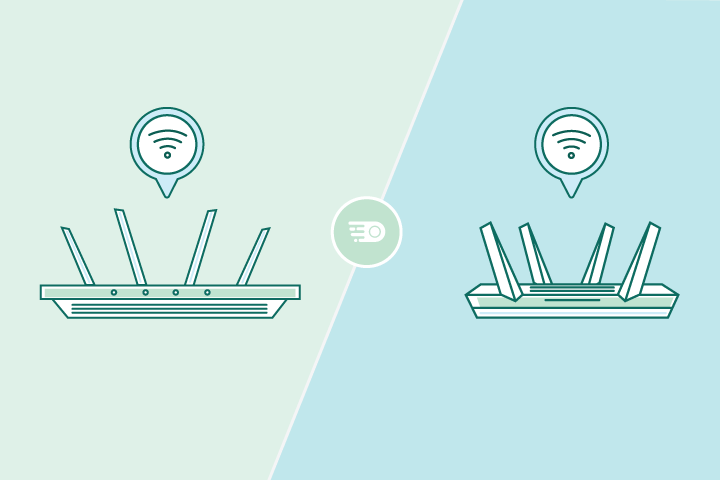
Most Wi-Fi routers broadcast at least two frequency bands: 2.4 GHz and 5 GHz. On some newer Wi-Fi routers, you may also see a 6 GHz option. The challenge is knowing which one to use in the moment.
Here are simple rules to help you choose: Use 5 GHz when you’re close to your router and want the fastest speeds. Use 2.4 GHz when you’re farther away and need a steadier connection across rooms.
We’ll walk you through the differences, show you how to choose the right band by device and activity, and share quick troubleshooting tips if your Wi-Fi feels slow or unreliable.


Key Takeaways: 2.4 GHz vs. 5 GHz Wi-Fi
- 2.4 GHz Wi-Fi is best for range and better signal through walls and floors.
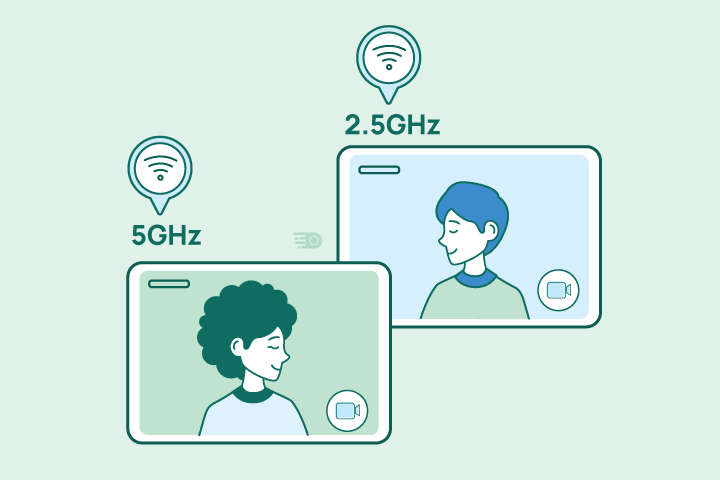
- 5 GHz Wi-Fi is best for speed and performance near the router, especially for streaming, gaming, and video calls.
- If there’s only one Wi-Fi network name, your router may be using band steering, which automatically places devices on the best band.
- On 2.4 GHz, the best channel choices are usually 1, 6, or 11, since they don’t overlap.
- If your Wi-Fi is fast in one room but drops in another, the problem may be router placement or interference.
Understanding Wi-Fi Frequency Bands
Your Wi-Fi router uses radio waves to send data between your devices and the internet. These radio waves operate on specific frequency bands, measured in gigahertz (GHz). Think of each frequency band as a different radio station. Just like you tune your car radio to 101.5 FM or 950 AM, your devices connect to either 2.4 GHz or 5 GHz Wi-Fi.
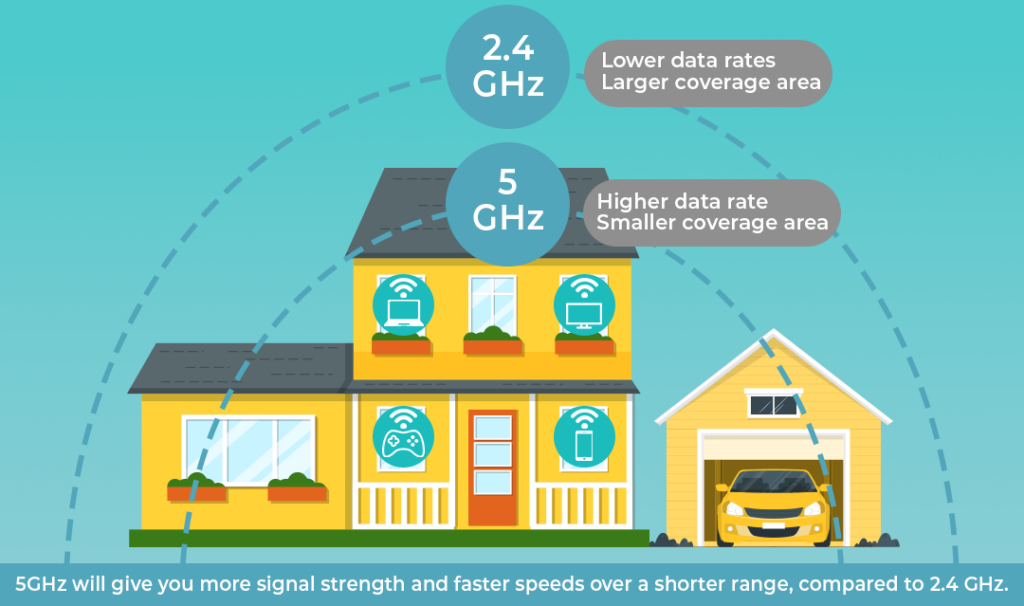
Lower frequencies (2.4 GHz) use longer wavelengths that travel farther and penetrate walls more easily. Higher frequencies (5 GHz) use shorter wavelengths that carry more data but don’t travel as far.
Terms to Know About Wi-Fi Technology
Frequency
How fast a Wi-Fi signal “vibrates,” measured in gigahertz (GHz). In plain terms, 2.4 GHz and 5 GHz are different lanes your Wi-Fi can use, and each lane behaves a little differently in your home.
Spectrum
The total bandwidth that is available for wireless signals to travel through. Think of spectrum like a highway system, and each Wi-Fi band (2.4 GHz or 5 GHz) is a section of that highway. A wider spectrum usually means more room for Wi-Fi traffic, which can help reduce congestion.
Wavelength
The distance between the peak of one wave of a Wi-Fi signal and the next. It’s closely tied to frequency: lower frequencies (like 2.4 GHz) have longer wavelengths, which usually helps the signal travel farther and hold up better across rooms. Higher frequencies (like 5 GHz) have shorter wavelengths, which can support faster speeds nearby but fade sooner as you move away from the router.
What Is the Difference Between 2.4 GHz and 5 GHz?
2.4 GHz Wi-Fi Explained
The 2.4 GHz band is the oldest and most widely used Wi-Fi frequency. It’s been the workhorse of home networks for over two decades.
How 2.4 GHz Works
This frequency band uses longer radio waves that can travel up to 150 feet indoors. Those longer waves bend around obstacles and penetrate walls, floors, and furniture better than higher frequencies. That’s why you can often get a stronger 2.4 GHz signal in your backyard or basement than from the 5 GHz frequency.
However, the 2.4 GHz band offers only 70 MHz of total spectrum, divided into three non-overlapping channels (1, 6, and 11). This creates a traffic jam, especially in apartment buildings where dozens of routers may be competing for the same channels.
The band maxes out at around 300 to 450 Mbps under ideal conditions, so realistic speed expectations typically range from 50 to 150 Mbps.
When Should I Use 2.4 GHz Wi-Fi?
Use the 2.4 GHz band if you’re farther from the router, are connecting older or smart-home devices (IoT), or have multiple walls and obstacles between your device and the router.
Best for:
- Connecting devices in far-off bedrooms, garages, basements, and outdoor security cameras and sensors.
- Smart plugs, smart light bulbs, older laptops, and phones that do not require high speeds.
Why It Is Useful:
- Superior wall penetration: The lower-frequency signal travels farther and handles physical barriers better than 5 GHz, maintaining a usable link at the very edge of your network’s coverage.
Key Trade-offs:
- Expect lower peak speeds and lower overall data throughput than in the 5 GHz band.
- It is more congested and more susceptible to interference from neighboring Wi-Fi networks and everyday household items such as microwaves, cordless phones, and Bluetooth devices.
Quick setup tips:
- Lock the channel to 1, 6, or 11 and use a 20 MHz channel width for stability.
- Create a separate 2.4 GHz network (WPA2 if needed) for IoT devices and keep your main network for computers, streaming, and gaming devices.
- You can minimize dead zones by using a mesh node, a Wi-Fi extender, or connecting devices via Ethernet when possible.
Pros and Cons of 2.4 GHz Wi-Fi
Pros
Longer range: Signals can reach farther corners of your home, making it ideal for larger houses over 1,500 square feet.
Better obstacle penetration: Thick walls, floors, and furniture don’t degrade the signal as much as they do with 5 GHz.
Universal compatibility: Nearly every Wi-Fi device ever made can connect to 2.4 GHz, including older smartphones, laptops, and smart home gadgets.
Lower power consumption: Devices use less battery when connected to 2.4 GHz compared to 5 GHz.
Cons
Severe congestion: Many devices only use 2.4 GHz. Your neighbors’ routers, their smart TVs, baby monitors, and wireless security cameras all crowd this band.
Interference from household devices: Microwaves, cordless phones, Bluetooth devices, and garage door openers all operate near the 2.4 GHz frequency.
Slower maximum speeds: The band simply can’t handle modern bandwidth demands for 4K streaming or large file downloads.
Limited channels: With only three non-overlapping channels, there’s nowhere to hide from interference in dense areas.
5 GHz Wi-Fi Explained
The 5 GHz band became popular with Wi-Fi 5 (802.11ac) in 2013 and remains the preferred choice for most high-bandwidth activities today.
How 5 GHz Works
This frequency uses shorter wavelengths that can pack more data into each transmission. The 5 GHz band provides approximately 500 MHz of spectrum, supporting up to 23 non-overlapping channels in the U.S. That’s almost eight times more channels than 2.4 GHz offers.
Under optimal conditions, 5 GHz can deliver speeds up to 1,300 Mbps (1.3 Gbps), with typical real-world speeds ranging from 200 to 800 Mbps. While it’s much faster and has better channel options than 2.4 GHz, it lacks range. Those shorter waves don’t travel as far and struggle to penetrate solid objects, limiting indoor range to about 50 feet.
When Should I Use 5 GHz Wi-Fi?
Use the 5 GHz band for the best balance of speed and reliability for devices that are closer to the router. It is typically the fastest choice for general use, unless you have a tri-band router that includes the 6 GHz band.
Best for:
- Smooth 4K video streaming, quick console and online gaming, large file downloads, and stable work calls.
- All connected devices in nearby rooms or within the same open-concept space.
Why It Excels:
- The 5 GHz band is less crowded than 2.4 GHz, offering cleaner air and lower latency.
- It supports wider channels, enabling higher data rates and faster speeds at moderate distances.
Optimal Environment:
- This band shines in apartments and medium-sized homes where you are within a short-to-mid range of the router.
Limitations to Note:
- It cannot penetrate walls as effectively as 2.4 GHz signals can.
- Some 5 GHz channels require routers to scan for radar signals, which may cause brief startup delays or channel switches if it detects radar.
Quick setup tips:
- Start with an 80 MHz channel width for speed; if that’s unstable, drop to 40 MHz.
- Prefer a non-DFS channel for always-on stability; use DFS if there’s a lot of interference, and you can tolerate occasional channel changes.
- Keep band steering on so the router selects the best band and channel; consider a band split if the 2.4 GHz band becomes too crowded.
Pair 5 GHz with a mesh node or Ethernet backhaul if coverage fades in distant rooms, rather than forcing 2.4 GHz.
Pros and Cons of 5 GHz
Pros
Much faster speeds: The higher frequency allows for data transfer rates more than four times faster than 2.4 GHz.
Less interference: With 23 available channels, it is easier to find a clear frequency, even in crowded apartment buildings.
Better for modern devices: Streaming devices, gaming consoles, and work-from-home laptops perform significantly better on 5 GHz.
Reduced congestion: Fewer legacy devices use 5 GHz, meaning less competition for bandwidth.
Cons
Shorter range: The signal weakens quickly over distance, typically reaching only 50 feet indoors.
Poor wall penetration: Concrete walls, metal studs, and even thick wood can severely degrade the signal.
Potential radar interference: Four of the 5 GHz channels may be restricted from use due to weather radar or airport operations.
Higher power consumption: Devices use more battery when connected to 5 GHz networks.
2.4 GHz vs. 5 GHz Side-by-Side Comparison
| Feature | 2.4 GHz | 5 GHz |
| Real-world speed | 50-150 Mbps | 200-800 Mbps |
| Maximum speed | 300-450 Mbps | 1,300 Mbps |
| Indoor range | Up to 150 feet | Up to 50 feet |
| Wall penetration | Excellent | Poor to moderate |
| Interference level | Very high | Low to moderate |
| Number of channels | 3 non-overlapping | 23 non-overlapping |
| Best for | IoT devices, long-range connections | Streaming, gaming, video calls |
| Device compatibility | Nearly universal | Most devices 2013+ |
| Feature | Real-world speed |
| 2.4 GHz | 50-150 Mbps |
| 5 GHz | 200-800 Mbps |
| Feature | Maximum speed |
| 2.4 GHz | 300-450 Mbps |
| 5 GHz | 1,300 Mbps |
| Feature | Indoor range |
| 2.4 GHz | Up to 150 feet |
| 5 GHz | Up to 50 feet |
| Feature | Wall penetration |
| 2.4 GHz | Excellent |
| 5 GHz | Poor to moderate |
| Feature | Interference level |
| 2.4 GHz | Very high |
| 5 GHz | Low to moderate |
| Feature | Number of channels |
| 2.4 GHz | 3 non-overlapping |
| 5 GHz | 23 non-overlapping |
| Feature | Best for |
| 2.4 GHz | IoT devices, long-range connections |
| 5 GHz | Streaming, gaming, video calls |
| Feature | Device compatibility |
| 2.4 GHz | Nearly universal |
| 5 GHz | Most devices 2013+ |
GHz vs. Network Generations
These are often used synonymously, but they have different meanings.
- Wi-Fi bands are the frequencies your router uses, like 2.4 GHz and 5 GHz.
- Wi-Fi generations are the standards your router and devices support, such as Wi-Fi 5 and Wi-Fi 6.
A newer Wi-Fi generation can improve efficiency and handle more devices at once, but the band you’re on still plays a role in how far your signal reaches and how stable it is.
Is 5 GHz Wi-Fi Faster Than 2.4 GHz?
Often, yes, because there’s typically more spectrum and more channel options than with 2.4 GHz, which can translate into less congestion and higher throughput (faster speeds) when you’re close to the router.
Here’s a visual way to look at it:
- 2.4 GHz is like a smaller highway that a lot of traffic has to share.
- 5 GHz is like a bigger highway with more lanes, but it does not reach as far.
The 2.4 GHz Wi-Fi spectrum is about 70 MHz wide, while 5 GHz is roughly 500 MHz wide. More spectrum usually means more channel flexibility and less crowding.
When To Use 5 GHz
- 4K video streaming
- Fast response (low lag) online gaming
- Multi-person video conferencing
- Large downloads or backing up to the cloud
Wi-Fi Channels: What They Are and Why They Matter
You can think of Wi-Fi channels as lanes within each Wi-Fi band. Your router picks a lane so it can share the air with nearby networks. But when there’s too much traffic in the same lane, or when lanes overlap, each connection has to share the channel. That congestion causes your connection’s speeds to slow down and responsiveness (latency) to drop.
Two things affect channel performance:
- Channel “cleanliness” (congestion and overlap): the fewer neighbors using the channel, the less interference there will be.
- Channel width (20/40/80/160/320 MHz): wider channels can be faster, but they also take up more space and are easier to disrupt.
Wi-Fi Channel Differences by Band
| Band | What it’s best at | Channel situation | What to watch for | Default safe settings |
| 2.4 GHz | Longer range, smart-home devices | Very limited clean options | Crowding is common; overlap hurts a lot | Channel 1/6/11, 20 MHz width |
| 5 GHz | Faster speeds, lower lag | Many more clean channels | Some channels use DFS (radar rules) | 80 MHz width on non-DFS channels |
| 6 GHz | Fastest, cleanest (shorter range) | Most open/clean overall | Requires Wi-Fi 6E or Wi–Fi 7 gear | Use wider widths if stable (often 160 MHz+), otherwise step down |
| Band | 2.4 GHz |
| What itâs best at | Longer range, smart-home devices |
| Channel situation | Very limited clean options |
| What to watch for | Crowding is common; overlap hurts a lot |
| Default safe settings | Channel 1/6/11, 20 MHz width |
| Band | 5 GHz |
| What itâs best at | Faster speeds, lower lag |
| Channel situation | Many more clean channels |
| What to watch for | Some channels use DFS (radar rules) |
| Default safe settings | 80 MHz width on non-DFS channels |
| Band | 6 GHz |
| What itâs best at | Fastest, cleanest (shorter range) |
| Channel situation | Most open/clean overall |
| What to watch for | Requires Wi-Fi 6E or WiâFi 7 gear |
| Default safe settings | Use wider widths if stable (often 160 MHz+), otherwise step down |
How to pick the best channel
2.4 GHz Channels
- Use only channels 1, 6, or 11. Pick the least crowded of those three.
- Set the width to 20 MHz for stability and to avoid overlap.
- If you have a lot of smart-home devices, consider a separate 2.4 GHz IoT network name (SSID) so they don’t compete with your laptops and phones.
5 GHz (balance speed + reliability)
- To “set it and forget it,” choose non-DFS channels (most stable and no radar checks).
- If you’re in a dense area and want less interference, try DFS channels. The router may do a brief scan at startup and, although uncommon, can switch channels if radar is detected.
- Start at 80 MHz width for a great mix of speed and stability.
- If it seems unstable, drop to 40 MHz. Don’t jump to 160 MHz unless you’re confident the lanes are clean and that your devices will benefit.
General channel tips for any band
- Auto-select is fine, until it isn’t. If you experience random slowdowns or drops, manually set the channel using your router’s Wi-Fi tools or a Wi-Fi analyzer app.
- Channel options vary by region. Only use the channels available in your router settings.
If one room is still slow after tuning, it’s probably due to distance and walls, not channels. If you have a large home and the Wi-Fi signal must travel through many rooms and walls, switching to a mesh network, adding a Wi-Fi extender, or connecting via Ethernet can help resolve many connectivity issues.
Interference and Wi-Fi Channels
One big reason why your Wi-Fi sometimes feels sluggish or inconsistent is interference. The 2.4 GHz band is more susceptible to it because many household devices, like microwaves and cordless phones, operate in or near the same frequency, and many neighboring routers can compete for a slice of the spectrum. This is a common issue in densely populated areas and apartment buildings.
What Interference Looks Like
- Buffering when your internet plan is fast
- Random drops during video calls
- A strong signal icon (more bars), but everything loads slowly
- Better performance late at night when there’s less neighborhood congestion
Optimizing Router Settings for Different Bands
You can fine-tune router settings to get the most out of your connections to 2.4 GHz and 5 GHz Wi-Fi, and you don’t need to be a networking guru to do it. All you need to do is log into your router’s admin panel (usually at 192.168.1.1 or 192.168.0.1) to fine-tune your networks:
For 2.4 GHz:
- Change the channel to 1, 6, or 11 (these don’t overlap)
- Use a Wi-Fi analyzer app to see which channel is least crowded in your area
- Set channel width to 20 MHz for better range and compatibility
For 5 GHz:
- Let your router auto-select the channel, or manually choose one in the higher range (149-165) to avoid potential radar interference
- Set the channel width to 40 MHz or 80 MHz for better performance
- Enable Quality of Service (QoS) to prioritize gaming and video traffic
Then, position your router in a central location, elevated off the floor, away from metal objects and appliances. This helps both bands perform better.
Quick Fixes to Improve Your Home Wi-Fi Network
There are a lot of factors inside and outside of your home that can affect how well your Wi-Fi network performs. If after optimizing the 2.4 GHz and 5 GHz bands in your router settings, the following quick tips may make the If you want the biggest wins with the least effort, start here.
- Move the router to a central, elevated location. Avoid closets and corners.
- Put high-demand devices on 5 GHz or 6 GHz when possible and keep 2.4 GHz for range and smart devices.
- Switch your 2.4 GHz channel to 1, 6, or 11 if you’re in a crowded Wi-Fi area.
- Update router firmware and reboot occasionally.
- Consider a mesh system or extender if you have persistent dead zones.
If these don’t solve your Wi-Fi woes, see if your router is near concrete, metal, or other materials that interfere with Wi-Fi signals. If it is free of any obstructions, see our comprehensive guide about the causes of slow internet, which goes into more Wi-Fi troubleshooting and fixes.
The 6 GHz Revolution (Wi-Fi 6E and Wi-Fi 7)
The newest frequency band represents the biggest expansion of Wi-Fi spectrum in decades. The 6 GHz band provides 1,200 MHz of additional spectrum, more than double the combined 2.4 GHz and 5 GHz bands.
What Makes 6 GHz Different
This band supports up to seven 160 MHz channels or fourteen 80 MHz channels. These wider channels enable much faster speeds and lower latency. Real-world 6 GHz speeds are up to 2 Gbps, with theoretical maximums reaching 9 Gbps when the device and router are using Wi-Fi 7.
Keep in mind that only devices certified for Wi-Fi 6E or Wi-Fi 7 can access the 6 GHz spectrum. This essentially makes for a dedicated fast lane for your devices that is resilient to interference from older devices.
Do You Need WiFi 6E or WiFi 7?
You’ll want to consider 6 GHz (Wi-Fi 6, Wi-Fi 6E, or Wi-Fi 7) if you:
- Live in a high-density area like an apartment building
- Have multiple family members streaming, gaming, or working from home simultaneously
- Own newer devices (2021 or newer smartphones, recent gaming laptops, latest tablets)
- Experience persistent buffering or lag despite having a fast internet plan
- Want to futureproof your home network technology
You probably don’t need it yet if:
- You live in a single-family home with minimal Wi-Fi interference
- Your current Wi-Fi handles your needs without issues
- Most of your devices are 3 years or older and don’t support 6 GHz
- You’re on a tight budget (Wi-Fi 6E and Wi-Fi 7 are considerably more expensive)
Choosing The Right Wi-Fi Band for Every Device
If you remember one thing, make it this: distance and obstacles decide the band, not the label, and the presumption that the higher number (5 GHz) is the best option for all situations.
Start with 5 GHz for your main devices when you’re near the router. Use 2.4 GHz for parts of your home where stability matters more than top speed, and for areas farther from your Wi-Fi router. If you have Wi-Fi 6E or Wi-Fi 7 equipment, 6 GHz can be an excellent upgrade for nearby high-demand devices, especially if you have a lot of devices connected to your Wi-Fi network.
If you suspect your plan speed is the real bottleneck, check your current performance and compare options in your area:
- Enter your ZIP code in our provider search tool to find and compare plans
- Estimate how much internet speed your household needs
- Learn how internet speed works and what affects it
Frequently Asked Questions About 2.4 GHz vs. 5 GHz Wi-Fi
The key difference is range versus speed. 2.4 GHz offers longer range, reaching up to 150 feet indoors with better performance through walls and floors, but it maxes out around 300 Mbps. 5 GHz provides much faster speeds (up to 1,300 Mbps) but only reaches about 50 feet indoors and struggles through walls. Use 2.4 GHz when you need range and stability; use 5 GHz when you need speed and are close to your router.
No, these are completely different technologies. 5G refers to fifth-generation cellular network technology used by cell phone carriers for mobile data and for 5G home internet. 5 GHz refers to a frequency band your home Wi-Fi router uses. The confusion happens because some routers label their 5 GHz network as “5G,” but this is just shorthand for the frequency, not the cellular 5G technology. Both can exist in the same space without interfering with each other.
Always choose 5 GHz for gaming consoles and streaming devices when they’re within 30 to 40 feet of your router. 5 GHz delivers faster speeds, lower latency, and less interference, all critical for smooth gaming and buffer-free 4K streaming. Only fall back to 2.4 GHz if your device is too far from the router to maintain a stable 5 GHz connection. For the best gaming performance, use a wired Ethernet cable instead of any Wi-Fi.
Yes. Dual-band routers broadcast 2.4 GHz and 5 GHz at the same time, so multiple devices in your home can use different bands simultaneously.
How that looks depends on your router settings:
- If your router uses separate network names (SSIDs): You’ll typically see two options in your Wi-Fi list, like “HomeNetwork” and “HomeNetwork-5G.” If you do, you can choose which band to use for each of your devices. For example, put a smart thermostat or doorbell on 2.4 GHz for better range, and connect your gaming PC or streaming TV to 5 GHz for faster performance nearby.
- If your router uses one network name: Many modern routers use band steering, meaning they automatically assign each device to 2.4 GHz or 5 GHz based on signal strength, distance, and device capability. You get the benefit of both bands and you don’t have to manually choose them.
You can reduce congestion and make your network more efficient by assigning devices to one band or the other, or have the router auto-assign devices to the bands.
Wi-Fi 6E extends Wi-Fi 6 technology by adding support for the 6 GHz frequency band. This provides 1,200 MHz of additional spectrum with up to seven 160 MHz channels, enabling speeds up to 2 Gbps with virtually no interference from older devices. You need both a Wi-Fi 6E router and Wi-Fi 6E compatible devices (typically 2021 or newer) to access these benefits. It’s worth upgrading if you have many devices, do intensive streaming or gaming, live in an apartment or condo building with lots of Wi-Fi interference, or want to future-proof your network.
The 2.4 GHz band suffers from severe congestion because it’s used by older devices, neighbor networks, and household items like microwaves, baby monitors, and Bluetooth devices. It’s limited to just three non-overlapping channels compared to 23 for 5 GHz, and maximum speeds are capped at 300 to 450 Mbps versus 1,300 Mbps for 5 GHz. You can try switching capable devices to 5 GHz, changing your Wi-Fi channel to 1, 6, or 11 (whichever is least congested), moving interference sources away from your router, or upgrading to a newer router with better 5 GHz or 6 GHz support to optimize your router’s performance.
On most devices, open your Wi-Fi settings and look at the connected network name. If your router labels the bands differently (like “Network” and “Network-5G”), the name tells you which you’re using. If they have the same name, check your device’s Wi-Fi details or connection properties for the frequency. On smartphones, this is usually under Settings > WiFi > tap the connected network. On Windows, click the Wi-Fi icon, select Properties, and look for the network band or frequency field.
No, they are different. Wi-Fi 6 is the sixth generation of Wi-Fi technology (802.11ax standard) that improved performance on existing 2.4 GHz and 5 GHz bands. Wi-Fi 6E is an extension of Wi-Fi 6 that adds support for the new 6 GHz frequency band. Wi-Fi 7 (802.11be) is the newest standard that also supports all three bands, including 6 GHz. You need specifically Wi-Fi 6E or Wi-Fi 7 equipment to access 6 GHz frequencies.
Your 5 GHz network likely changed channels due to a mandatory regulatory requirement called Dynamic Frequency Selection (DFS). The router automatically switches channels to avoid interfering with licensed users of those frequencies, such as weather radar systems, which take priority.
Find providers in your area
Share this post:



Table of Contents