Complete Guide to Internet Speed 2026
HighSpeedOptions prides itself on providing honest, quality content. While we may be compensated when you make a purchase through links on our site, all opinions are our own. Here's how we make money.
Table of Contents
Choosing an internet plan shouldn’t feel like guesswork. Start with our Quick Picks to see recommended download, upload, and latency targets for homes like yours (single occupant, remote work, family, online gamers, creators, smart home). Then follow a 2-minute decision tree to confirm whether you need a faster plan—or just a better Wi-Fi setup.
This guide explains the essentials—download vs. upload, latency and jitter, Mbps vs. MB/s—and shows how much speed you actually need for 4K streaming, video calls, gaming, backups, and smart-home devices. We also compare today’s connection types and what internet providers actually deliver at your address, so you know what’s realistic to expect.
Quick Picks: Choosing Internet Speed by Users and Activities
| Household profile | Typical activities | Download | Upload | Latency target | Why this tier |
| Single user | Web, email, one HD stream | 50–100 Mbps | 10–20 Mbps | Under 50 ms | Smooth browsing and HD video without slowdowns. |
| Couple / remote work | Two video calls, HD/4K stream, cloud docs | 200–300 Mbps | 20–50 Mbps | Under 40 ms | Headroom for concurrent calls and streaming. |
| Family mixed-use | 3–5 people, multiple 4K streams, big downloads, smart home | 500–800 Mbps | 50–100 Mbps | Under 35 ms | Keeps several 4K streams and updates running smoothly. |
| Gamer household | Online gaming, party chat, 4K streaming, large patches | 300–500 Mbps | 25–50 Mbps | Under 30 ms* | Latency and jitter matter more than raw speed after 300 Mbps. |
| Content creator or power user | Large cloud backups, frequent 4K uploads, many video calls | 800–1000+ Mbps | 100–200+ Mbps | Under 30 ms | High sustained uploads and parallel tasks benefit from higher, ideally symmetrical, speeds. |
| Smart-cam heavy | 6–12 security cameras with continuous upload | 300–500 Mbps | 50–100 Mbps | Under 40 ms | Multiple upstream video feeds need steady upload headroom. |
| Household profile | Single user |
| Typical activities | Web, email, one HD stream |
| Download | 50â100 Mbps |
| Upload | 10â20 Mbps |
| Latency target | Under 50 ms |
| Why this tier | Smooth browsing and HD video without slowdowns. |
| Household profile | Couple / remote work |
| Typical activities | Two video calls, HD/4K stream, cloud docs |
| Download | 200â300 Mbps |
| Upload | 20â50 Mbps |
| Latency target | Under 40 ms |
| Why this tier | Headroom for concurrent calls and streaming. |
| Household profile | Family mixed-use |
| Typical activities | 3â5 people, multiple 4K streams, big downloads, smart home |
| Download | 500â800 Mbps |
| Upload | 50â100 Mbps |
| Latency target | Under 35 ms |
| Why this tier | Keeps several 4K streams and updates running smoothly. |
| Household profile | Gamer household |
| Typical activities | Online gaming, party chat, 4K streaming, large patches |
| Download | 300â500 Mbps |
| Upload | 25â50 Mbps |
| Latency target | Under 30 ms* |
| Why this tier | Latency and jitter matter more than raw speed after 300 Mbps. |
| Household profile | Content creator or power user |
| Typical activities | Large cloud backups, frequent 4K uploads, many video calls |
| Download | 800â1000+ Mbps |
| Upload | 100â200+ Mbps |
| Latency target | Under 30 ms |
| Why this tier | High sustained uploads and parallel tasks benefit from higher, ideally symmetrical, speeds. |
| Household profile | Smart-cam heavy |
| Typical activities | 6â12 security cameras with continuous upload |
| Download | 300â500 Mbps |
| Upload | 50â100 Mbps |
| Latency target | Under 40 ms |
| Why this tier | Multiple upstream video feeds need steady upload headroom. |
* For gamers, aim for jitter less than 10 ms.
Tip: If you meet these numbers but performance still stutters, your Wi-Fi is likely the bottleneck—consider Wi-Fi 6/6E/7 or a mesh system with Ethernet backhaul.

What is Internet Speed?
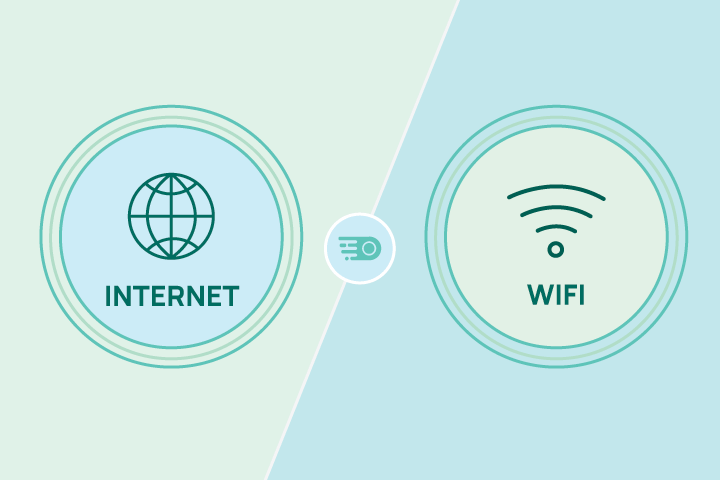
Internet speed is the rate at which data moves between your home and the internet, shown as download and upload speeds in Mbps; download affects streaming and file downloads, and upload affects video calls, backups, and cameras.
Under the hood, what people call “speed” is really throughput—how much data per second actually gets through. The bandwidth (plan capacity) is the maximum a connection can carry. Throughput varies moment to moment; bandwidth is the ceiling.
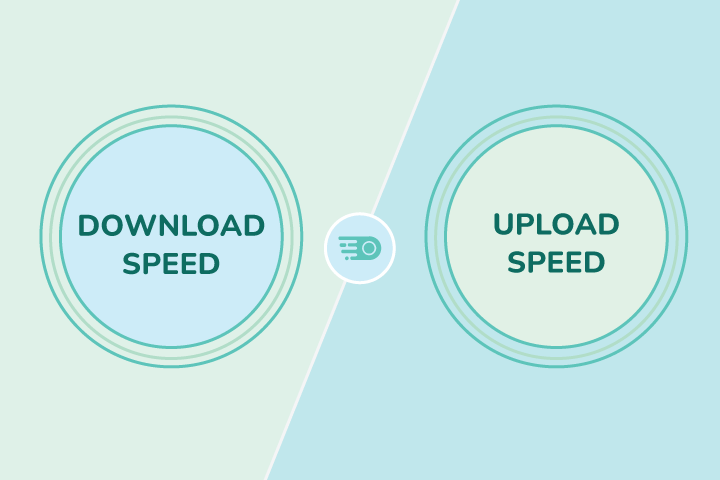
Download vs. Upload: Which Matters Most?
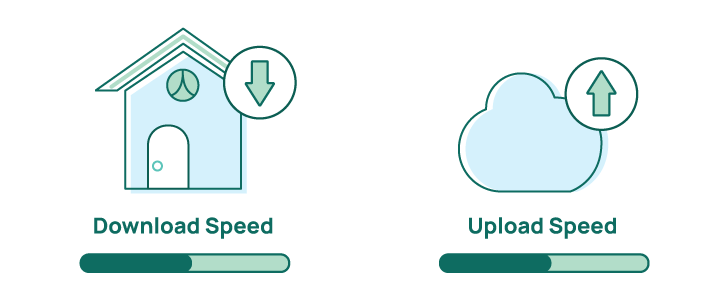
As more homes work, create, and secure content from home, upload speed often becomes the bottleneck, especially during busy hours or when multiple devices are active. If users in your home have regular video conferences, use cloud services, have cameras, or stream live content, don’t select an internet plan based solely on download speeds. Choose an upload speed that matches your busiest hour, and go one tier up if you routinely multitask.
When to prioritize upload
- Multiple video calls at once
- Cloud backups and file syncing (OneDrive/Google Drive/Dropbox)
- Security cameras streaming to the cloud
- Live streaming (YouTube, Twitch), remote presentations
- Sharing large media (photos, videos) with clients or collaborators
Practical upload targets per activity
(Choose the higher end if you want headroom or run tasks concurrently.)
| Activity | Upload Speed Target |
| 1× HD video call (1080p) | 10–20 Mbps per active participant |
| 1× 4K video call (where supported) | 20–35 Mbps per active participant |
| Live stream @ 1080p60 | 8–12 Mbps sustained |
| Live stream @ 4K | 20–35+ Mbps sustained |
| Cloud backup while you work (snappy feel) | 25–50+ Mbps sustained |
| Security cameras (per 1080p cam, cloud upload) | 2–5 Mbps per camera |
| Remote screen-share + file syncing | 15–30 Mbps per active user |
| Activity | 1Ã HD video call (1080p) |
| Upload Speed Target | 10â20 Mbps per active participant |
| Activity | 1Ã 4K video call (where supported) |
| Upload Speed Target | 20â35 Mbps per active participant |
| Activity | Live stream @ 1080p60 |
| Upload Speed Target | 8â12 Mbps sustained |
| Activity | Live stream @ 4K |
| Upload Speed Target | 20â35+ Mbps sustained |
| Activity | Cloud backup while you work (snappy feel) |
| Upload Speed Target | 25â50+ Mbps sustained |
| Activity | Security cameras (per 1080p cam, cloud upload) |
| Upload Speed Target | 2â5 Mbps per camera |
| Activity | Remote screen-share + file syncing |
| Upload Speed Target | 15â30 Mbps per active user |
What is the difference between internet speed and bandwidth?
Bandwidth is your plan’s maximum capacity (“lane size”). At the same time, speed (throughput) is the real-time data rate you experience, which fluctuates with Wi-Fi quality, peak hour congestion, and device activity.
What are Symmetrical Internet Speeds?
Symmetrical internet plans deliver equal download and upload speeds. On most plans, download speed is significantly faster than upload speed. Symmetrical speed is most common on fiber internet, with select cable markets beginning to offer symmetry via DOCSIS 4.0 (Recent cable internet standard that offers multi-gig, symmetrical speeds in select markets). If you create or share large files, livestream, or run several security cams, faster upload speed often feels like a bigger upgrade than increasing download speed.
Internet Speed: What is the Difference Between Mbps vs. MB/s?
Mbps is a measurement of how much data your connection can move, and MB/s is how fast it can move it.
- Mbps: megabits per second (what internet providers advertise).
- MB/s: megabytes per second (what file downloaders often show).
- Conversion: MB/s is equal to Mbps ÷ 8 (because 1 byte = 8 bits)
For example, a 300 Mbps plan moves data at a rate of 37.5 MB/s (300 ÷ 8 = 37.5 MB/s). Real downloads are typically 10–20% lower after overheads (protocols, Wi-Fi, etc.), so you might see an average of 30–34 MB/s.
Mbps vs. MB/s Quick Reference Table
| Plan (Mbps) | Max MB/s (÷8) | Typical real-world MB/s* |
| 100 | 12.5 | 10–11 |
| 300 | 37.5 | 30–34 |
| 500 | 62.5 | 50–56 |
| 1000 (1 Gbps) | 125 | 100–115 |
| Plan (Mbps) | 100 |
| Max MB/s (÷8) | 12.5 |
| Typical real-world MB/s* | 10â11 |
| Plan (Mbps) | 300 |
| Max MB/s (÷8) | 37.5 |
| Typical real-world MB/s* | 30â34 |
| Plan (Mbps) | 500 |
| Max MB/s (÷8) | 62.5 |
| Typical real-world MB/s* | 50â56 |
| Plan (Mbps) | 1000 (1 Gbps) |
| Max MB/s (÷8) | 125 |
| Typical real-world MB/s* | 100â115 |
Connection Types
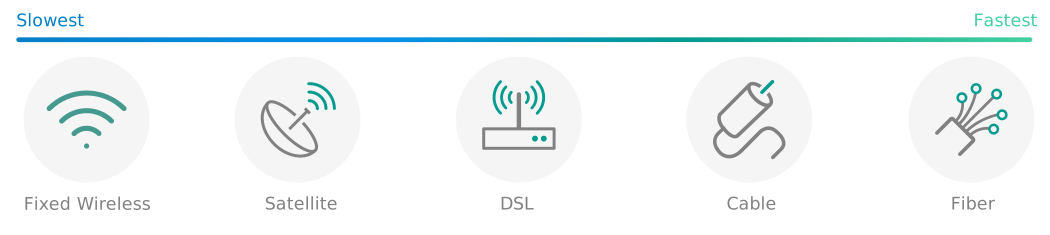
There are six types of internet connections to choose from: fiber, cable, DSL, satellite, 5G home internet, and fixed wireless internet. Not all services are available everywhere. Drop your ZIP code into our provider search tool to see available services in your area.
Fiber Internet
What it is: Internet over strands of glass using light pulses instead of electric pulses to transmit data.
Typical performance:
- Download: 500 Mbps–5 Gbps+
- Upload: 500 Mbps–5 Gbps+ (usually symmetrical)
- Latency: often ~5–20 ms (lowest among mass-market fixed tech).
What it handles well: 4K/8K streaming, multiple simultaneous video calls, creator workloads (large uploads), camera fleets, cloud gaming.
Limitations: Availability varies by address; use a high-quality fiber internet Wi-Fi router for optimal performance on all of your devices.
Notes: Fiber commonly offers symmetrical tiers; it’s the baseline for low-latency, high-upload service. The FCC’s Measuring Broadband America (MBA) data has consistently shown fiber with the lowest idle latency among fixed access types.
Cable Internet
What it is: Broadband internet over cable TV infrastructure (coax) to the home, often supported by a fiber optic backbone (provider’s primary network).
Typical performance (2025):
- Download: 300 Mbps–1.2 Gbps
- Upload: 10–100 Mbps (depending on the market and DOCSIS 4.0 rollout)
- Latency: often 12–30 ms at idle.
What it handles well: Multiple 4K streams, large downloads, and working from home.
Limitations: Upload is the pinch point on DOCSIS 3.1; performance can vary during peak usage hours.
Notes: DOCSIS 4.0 is live in select markets and can deliver multi-gig symmetrical tiers—still limited by location today.
DSL Internet
What it is: Internet over telephone pairs; speed depends heavily on line length/quality.
Typical performance:
- Download: 5–100 Mbps (often less than 30 Mbps in many areas)
- Upload: 0.5–10 Mbps
- Latency: 23–40 ms at idle.
What it handles well: Light streaming and browsing, single-user homes.
Limitations: Much slower uploads, performance drops as distance from the provider’s hub increases; many providers are phasing it out.
Satellite Internet— LEO (e.g., Starlink)
What it is: Internet service delivered by constellations of low-Earth-orbit satellites; shorter round-trip path than GEO.
Typical performance:
- Download: 45–280 Mbps
- Upload: 10–30 Mbps
- Latency: 25–60 ms
What it handles well: Streaming, video calls, and general household use where terrestrial options are absent.
Limitations: Weather and obstructions can hamper performance; capacity is shared; equipment cost is higher than terrestrial.
Satellite Internet— GEO (e.g., Viasat, HughesNet)
What it is: Geostationary satellites ~35,786 km up; very long round-trip path.
Typical performance:
- Download: 25–100 Mbps (plan-dependent)
- Upload: single-digit to 20 Mbps
- Latency: Averages 600 ms due to distance.
What it handles well: Email, browsing, streaming (with buffering).
Limitations: High latency impacts gaming, real-time apps; data caps and fair-use policies are common.
Fixed Wireless Internet
What it is: A radio link from a nearby tower or rooftop to your home CPE; not cellular 5G.
Typical performance:
- Download: 25–200 Mbps (higher in ideal line of sight setups)
- Upload: 5–50 Mbps
- Latency: 20–60 ms
What it handles well: General streaming, WFH, and small-office needs where wired options are limited.
Limitations: Line-of-sight, weather/interference, and tower load affect performance. (Latency and jitter vary with overall system design.)
5G Home Internet
What it is: A fixed broadband service using mobile 5G (sometimes 4G fallback) via an indoor or outdoor gateway.
Typical performance (varies by provider):
- Download: 118–402 Mbps
- Upload: 6–33 Mbps
- Latency: 15–50 ms
What it handles well: 4K streaming, general WFH, typical households (especially where fiber/cable aren’t available).
Limitations: Performance varies with signal, tower load, and network management (possible deprioritization).
Comparing Internet Connection Types Side-by-Side
Ranges below summarize the typical real-world service characteristics in 2024 – 2025, not theoretical peaks. Local results vary by provider, plan, and network conditions.
| Connection type | Typical download | Typical upload | Typical latency | Best suited for |
| Fiber | 500 Mbps–5 Gbps+ | 500 Mbps–5 Gbps+ (symmetrical) | 5–20 ms | Everything: heavy remote work, content creators, multi-4K, low-lag gaming. |
| Cable | 300 Mbps–1.2 Gbps | 10–100 Mbps (market-dependent) | 12–30 ms | Most homes: multi-4K, big downloads; uploads improving with upgrades. |
| DSL | 5–100 Mbps | 0.5–10 Mbps | 23–40 ms | Light streaming and browsing; legacy areas. |
| Satellite (LEO) | 45–280 Mbps | 10–30 Mbps | 25–60 ms | Solid all-around where wired isn’t available; mind capacity and weather. |
| Satellite (GEO) | 25–100 Mbps | Up to 20 Mbps | 600 ms | Coverage almost anywhere; OK for streaming, not great for real-time. |
| Fixed wireless | 25–200 Mbps | 5–50 Mbps | 20–60 ms | Rural and suburban LOS installs; everyday streaming and remote work. |
| 5G Home Internet | 120–400 Mbps (varies by band) | 6–33 Mbps (higher in some cells) | 15–27 ms (T-Mobile); 37–57 ms (Verizon) | Great mainstream option where available; performance varies by signal and load. |
| Connection type | Fiber |
| Typical download | 500 Mbpsâ5 Gbps+ |
| Typical upload | 500 Mbpsâ5 Gbps+ (symmetrical) |
| Typical latency | 5â20 ms |
| Best suited for | Everything: heavy remote work, content creators, multi-4K, low-lag gaming. |
| Connection type | Cable |
| Typical download | 300 Mbpsâ1.2 Gbps |
| Typical upload | 10â100 Mbps (market-dependent) |
| Typical latency | 12â30 ms |
| Best suited for | Most homes: multi-4K, big downloads; uploads improving with upgrades. |
| Connection type | DSL |
| Typical download | 5â100 Mbps |
| Typical upload | 0.5â10 Mbps |
| Typical latency | 23â40 ms |
| Best suited for | Light streaming and browsing; legacy areas. |
| Connection type | Satellite (LEO) |
| Typical download | 45â280 Mbps |
| Typical upload | 10â30 Mbps |
| Typical latency | 25â60 ms |
| Best suited for | Solid all-around where wired isnât available; mind capacity and weather. |
| Connection type | Satellite (GEO) |
| Typical download | 25â100 Mbps |
| Typical upload | Up to 20 Mbps |
| Typical latency | 600 ms |
| Best suited for | Coverage almost anywhere; OK for streaming, not great for real-time. |
| Connection type | Fixed wireless |
| Typical download | 25â200 Mbps |
| Typical upload | 5â50 Mbps |
| Typical latency | 20â60 ms |
| Best suited for | Rural and suburban LOS installs; everyday streaming and remote work. |
| Connection type | 5G Home Internet |
| Typical download | 120â400 Mbps (varies by band) |
| Typical upload | 6â33 Mbps (higher in some cells) |
| Typical latency | 15â27 ms (T-Mobile); 37â57 ms (Verizon) |
| Best suited for | Great mainstream option where available; performance varies by signal and load. |
What can I do with it? Choosing an Internet Service by Activity
- Casual households (HD streaming, web, school): Fiber, Cable, 5G Home Internet, solid Fixed Wireless, LEO Satellite.
- Multi-4K streaming and large downloads: Fiber or Cable; 5G Home Internet if signal is strong.
- WFH with multiple HD calls: Fiber (best) or Cable; 5G Home Internet if signal is strong and stable.
- Content creators, frequent large uploads, Smart homes: Fiber first (symmetry); Cable with higher-upload tiers or DOCSIS 4.0 where available; LEO Satellite acceptable if uploads 20–30 Mbps are steady.
- Low-lag competitive gaming: Fiber, then Cable; 5G Home Internet can work but is more variable; LEO better than GEO; GEO not recommended for twitch games.
How Much Internet Speed Do I Need?
That depends on how you use the internet and how many users there are in your household. For context, the average U.S. household usage reached 698 GB of data per month in 4Q24, which is an 8.9% increase from 2023.
You can use the per-activity minimums below, then add up all simultaneous activities in your home to find an estimate of how much bandwidth your household uses. Add 25–30% headroom for busy-hour traffic, Wi-Fi limitations, and app spikes. Use that figure to gauge how much speed you need. If you routinely multitask, opt for more speed, especially upload speed, if possible.
Household Download Speed Targets
| Activity | 1 user | 2–3 concurrent | 4–6 concurrent |
| Web browsing / social | 5–10 Mbps | 15–25 Mbps | 30–50 Mbps |
| Music streaming | 1–2 Mbps | 3–6 Mbps | 6–12 Mbps |
| HD video (1080p) | 5–10 Mbps | 15–30 Mbps | 30–60 Mbps |
| 4K video (UHD) | 15 Mbps (min); 25 Mbps with headroom | 40–75 Mbps | 80–150 Mbps |
| Cloud game downloads and updates | 50–100+ Mbps (faster means shorter waits) | 150–300+ Mbps | 300–600+ Mbps |
| Large file downloads (work and school) | 25–100+ Mbps | 100–300+ Mbps | 300–600+ Mbps |
| Activity | Web browsing / social |
| 1 user | 5â10 Mbps |
| 2â3 concurrent | 15â25 Mbps |
| 4â6 concurrent | 30â50 Mbps |
| Activity | Music streaming |
| 1 user | 1â2 Mbps |
| 2â3 concurrent | 3â6 Mbps |
| 4â6 concurrent | 6â12 Mbps |
| Activity | HD video (1080p) |
| 1 user | 5â10 Mbps |
| 2â3 concurrent | 15â30 Mbps |
| 4â6 concurrent | 30â60 Mbps |
| Activity | 4K video (UHD) |
| 1 user | 15 Mbps (min); 25 Mbps with headroom |
| 2â3 concurrent | 40â75 Mbps |
| 4â6 concurrent | 80â150 Mbps |
| Activity | Cloud game downloads and updates |
| 1 user | 50â100+ Mbps (faster means shorter waits) |
| 2â3 concurrent | 150â300+ Mbps |
| 4â6 concurrent | 300â600+ Mbps |
| Activity | Large file downloads (work and school) |
| 1 user | 25â100+ Mbps |
| 2â3 concurrent | 100â300+ Mbps |
| 4â6 concurrent | 300â600+ Mbps |
Household Upload Speed Targets
| Activity (uplink) | 1 user | 2–3 concurrent | 4–6 concurrent |
| HD video call (1080p) | 10–20 Mbps per caller | 25–50 Mbps | 50–100 Mbps |
| 4K video call (where supported) | 20–35 Mbps per caller | 50–90 Mbps | 100–180 Mbps |
| Live stream (1080p60) | 8–12 Mbps sustained | 20–30 Mbps | 35–60 Mbps |
| Live stream (4K) | 20–35+ Mbps sustained | 50–80 Mbps | 80–150+ Mbps |
| Cloud backup or file sync (smooth while you work) | 25–50+ Mbps sustained | 60–120+ Mbps | 120–200+ Mbps |
| Security cameras (per 1080p cam) | 2–5 Mbps each | 6–15 Mbps (3 cams) | 12–30+ Mbps (6 cams) |
| Activity (uplink) | HD video call (1080p) |
| 1 user | 10â20 Mbps per caller |
| 2â3 concurrent | 25â50 Mbps |
| 4â6 concurrent | 50â100 Mbps |
| Activity (uplink) | 4K video call (where supported) |
| 1 user | 20â35 Mbps per caller |
| 2â3 concurrent | 50â90 Mbps |
| 4â6 concurrent | 100â180 Mbps |
| Activity (uplink) | Live stream (1080p60) |
| 1 user | 8â12 Mbps sustained |
| 2â3 concurrent | 20â30 Mbps |
| 4â6 concurrent | 35â60 Mbps |
| Activity (uplink) | Live stream (4K) |
| 1 user | 20â35+ Mbps sustained |
| 2â3 concurrent | 50â80 Mbps |
| 4â6 concurrent | 80â150+ Mbps |
| Activity (uplink) | Cloud backup or file sync (smooth while you work) |
| 1 user | 25â50+ Mbps sustained |
| 2â3 concurrent | 60â120+ Mbps |
| 4â6 concurrent | 120â200+ Mbps |
| Activity (uplink) | Security cameras (per 1080p cam) |
| 1 user | 2â5 Mbps each |
| 2â3 concurrent | 6â15 Mbps (3 cams) |
| 4â6 concurrent | 12â30+ Mbps (6 cams) |
Concurrency tip: If you mix activities, add the rows that happen at the same time and then add 25–30% headroom so calls stay clear while streams/backups run.
Quick example: Two 4K streams (2 × 25 = 50 Mbps), one HD call (15 Mbps up), and a light backup (25 Mbps up).
- Download target: 50 Mbps × 1.3 is about 65 Mbps (round up to 100 Mbps for headroom and future growth).
- Upload target: (15 + 25) × 1.3 is roughly 52 Mbps (choose a plan with at least 50 Mbps upload; symmetry ideal).
Notes
- Per-stream minimums: Netflix lists 15 Mbps for a single 4K stream; our 25 Mbps figure bakes in busy-hour and Wi-Fi overhead.
- Gaming: Competitive online gaming cares far more about latency/jitter than raw Mbps; make sure your plan/router can keep latency low while others stream.
- If your plan meets these numbers but performance still stutters, the bottleneck is usually Wi-Fi, consider better placement, mesh with Ethernet backhaul, or a newer Wi-Fi 6/6E/7 router.
Other Internet Speed Factors: Latency & Jitter
Latency is a measurement of how long it takes a packet of data to make a round trip between your device and the provider’s nearest hub in milliseconds (ms). It is also called ping rate, lag, and delay. Jitter is a measurement of consistency, or how much the delay varies. Online gaming and video conferencing suffer most from high, inconsistent latency. Frozen frames, voice distortion or syncing issues, and delayed reactions in a fast-paced online game are symptoms of lag and jitter. For an in-depth look at latency, jitter, and packet loss, check out our latency resource.
How Do I Test My Internet Speed?
Performing a speed test is free and easy. Visit testmyspeed.com, and when the test tool loads, click “Go.” When the test is done, you’ll have download, upload, ping, and jitter results.
Internet Speed Testing Tips
- Use Ethernet from a modern device to the router or gateway (Wi-Fi adds its own bottlenecks).
- Run multiple tests at different times, especially during evening peak usage.
- Note what else is using the network.
See our internet speed test guide to see how to interpret your results, what might cause poor results, and tips to improve overall performance.
Why is My Internet Slow?
Many factors, from provider network issues to poor router placement, can affect how your internet connection performs. Below are the most common causes of slow internet that you can easily fix. See our guide about a persistent slow internet connection for detailed information and solutions.
Equipment Location
Place your router or modem in a central location and free of obstructions for optimal performance.
Rarely Restart Your Router
Restart your modem and router at least once a month to clear out caches and reset device connections. Doing so keeps the router working at peak performance and reduces drag on the network.
Network Congestion
Evening hours are typically the busiest time for internet activity. The increased traffic during peak usage hours creates congestion and decreased performance. To offset provider network congestion, limit the number of devices using your connection or set priority access levels in your router’s settings for critical devices.
Not Enough Bandwidth
If these steps don’t make a difference, it may be time to upgrade your internet plan. Factor in your internet needs and the number of users and devices in your household, then enter your ZIP code in our provider search tool to find the best internet service in your area.
How to Speed Up Your Connection
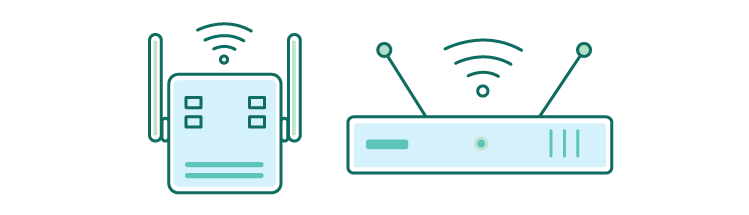
We recommend following our thorough guide on how to fix slow internet, but here are a few quick tips that might help immediately.
- Reposition your router
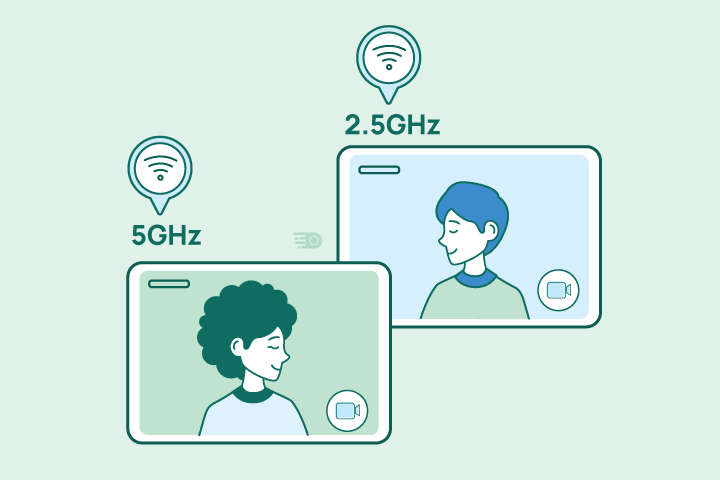
Put it centrally and high, away from TVs, metal, and appliances. Use 5 GHz or 6 GHz for nearby devices; reserve 2.4 GHz for devices further away and IoT (Internet of Things) devices. Upgrade to a new router if yours is 10 years or older. - Upgrade Wi-Fi, not just your plan.
Move to a Wi-Fi 6/6E/7 mesh with an Ethernet connection when possible. This fixes room-to-room drops and keeps latency stable when the house is busy. - Check your modem or gateway health.
Reboot your equipment periodically. Confirm signal strength, firmware, and provisioning in the admin app or web user interface. - Use extenders only as a last resort.
They halve throughput and add latency when connected wirelessly. If you must use them, wire them via Ethernet, MoCA (internet over existing coax cabling), or Powerline to avoid the wireless penalty. - Escalate to your internet provider if issues persist.
Share wired (Ethernet) test results from a peak hour, note latency and jitter spikes, and ask them to check their network, splitters, and node congestion.
Next Steps: Find the Internet Speed Your Household Needs
You’ve got the essentials—what internet speed is, how download and upload differ, why latency/jitter matter, and what each connection type can handle. Now turn that clarity into a smoother, faster everyday experience.
- Pick your profile in Quick Picks and choose a plan that meets the download, upload, and latency targets for your busiest hour (go one tier up if you multitask).
- Verify it: run a wired speed test at a busy hour to confirm real-world performance.
- Fix bottlenecks first: optimize Wi-Fi placement, upgrade to a mesh network, and update aging equipment; upgrade your plan only if those steps don’t close the gap.
Still too slow? Compare providers at your address: enter your ZIP code to see fiber, cable, 5G Home, satellite, and fixed wireless options to find internet speeds that actually fit your life.
Frequently Asked Questions About Internet Speed
Internet speed is the rate data moves between your home and the internet. It’s usually shown as download and upload in Mbps (megabits per second). Download affects streaming and downloads; upload affects video calls, cloud backups, and cameras.
Think of bandwidth as the lane size (your plan’s capacity) and speed or throughput as the traffic flow you actually see. Throughput changes with Wi-Fi quality, peak hour congestion, and what else is using your network.
It depends on use. Streaming video and big game downloads lean on download; video calls, live streaming, backups, and security cameras lean on upload. If you work from home, create, or run many cameras, don’t choose on download alone.
Symmetrical plans provide equal download and upload speeds (common on fiber; appearing in select cable markets). They’re excellent for creators, remote teams, and camera-heavy homes because uploads stay fast even at busy hours.
List the all simultaneous activities in your home, total their minimums for download and upload speeds, then add 25–30% headroom for busy-hour traffic and Wi-Fi overhead; if you multitask often, choose the next tier up.
For video calls: latency less than 40–50 ms, jitter under 15 ms. For online gaming: latency less than 30 ms, jitter under 10 ms. Stable latency usually matters more than fast speeds once you’re above a few hundred Mbps.
If Ethernet tests look good but Wi-Fi devices are slow, the issue is in-home Wi-Fi (placement, interference, old gear). A Wi-Fi 6/6E/7 mesh network with Ethernet backhaul usually beats adding more speed.
Only if you truly saturate a gigabit today (multi-4K streams and large downloads across many devices) or you want ultra-fast LAN transfers to wired devices. If you go multi-gig, make sure your router and key devices have 2.5G or faster Ethernet.
Both are wireless last-mile. 5G Home Internet uses cellular networks (great where wired is limited); fixed wireless internet from WISPs uses point-to-multipoint radios (often line-of-sight). Performance varies with signal quality and tower load.
No. Data caps limit how much you can use before fees or slowdowns. Deprioritization means you may be slowed during congestion after a threshold, even without a hard cap. Check both before choosing a plan.
It’s less about a device count and more about concurrent heavy tasks and Wi-Fi quality. Ten idle devices browsing lightly are easy; three 4K streams plus two HD calls need real capacity—and good Wi-Fi placement and mesh network.
Sometimes. Wireless extenders can halve throughput and add latency. If you must use one, prefer a wired extender (Ethernet, MoCA, or Powerline) or upgrade to a true mesh network with Ethernet backhaul.
Find providers in your area
Share this post:



Table of Contents