What is Internet Latency? (And How to Improve It)
HighSpeedOptions prides itself on providing honest, quality content. While we may be compensated when you make a purchase through links on our site, all opinions are our own. Here's how we make money.
Table of Contents
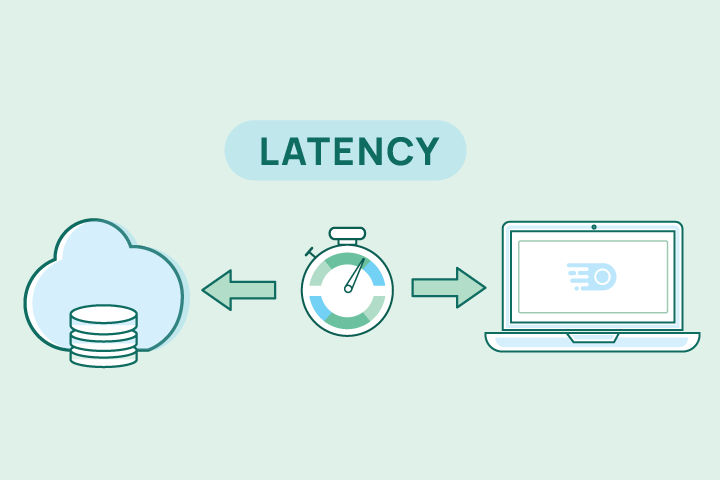
Latency is the round-trip delay (in milliseconds) for a data packet to go from your device to a server and back. The lower the number, the better, especially for gaming, video calls, and any real-time internet activity. Throughput (download & upload speed) is how much data you move per second; latency is how quickly each request gets a response.

Key Takeaways About Internet Latency
- Latency ≠ speed. Latency is a measure of delay (ms).
- What users feel: High latency shows up as lag in games and out-of-sync calls.
- Excellent ping rates are below 20 ms.
- Latency varies by internet type: Fiber internet has the lowest latency.
- Many factors affect latency, but you can improve it.
- Test your latency by running an internet speed test.
- Emerging technology is on the horizon to help lower latency.
Why Does Latency Matter?
Even when your download speed is fast, extra milliseconds of delay stack up across every click, call, or controller input. Besides delay, there are two more components to latency: jitter (how latency varies from one packet to the next) and packet loss (packets that never arrive). In practice, users don’t say “my latency is 120 ms”—they say “my game is laggy,” “this call is out of sync,” or “why is this app so slow?” Here’s how that plays out:
Video calls (Zoom/Meet/Teams)
- Symptoms: People talk over each other, awkward delays before someone hears you, lips out of sync, and distorted audio.
- Why: Conversational turn-taking falls apart above ~100 ms; jitter forces the app to buffer more, adding even more delay. Tiny bursts of packet loss cause the “robot voice.”
- Quick win: Prefer Ethernet, keep other devices from uploading during calls, and enable QoS/Device Priority for conferencing.
Online gaming
- Symptoms: Missed shots, delayed inputs, rubber-banding, getting “peeked” before you see the opponent.
- Why: Game engines expect consistent, low delay. Above ~50–60 ms, timing windows get tight; spikes (jitter) are worse than a steady 40 ms. Loss triggers rollbacks or desync.
- Quick win: Wire the console/PC, choose the nearest server/region, and turn on SQM/FQ-CoDel to prevent uploads/streams from blowing up your ping mid-match.
Cloud apps & SaaS
- Symptoms: Menus feel sluggish, file trees take a beat to open, micro-delays add up to “why does this feel slow?”
- Why: Each UI action chains multiple small requests. +40–60 ms per request turns into seconds across a flow.
- Quick win: Keep latency low and stable; if you’re on Wi-Fi, improve signal quality or use Ethernet for your primary workstation.
Streaming & live TV
- Symptoms: Long start time when you hit Play, choppy live streams, and quality hopping up and down.
- Why: Players buffer to mask jitter; when jitter and loss spike, they downshift quality or stutter.
- Quick win: Reduce contention (pause large downloads), strengthen Wi-Fi, or watch via a wired streaming box.
Smart home & voice assistants
- Symptoms: Noticeable pause between “Hey…” and response, delayed smart-light actions.
- Why: Small requests are latency-sensitive; extra milliseconds break the illusion of immediacy.
- Quick win: Improve Wi-Fi placement for IoT zones; avoid overcrowded 2.4 GHz if your devices support 5/6 GHz.
Remote Work
- Symptoms: Typing lag, cursor jumps, and delayed screen draws.
- Why: These tools stream interactions in real time; latency and jitter directly show up as lag.
- Quick win: Ethernet, prioritize the device, and minimize background uploads (cloud sync, backups, drive uploads).
Bottom line: Throughput governs how much you can download; latency, jitter, and packet loss govern how responsive everything feels.
What Causes High Latency?
Many factors can cause high latency. First is physical distance and routing. Every request has to travel to a server and back; the farther away that server is—and the more “hops” your traffic takes—the higher your round-trip time. Content delivery networks (CDNs) and regionally hosted services help by moving content closer to you and minimizing extra hops.
Your internet connection has inherent latency depending on the type. Fiber is typically lowest since it uses light to transmit data. Cable and 5G home internet are good under optimal conditions, but they’re more prone to congestion spikes.
Poor latency is most commonly caused by network congestion, both from your internet provider and your home network.
Satellite behaves differently because of physics. LEO (low-Earth-orbit) systems route traffic to satellites that orbit much closer to Earth, so round-trip times are usually low (~20 ms). GEO (geostationary) satellites sit about 22,000 miles up, which causes the highest latency of all connection types.
In the home, a common culprit is bufferbloat. Intended to manage traffic, these oversized queues in your router or modem end up adding significant delay whenever someone uploads a file, runs a cloud backup, or joins a video call.
Your Wi-Fi network is a common burden on latency. Interference from neighboring networks, weak signal through walls, and older Wi-Fi standards increase delay and jitter. Good placement, modern routers, and newer standards (Wi-Fi 7) reduce spikes with features that manage multiple links more efficiently and recover faster from noisy airwaves.
Comparing Latency By Internet Type
| Internet Type | Typical Latency (ms) | Context |
| Fiber | 5–20 | Consistently lowest; great for gaming, calls, cloud apps. |
| Cable | 15–40 | Can spike during congestion. |
| DSL | 20–40 | Older copper; stable but slower speeds and higher spikes than fiber. |
| Fixed Wireless Internet | 15–40 | RF interference and line-of-sight impact variance; good when signal is strong. |
| 5G Home Internet | 20–50 | Performance varies by signal quality and network load; improving with L4S. |
| Satellite — LEO (Starlink) | 25–60 | Much lower than GEO; weather/obstructions and routing still matter. |
| Satellite — GEO (HughesNet & Viasat) | 500–650 | Long distance to orbit dominates round-trip delay; fine for browsing/streaming, not for twitch gaming or real-time calls. |
| Internet Type | Fiber |
| Typical Latency (ms) | 5â20 |
| Context | Consistently lowest; great for gaming, calls, cloud apps. |
| Internet Type | Cable |
| Typical Latency (ms) | 15â40 |
| Context | Can spike during congestion. |
| Internet Type | DSL |
| Typical Latency (ms) | 20â40 |
| Context | Older copper; stable but slower speeds and higher spikes than fiber. |
| Internet Type | Fixed Wireless Internet |
| Typical Latency (ms) | 15â40 |
| Context | RF interference and line-of-sight impact variance; good when signal is strong. |
| Internet Type | 5G Home Internet |
| Typical Latency (ms) | 20â50 |
| Context | Performance varies by signal quality and network load; improving with L4S. |
| Internet Type | Satellite â LEO (Starlink) |
| Typical Latency (ms) | 25â60 |
| Context | Much lower than GEO; weather/obstructions and routing still matter. |
| Internet Type | Satellite â GEO (HughesNet & Viasat) |
| Typical Latency (ms) | 500â650 |
| Context | Long distance to orbit dominates round-trip delay; fine for browsing/streaming, not for twitch gaming or real-time calls. |
How Do I Test My Latency?
Most internet speed tests include latency, jitter, and packet loss measurements in addition to download and upload speed. To get the most accurate measurement of your latency,
- Pause backups & downloads on all devices.
- Connect your computer to the modem with an Ethernet cable if possible.
- Go to TestMySpeed.com or click “Go” in the testing tool below.
- Compare peak vs. off-peak tests (evening is typically slower due to congestion).
- Note ping (latency), jitter, and packet loss.
What is a Good Ping Rate?
| Use case | Target latency |
| Esports/fast frames per second (FPS) | <20 ms (ideal) |
| Competitive multiplayer, smooth video calls | 20–50 ms |
| Casual gaming; most live apps | 50–100 ms |
| Noticeable lag; troubleshoot | >100 ms |
| Use case | Esports/fast frames per second (FPS) |
| Target latency | <20 ms (ideal) |
| Use case | Competitive multiplayer, smooth video calls |
| Target latency | 20â50 ms |
| Use case | Casual gaming; most live apps |
| Target latency | 50â100 ms |
| Use case | Noticeable lag; troubleshoot |
| Target latency | >100 ms |
How much speed do you need?
It depends. Take our 2-minute quiz to find the ideal speed for your internet needs.
Find My Ideal SpeedHow Can I Improve My Latency?
You can improve your latency with quick wins at home. Wire key devices—PCs, consoles, streaming boxes—directly via Ethernet to avoid Wi-Fi variability. If you must use Wi-Fi, optimize placement by placing your router centrally and high, updating firmware, and separating 2.4/5/6 GHz networks so devices select the best band. Adjust channels to avoid interference, and if your hardware supports it, enable band steering or multi-link operation (MLO) on Wi-Fi 7 gear to smooth out spikes. In your router app, prioritize traffic (QoS/Device Priority) for gaming, voice, and video so background tasks don’t disrupt calls or online gaming.
Next, fix the biggest culprit: bufferbloat. Turn on Smart Queue Management (SQM) or FQ-CoDel in your router. These modern queueing algorithms stabilize latency while someone uploads a file, syncs photos, or streams 4K video. Refer to your router manual or manufacturer’s website for
If problems persist, consider your access type. Fiber delivers the most consistently low latency. On cable or 5G home internet, networks that support L4S can dramatically reduce “working” latency during congestion—ask your provider about availability. For satellite, LEO services (e.g., Starlink) offer much lower latency than GEO; check local performance and obstruction maps to validate expectations.
Finally, tune the apps themselves. Real-time apps—games, video calls, remote desktops—favor protocols like UDP/WebRTC to minimize delay. Make sure firewalls and security tools aren’t over-inspecting real-time traffic, which can add jitter. Between cleaner Wi-Fi, SQM, the right access plan, and app-level tuning, most latency issues can be brought under control.

- Same-day installations
- 22+ million free Wi-Fi hotspots
- Unlimited data available
Emerging Low Latency Technology to Watch
Two upgrades are reshaping how the internet handles latency. First, L4S (Low Latency, Low Loss, Scalable Throughput) is rolling out across major cable and mobile networks. Instead of letting queues swell during congestion—and spiking your ping—L4S uses modern congestion signaling so interactive traffic (games, calls, cloud apps) stays responsive even when the line is busy. It’s also gaining app-side support from big ecosystem players (think game engines, GPU makers, and real-time comms platforms), which means you’ll see benefits without tweaking settings once your network and apps speak the same language.
Second, Wi-Fi 7 (with Wi-Fi 8/UHR on the horizon) tackles latency inside the home. Features like Multi-Link Operation (MLO) let devices use multiple bands/links at once and switch paths quickly when interference appears, trimming worst-case spikes—the hiccups you actually notice—while improving reliability for voice, video, and gaming. In practical terms: pair an L4S-enabled access network with a modern Wi-Fi 7 router and clients, and you get lower “working latency” under load from the curb to your couch.
Frequently Asked Questions About Internet Latenc
Latency: The actual delay measured in milliseconds (ms) for a request to go to a server and back.
Ping: The test/tool that measures latency.
Lag: The symptom you feel—stutter, delay, rubber-banding—often caused by high latency, jitter, or packet loss.
Internet latency is the round-trip delay—measured in milliseconds (ms)—for data to travel from your device to a server and back. Lower latency makes apps feel more responsive, independent of download and upload speeds.
As a rule of thumb to gauge latency :
- <20 ms = excellent
- 20–50 ms = good
- 50–100 ms = acceptable but noticeable
- >100 ms = high latency (you’ll feel lag in games, calls, and interactive apps).
For browsing, streaming video, and most cloud apps, 20–50 ms is a good target. It keeps pages snappy and streams stable even during light household activity.
For online gaming, aim for <50 ms; competitive shooters and fast esports feel best at <20 ms.
For video conferencing and working remotely, staying <60 ms with low jitter avoids talk-over and lip-sync issues.
Speed (throughput) measures how much data moves per second; latency measures how quickly each request gets a response. Distance to servers, Wi-Fi interference, router bufferbloat, and network congestion can all raise latency despite high Mbps.
There are several actions you can take to improve your internet latency. Check your router or gateway’s manual or the manufacturer’s website for device-based actions.
- Use Ethernet for PCs, consoles, and TVs.
- Improve Wi-Fi placement; pick cleaner channels; update firmware.
- Turn on QoS/Device Priority for calls and games.
- Enable SQM/FQ-CoDel on your router to control bufferbloat.
- If available, choose fiber or providers advertising L4S/low-latency features.
Find providers in your area
Share this post:



Table of Contents