5 Best Password Managers of 2026
HighSpeedOptions prides itself on providing honest, quality content. While we may be compensated when you make a purchase through links on our site, all opinions are our own. Here's how we make money.
Table of Contents
Password managers make it easy to maintain online security and privacy without having to remember dozens of complex passwords. They can create strong and unique passwords for all of your online accounts and store them in a secure location. When you need to log in, the password manager autofills your credentials.
Check out our list of the 5 best password managers on the market to determine which suits your needs.
Proton Pass – Best Privacy Bundle
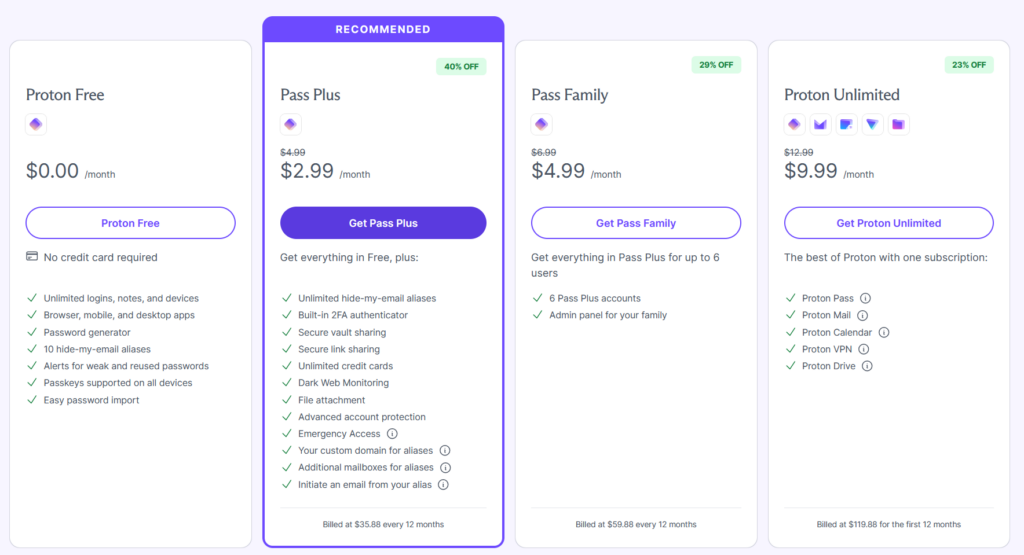
Backed by the team behind Proton Mail and Proton VPN, Proton Pass emphasizes security and privacy first: it’s open-source, independently audited by Cure53, supports passkeys and an integrated TOTP authenticator, and includes email-aliasing. Apps are available for Windows, macOS, Linux, iOS, and Android, with a web vault and extensions for all major browsers (Chrome, Firefox, Edge, Brave; Proton also lists Safari support).
Pros
Open-source, audited; zero-knowledge E2E encryption (Cure53 audit)
Passkeys + integrated TOTP 2FA + Dark Web Monitoring in one app
Hide-my-email aliases (unlimited on paid), great for privacy and spam control
Wide platform/browsers coverage (desktop, mobile, web; major extensions)
Cons
Some premium features (integrated 2FA, unlimited aliases, sharing) require paid pla
Ecosystem works best if you’re already using Proton services (Mail/VPN/Drive)
Good to know: Proton Pass’s code is public, and the service has undergone third-party audits; passkeys are supported across devices; and you can import from other managers quickly.
Bitwarden – Best for Security
KnoKnown for its security and capable free tier, Bitwarden tops our list as the most secure password manager on the market. While a few advanced features are locked behind a paywall, most of Bitwarden’s service is included in the free plan. For $10 per year, you get all Bitwarden has to offer at a fraction of what you’d pay with other premium services.
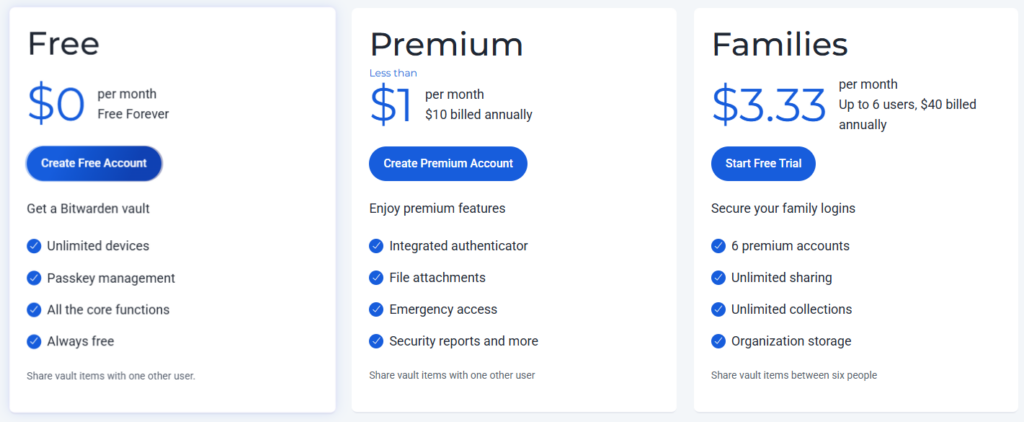
Bitwarden stores, saves, generates, and updates passwords. It audits passwords so you can stay on top of your password security. The free and premium versions also come with unlimited device connections, device types, and vault items, so you can protect as many passwords, notes, credit cards, and identities as you need with a single account.
Bitwarden software on any Android, iOS, Linux, macOS, or Windows machine as well as most web browsers, including Google Chrome, Mozilla Firefox, Opera, Microsoft Edge, Apple Safari, Vivaldi, Brave, and even Tor Browser.
Bitwarden is open source and is audited by thousands of users and staff. This checks-and-balances approach helps mitigate security vulnerabilities or updates needed for the best user experience. It also complies with U.S. and E.U. Data Privacy Framework, GDPR, and CCPA regulations, and uses military-grade AES 256-bit encryption to protect user information.
Premium users get advanced features, including two-factor authentication (2FA) methods such as biometric logins, TOTP authentication, and physical secret keys like YubiKey/Duo. If you want to go further, Bitwarden even supports Universal 2nd Factor (U2F) authentication, which is a method that uses one key for multiple accounts that elevates the security provided by 2FA.
Pros
Capable free plans available
Industry-low pricing on Premium plans
Open-source software
Zero-knowledge encryption
Unlimited devices + syncing
Unlimited device types
Unlimited storage
Free cloud hosting
Encrypted export option
2FA methods
Cons
YubiKey, U2F, and Duo support are locked behind a paywall
No built-in TOTP generator on the free plan (available with Premium)
Learning curve for password management beginners
Basic user interface
NordPass – Best User Experience
NordPass is an extension of its more popular product, NordVPN. While its one-month plan is pricier than most password managers, NordPass gives users multiple options to test out its platform before committing to a long-term plan that is significantly cheaper and competitively priced.
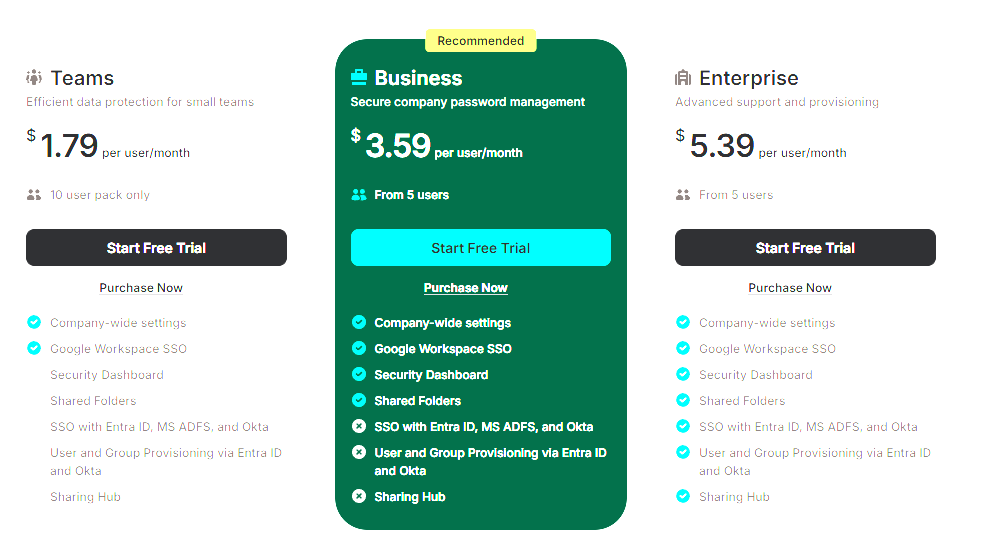
NordPass immediately checks off the must-have boxes. Both its free and paid plans come with unlimited storage, a sleek interface, and can be used as an extension in all major web browsers, as well as Windows, macOS, Linux, Android, and iOS systems. There isn’t a desktop app for NordPass on Chromebooks.
NordPass makes importing passwords and files seamless. Within the app, there are guides and plugins to help you consolidate your account logins. You can also easily share passwords with other Premium members.
NordPass uses standard XChaCha20 encryption, employs routine password checks, and offers multi-factor authentication (MFA) methods. Biometric logins and time-based one-time password (TOTP) authentication are typically what you think of for MFA – and NordPass does offer those.
The best password managers also come with physical security key support. NordPass runs on a zero-knowledge architecture, so even Nord can’t retrieve a forgotten password in your vault.
Pros
Free basic plan available
Free 7-day Premium trial
30-day money-back guarantee
Password sharing options
Sleek interface across all devices
Multi-Factor Authentication
New physical secret key support
Earn credit if you refer a friend
Stores passwords, notes, and credit card information
Audited by Cure53, an independent security firm
Cons
Expensive one-month plan
Free plan limited to one device connection at a time
Lacks digital inheritance
Only premium users can create shared folders
No family plans available
1Password – Best for Families
1Password is ideal for families looking for a way to share passwords at an affordable cost. It requires you to enter a credit card upon sign-up, which will be charged after the 14-day trial.
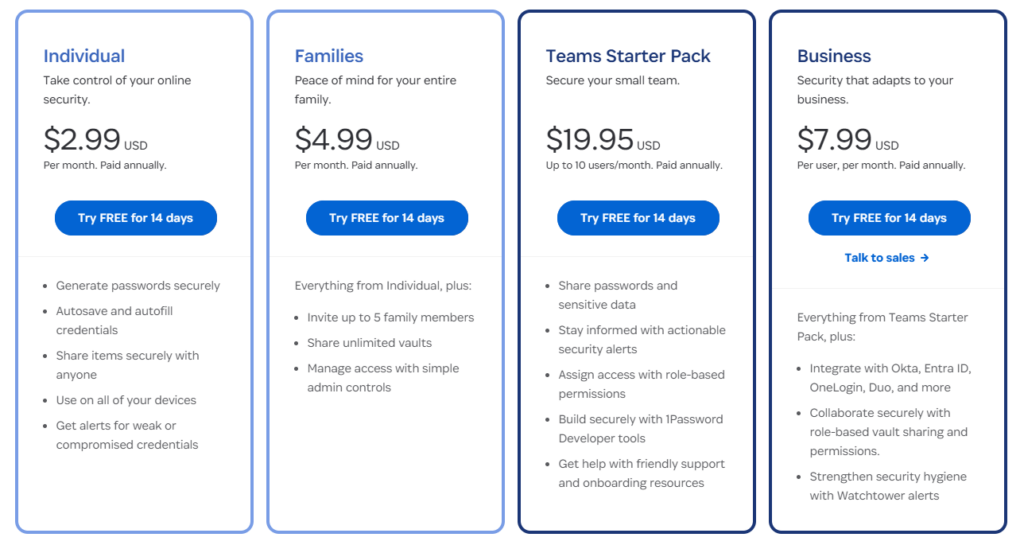
1Password is easy to use and provides setup guides to help you download and install the app and transfer passwords from other password managers. If you’re on a family plan, this also makes it easier to expand your password vault. Rather than manually typing out your credentials, you can transfer logins with a few clicks.
Offering layers of encryption, 1Password utilizes end-to-end AES 256-bit encryption and 2FA, as well as biometric login support on mobile devices. It comes with a Watchtower feature that alerts users to any weak logins, compromised websites, and expiring passwords. It does not store your master vault key. 1Password provides an “Emergency Kit” for your records instead. At sign-up, it requires you to download a copy in case you need to recover your account.
1Password uses SRP (a password authenticated key exchange, or PAKE) plus a per-account Secret Key (2SKD) and Travel Mode. PAKE is an encryption protocol where two or more people share a password known as a cryptographic key. Each person holds a specific part of the 36-character password so that only together can they unlock a 1Password vault.
Travel Mode is a feature that temporarily deletes entire password vaults from your device when toggled on. This way, your devices (and your personal information) can’t be compromised when you travel. Your kids may lose their phones on a trip, but with Travel Mode on, you won’t have to worry about them or you losing personal data, too.
1Password plans have unlimited storage, unlimited device connections, and the ability to store secure notes in your account.
Pros
Free 14-day trial
- PAKE encryption protocol
Compatible with Apple, Windows, and Chromebooks devices
- Compatible with Linux, Android, iOS, macOS, and Windows operating systems
Browser extensions for Chrome, Firefox, Safari, Edge, and Brave
Family plan available for password sharing
Biometric login support including facial recognition and fingerprint reading
24/7 customer support
AKE cryptographic key option
Travel Mode feature prevents prying eyes from accessing your logins
Intuitive form capture feature
Cons
No long-term free version
No individual recovery option, aside from manually printed Emergency Kit or a family account member
Automatic lock after 10 mins (though this can be adjusted in settings)
Basic, outdated desktop application
Weak mobile app experience
Norton Password Manager – Best Free Service
Easy-to-use and completely free, Norton Password Manager is excellent for users on a budget or new to password managers. It provides all the basic password management functions you’d hope for while lacking just a few nice-to-haves. Users can download the software for free online or get it bundled with any Norton 360 internet security plan below.
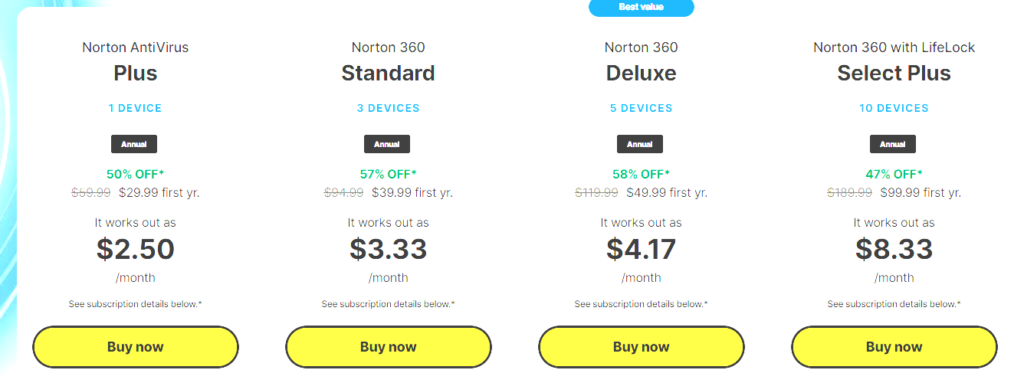
Norton Password Manager uses military-grade security measures, including AES 256-bit encryption, basic two-factor authentication, a zero-knowledge policy, and an autochange feature. Autochange lets users update their password stored on a website with just one click, automatically completing all the backend steps required to change a password.
The only way to access passwords in your account is with your vault master password, which is never stored or sent anywhere. Norton warns users multiple times at sign-up that the vault password is not recoverable.
This service is largely web-based and easy to use. You can sync passwords across all of your Android, iOS, and Windows devices. It’s available as an app and browser extensions for Chrome, Edge, and Firefox. If you already have a password manager, you can import those stored passwords into a Norton Password Manager account. Norton also provides unlimited password storage.
A few advanced options Norton Password Manager is lacking include password sharing, digital inheritance (family plans for shared access), 2FA for desktops, and a built-in time-based one-time password (TOTP) authentication. For a free password manager, Norton covers all its bases – and does it well.
Pros
100% free
Unlimited password storage
Automatic password change
Syncs all passwords across Windows, iOS, and Android devices
AES 256-bit encryption
Biometric two-factor authentication available on mobile devices
Password vault auditing tool
Password generator
Cons
No account recovery options
No password sharing
No digital inheritance
No advnaced two-factor authentication
No built-in TOTP authenticator
What Are Passkeys?
Passkeys are phishing-resistant sign-in credentials based on FIDO standards (FIDO is an industry association with a mission to reduce reliance on passwords). Instead of typing a password, you unlock with your device auth (Face/Touch ID, Windows Hello, PIN). A public key lives with the website; your private key stays on your devices. No password to steal or reuse.
Which password managers support passkeys?
All top picks now let you create, store, sync, and autofill passkeys:
- 1Password – save/use/share passkeys in browser & apps.
- Bitwarden – store & autofill passkeys via extensions and mobile.
- Dashlane – full passkey management; cloud enclave protection.
- Keeper – passkey management with cross-device sync (mobile + desktop).
- Proton Pass – passkeys across browser extension, iOS, Android (Android 14+).
- NordPass – passkeys supported; explains how keys work.
Note on Microsoft Authenticator: Microsoft removed password storage & autofill from Authenticator in July–August 2025; use Edge’s built-in manager or export to a third-party manager. Passkeys remain supported.
Comparing the Top 5 Password Managers
| Manager | Free plan | Individual price (annual) | Family plan | Passkeys (create, store, autofill) | Apps & extensions | Notes |
| Bitwarden | Yes | $10/yr (Premium) | $40/yr (Families) | Yes (desktop, mobile, browser) | Windows, macOS, Linux, iOS, Android; major browsers | Best low-cost, open-source pick. |
| NordPass | Yes | From promo pricing; varies by term | Family Plan (6 users) | Yes | Desktop, mobile, and extensions (Chrome, etc.). No Chromebook desktop app. | Uses XChaCha20; strong usability. |
| 1Password | No | Starting at $2.99/mo billed annually (region-based) | Families (5 included) | Yes (full passkey tooling) | Windows, macOS, Linux, iOS, Android; major browsers | Polished UX; top pick for families. |
| Norton Password Manager | Yes (stand-alone) | Free | N/A | No passkeys (as of 2025 testing) | iOS, Android, browser extension | Simple, no-frills; good if you need free basics only. |
| Proton Pass | Yes (unlimited logins/devices) | Plus from $2–3/mo on annual promos (Plus) | Families available (up to 6; generous sharing) | Yes (extension + iOS/Android) | Windows, macOS, Linux, iOS, Android; major browsers | Privacy-first; audited/open-source components, Key Transparency. |
| Manager | Bitwarden |
| Free plan | Yes |
| Individual price (annual) | $10/yr (Premium) |
| Family plan | $40/yr (Families) |
| Passkeys (create, store, autofill) | Yes (desktop, mobile, browser) |
| Apps & extensions | Windows, macOS, Linux, iOS, Android; major browsers |
| Notes | Best low-cost, open-source pick. |
| Manager | NordPass |
| Free plan | Yes |
| Individual price (annual) | From promo pricing; varies by term |
| Family plan | Family Plan (6 users) |
| Passkeys (create, store, autofill) | Yes |
| Apps & extensions | Desktop, mobile, and extensions (Chrome, etc.). No Chromebook desktop app. |
| Notes | Uses XChaCha20; strong usability. |
| Manager | 1Password |
| Free plan | No |
| Individual price (annual) | Starting at $2.99/mo billed annually (region-based) |
| Family plan | Families (5 included) |
| Passkeys (create, store, autofill) | Yes (full passkey tooling) |
| Apps & extensions | Windows, macOS, Linux, iOS, Android; major browsers |
| Notes | Polished UX; top pick for families. |
| Manager | Norton Password Manager |
| Free plan | Yes (stand-alone) |
| Individual price (annual) | Free |
| Family plan | N/A |
| Passkeys (create, store, autofill) | No passkeys (as of 2025 testing) |
| Apps & extensions | iOS, Android, browser extension |
| Notes | Simple, no-frills; good if you need free basics only. |
| Manager | Proton Pass |
| Free plan | Yes (unlimited logins/devices) |
| Individual price (annual) | Plus from $2â3/mo on annual promos (Plus) |
| Family plan | Families available (up to 6; generous sharing) |
| Passkeys (create, store, autofill) | Yes (extension + iOS/Android) |
| Apps & extensions | Windows, macOS, Linux, iOS, Android; major browsers |
| Notes | Privacy-first; audited/open-source components, Key Transparency. |
What about in-browser password managers?
Browser managers are great if you live in one ecosystem; third-party managers shine for cross-platform families, shared vaults, recovery, and admin features. Here are how the most popular browsers manage passwords:
- Google Password Manager (Chrome/Android/ChromeOS): stores and syncs passkeys; set up at g.co/passkeys.
- Apple iCloud Keychain (iOS/macOS/iPadOS): end-to-end encrypted passkey sync across Apple devices.
- Firefox: supports WebAuthn/passkeys across platforms (Android 14 adds smoother handling).
How Do I Get Started With Browser-based Passkeys?
- Pick your home (manager or browser). If you already use a password manager, enable passkeys there so everything stays in one place. (See support links above.)
- Update everything (latest OS, browser, and manager app/extension) to ensure WebAuthn + passkey APIs work smoothly. (Vendors require current builds for passkey prompts.)
- Create your first passkey on a supported site (e.g., Google, GitHub, banks as they roll out): choose “Create a passkey” in the site’s Security/Sign-in settings and save it to your chosen manager.
- Sync/backup: confirm sync across your devices (e.g., iCloud Keychain for Apple; your manager’s cloud sync for others). Consider adding a second device (phone + laptop) for recovery.
- Migrate over time: when a site supports passkeys, log in once with your old password, add a passkey, then remove the password if the site allows. Chrome is even testing automatic upgrades from saved passwords to passkeys.
No More Jotting Down or Forgetting Passwords
The days of writing passwords down on sticky notes or settling for “password123” at sign-ups are over. With cyberattacks on the rise, your online accounts – be it financial, retail, or leisure – are all ripe for the taking. Hackers won’t hesitate to test your password vulnerabilities, so it’s important to safeguard your personal information at all times, and password managers help secure and simplify the process.
Frequently Asked Questions About the Best Password Managers
There isn’t a single winner for everyone. If you want the most polished, family-friendly experience, 1Password is a top pick. For the lowest cost with open-source transparency, Bitwarden Premium ($10/yr) is hard to beat. If you want a privacy bundle with email aliases and built-in TOTP, Proton Pass Plus is excellent.
If you live mostly in Chrome/Android, Google Password Manager is convenient and free. If you use multiple platforms (Windows + iOS/macOS) or want shared vaults, emergency access, passkey sharing, breach alerts, and better recovery options, go with a third-party like 1Password, Bitwarden, or Proton Pass. They all have Chrome extensions and mobile apps.
Norton Password Manager is free and simple, good for basics and for people already using Norton 360. 1Password is a paid manager with richer features: family sharing, item-level permissions, robust recovery, Watchtower reports, and advanced passkey tooling. If you need more than the basics—or have a mixed-device household—1Password is usually the better long-term fit.
Norton’s manager is a no-cost, lightweight option (good for solo users who want simple storage). LastPass is a full-featured paid manager, but many buyers consider alternatives due to the 2022 breach history. If you want a free option, Norton is fine for basics; if you want a premium alternative, consider 1Password, Bitwarden, or Proton Pass.
Not yet. Passkeys remove passwords on sites that support them, but you still need a secure place to store, sync, and share passkeys, traditional passwords, and 2FA codes. Modern managers (1Password, Bitwarden, Proton Pass, Dashlane, NordPass, Keeper) all handle passkeys alongside passwords, making them more—not less—useful.
Yes—if they’re reputable. Bitwarden (open-source) and Proton Pass both offer credible free tiers. You’ll typically pay to unlock extras like integrated TOTP, more sharing, more aliases, or advanced monitoring. Avoid unknown apps and always enable device biometrics and a strong master password.
Typical consumer pricing ranges from ~$10/year (Bitwarden Premium) to ~$3–5/month billed annually (1Password, Dashlane, NordPass, Keeper, Proton Pass Plus). Family plans often cover 5–6 users at a discount versus buying multiple individual licenses.
Cross-platform apps and extensions, passkey create/store/autofill, secure sharing/family vaults, integrated TOTP, breach monitoring, export/import tools, strong recovery options (family recovery/emergency access), and zero-knowledge encryption with regular security audits.
Export your data (CSV or encrypted export) from the old tool, import it into the new one, then re-save logins on first use to refresh fields. Add passkeys on supported sites as you go, turn on 2FA for the new account, and keep the old account only until you confirm everything transferred.
Yes. Chrome/Google Password Manager, Safari/iCloud Keychain, Firefox, and Microsoft Edge all use strong encryption and now create, store, and autofill passkeys on supported sites. They’re great if you stay in one ecosystem. If you mix devices or need family sharing, recovery options, integrated TOTP, breach monitoring, or granular sharing, a third-party manager (e.g., 1Password, Bitwarden, Proton Pass) is the better long-term home.
Find providers in your area
Share this post: