How to Protect Yourself on Public WiFi

HighSpeedOptions prides itself on providing honest, quality content. While we may be compensated when you make a purchase through links on our site, all opinions are our own. Here's how we make money.

Using public WiFi without taking measures to protect your online security and your devices can be risky. Public networks often lack security, making it easier for hackers to access your data or launch malware attacks.

Harms of Public Networks

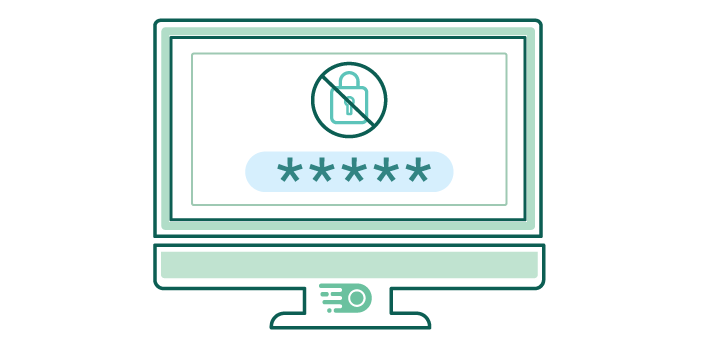
While it may seem counterintuitive, public WiFi is actually in no way secure — and a password login doesn’t necessarily add an extra layer of security. Public WiFi networks are often easy for hackers to crack, so they’re a risk for identity theft or even money theft. 

Cybercriminals know how to access anything from banking information to email logins and personal files. You might even run into malware attacks, which can be carried out in the following ways:

Man in the Middle (MITM)

Since public WiFi is often unencrypted and unsecured, hackers can intercept and monitor the traffic between your device and the websites you’re browsing – otherwise known as “man in the middle” attacks.

Fake WiFi Hotspots (Evil Twin)

Hackers can disguise themselves on public networks or fake WiFi hotspots with inconspicuous names similar to those found in cafes or airports They exploit this by monitoring your data while connected to their network. Always verify with an employee that you are accessing the correct network associated with the business.

WiFi Sniffing

There is legal software that hackers can use to monitor and log all data packets, like your browsing information. Your online activity is usually unencrypted when you connect to a public network, making it easier for hackers to see the data you transfer between your device and the public network.

How to Check the Security of a Public WiFi

When connecting to public Wi-Fi, ensure network security by checking a few key factors before usage.

  • Look for the lock symbol in the address bar of your web browser. If you see a lock symbol, it means that the network is using HTTPS, which is a secure protocol that encrypts your traffic.
  • Check the network name. If the network name is something generic, like “Free Wi-Fi,” it’s more likely to be insecure. Networks that are run by businesses or organizations are usually more secure.
  • Check for passwords. Avoid public WiFi networks that do not require passwords. Although they’re not a failsafe, passwords do add an extra layer of protection since open networks are more susceptible to intrusions.
  • Ask the owner of the network if you’re not sure. If you’re still not sure if a network is secure, you can always ask the owner of the network. They should be able to tell you if the network is encrypted and if it’s safe to use.

Tips to Keep Your Devices Safe

Connecting to WiFi is often a mindless, or even automatic, process. But it’s best to be vigilant about using public WiFi to keep hackers from accessing your personal information or compromising your device. Take a look at our tips to protect your devices from this below when accessing a public WiFi network.

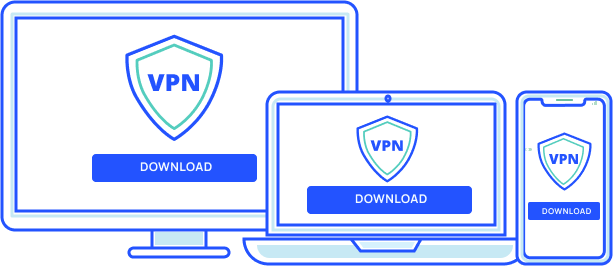
graphic showing vpn compatibility across different devices

Cover your bases

Avoid using websites that need personal data such as bank accounts, your social security number, or where you live while using public WiFi. And certainly do not make any significant financial transactions.

Always verify the network you’re connecting to first. Most public places have an official login page. These pages will prompt you to enter your email or accept the terms of the public network. If none of the above pops up on your screen, you might be on an encrypted network.  

Turn on your firewall

All you need to do is go to your system preferences or control panel, depending on your operating system. Whether you own a PC or a Mac, you will want to access your control panel or system preferences to turn on your firewall. Firewalls protect your devices from any malware-related threats. It will also secure your data from any potential attacks from hackers.

Turn off File Sharing

There is no reason for you to have your sharing preferences turned on while connected to a public network. Once you verify the network you’re connecting to, turn off your file-sharing option before connecting to it. File sharing can be managed through File Explorer in Windows, and in the System Settings on MacOS. 

Use a reliable VPN

When you connect to public WiFi, using a VPN (Virtual Private Network) is essential. A VPN encrypts your IP address, ensuring your online activities remain private. Invest in a trusted VPN for top-tier security on public networks. With a VPN, your data remains hidden from potential hackers, safeguarding your personal details and browsing history.

Public WiFi can be a convenient way to stay connected when you’re on the go, but it’s important to take steps to protect your online security and your devices. By following the tips in this article, you can help keep your personal information safe from hackers and cybercriminals.

Keith Carlson
Keith is a Contributing Writer for HighSpeedOptions with a background in writing, SEO, GEO, and marketing. He has written for and contributed to organizations in the non-profit, financial, and enterprise internet and cable service industries. At HighSpeedOptions, Keith covers everything from broadband news to emerging technologies and how they complement different lifestyles and budgetary needs. In his free time, Keith enjoys spending time with his family, reading as many books as he can, and photography.

Why You Should Set Up a Guest WiFi Network

HighSpeedOptions prides itself on providing honest, quality content. While we may be compensated when you make a purchase through links on our site, all opinions are our own. Here's how we make money.

A guest WiFi network might seem like a novelty to-do item at first glance, but there are several benefits of taking the time to set one up. Many internet providers offer routers with built-in guest network capabilities. We cover why you should set up a guest WiFi network and additional router settings that can help boost your home security.

Make the most of your wireless home network with WiFi 6.

internet graphic

Benefits of a Guest WiFi Network

guest wifi network graphic

A guest WiFi Network isn’t just for guests. It’s also an easy way for you to protect and manage your home network. Here are the three main benefits of setting one up.

Security

With a guest network, you aren’t taking any chances of someone accessing your data or devices on your home network. It also protects your devices from potential malware on infected devices connected to your network. Not all security threats are intentional, as many seemingly innocuous websites are loaded with malware.

Convenience

It’s convenient, especially if you’re always hosting guests. You can set up a guest network and have one set of credentials to share with your visitors. When you have a guest network, you don’t have to worry about who or how many people are connecting to that network at any given time. Plus, you don’t have to change the password when your guests leave.

Management

You can manage users and bandwidth straight from your WiFi app in most cases. With the added users on your network, you can prioritize connections and ensure you don’t leave your guests with slow internet speeds.

  • Same-day installations
  • 8+ million free WiFi hotspots
  • Unlimited data available

How to Set Up Guest WiFi in 5 Easy Steps

All routers work essentially the same. Your model may have minor differences, like clicking on a tab versus a menu, but our directions should get you there. And if you get stuck, the user manual for your router should also include detailed instructions for setting up your guest WiFi.

devices in a row graphic

1. Get your router’s IP address

First, you’ll need your router’s IP address. This unique string of characters identifies your router’s connection to the internet network. The IP address is static, so you should be able to find it in the user manual or on a label on the router. But if those fail, you can try using a connected device to locate the information. From your computer, go to System Preferences > Network > Wifi > Advanced > Router’s IP Address TCIP/IP.

2. Log into the router administrative account

Next, you need to login into the admin account for your router. To access this page, simply open a web browser on your computer and type the router’s IP address into the URL bar. As soon as you navigate to the IP address, you’ll be presented with a landing page usually hosted by your internet provider and requires credentials to log in. This is little more than a formality, though, because most routers use a generic login like “admin” and “password.” 

3. Enable Guest WiFi access

Once you log into your router’s admin account, you’ll see a few options or tabs that allow you to do different things. Here, we are looking for something called “Guest Access.” You’ll need to enable access, which creates a separate shadow network that uses the same internet service that’s not connected to your home network. 

4. Create a Unique Guest WiFi Network Name and Password

Now it’s time to create a unique network name and password for your guest WiFi. Aim for a username and password that’s moderate in terms of difficulty. You don’t want it to be so easy that it allows your neighbors to leach service off you, but you want it to be memorable enough since you’ll be relaying the logins to your guests often. At a minimum, you’ll be asked to set up a unique network ID. This can be something as simple as “Smith Family Guests.” You will also need to set up a password for the guest network. 

Setting Up a Second Router as a Guest WiFi

router placement graphic

If you’re still on the fence about your home network’s security, there is an alternative to enabling a guest WiFi connection. Instead, you can set up a second WiFi router. This option is beneficial if you want to extend the range of your WiFi in a larger home or if the signal from your main router is weak in the guest bedroom. 

A second router is a good idea if your existing network already handles a lot of devices. If bandwidth is an issue, a second router is best. But, a second router can be a bit complicated to set up. Here’s a quick overview of the steps you should take.

  1. Purchase and connect a second router to the primary unit with an ethernet cable.
  2. Open the router’s IP address using a web browser and log in.
  3. Configure the second router using a repeater mode or bridge mode.
  4. Update the IP configuration for the second router to avoid interference.
  5. Set the DHCP address.
  6. Save Settings.

Additional Router Management

When you establish a guest network it adds a little complexity to your home network. Even if the changes are minimal, consider taking additional steps to manage your network.

1. Block unwanted users

If you do find yourself in a situation where a nosey neighbor is using your internet, and you want to put a stop to it, you can view and block individual users in the router’s admin panel. If your router doesn’t include this feature, we suggest using Wireless Network Watcher or Who Is On My WiFi. These are web-based tools that show you who is connected to your guest network and allow you to revoke unauthorized users.

2. Set up parental controls

The first setting that parents go for is usually parental controls. Whether you want to restrict inappropriate web content or set daily time limits, these features are available on home and guest networks. You should use them on both because it won’t be long before your kids figure out they can circumvent your controls by using the guest network.

3. Perform a malware sweep

A malware sweep checks connected devices for the presence of harmful malware if you are using a guest WiFi network. But, if you ever allow users to log directly onto your home network, it’s a must. Most routers come with anti-malware tools that automatically check new devices once they connect to a network. These tools can also be manipulated through the admin settings to perform sweeps on demand.

4. Enable QoS on the router

Quality of Service (QoS) features allow you to prioritize network traffic. If you have kids that do a lot of bandwidth-intensive gaming, you can keep them from interrupting your guests’ streaming using QoS features in your router admin panel.

Sharing Your New Guest WiFi Password

wifi password graphic

We’ve seen dozens of clever ways to show guests your WiFi password. You can choose any way that works for you. Make your password something easy to remember but difficult to guess so you can share it without having to look it up.

Or, level up your hospitality with a QR Code or custom WiFi password sign for your guest bedroom. If you use an Android phone, you can create a QR code directly from your phone and share it when needed. Apple users have an even more straightforward workaround with network-sharing features. All you need to do is join your guest network and make sure your iOS devices are near each other.

Keith Carlson
Keith is a Contributing Writer for HighSpeedOptions with a background in writing, SEO, GEO, and marketing. He has written for and contributed to organizations in the non-profit, financial, and enterprise internet and cable service industries. At HighSpeedOptions, Keith covers everything from broadband news to emerging technologies and how they complement different lifestyles and budgetary needs. In his free time, Keith enjoys spending time with his family, reading as many books as he can, and photography.

How to Setup a VPN on Your Router

HighSpeedOptions prides itself on providing honest, quality content. While we may be compensated when you make a purchase through links on our site, all opinions are our own. Here's how we make money.

Different than device-based virtual private network (VPN) software, a VPN router, or VPN-ready router, operates on the router and encrypts all of the devices connected to it. Here’s everything you need to know about setting up a VPN on your router.

What is a VPN router?

A virtual private network (VPN) is software that establishes an encrypted connection to a chosen server. It offers online anonymity, preventing snoopers from tracking your activities, while also allowing access to geo-restricted content. 

However, instead of downloading VPN apps to individual devices, a VPN router will secure your home network and all the Wi-Fi-enabled devices connected to it. When paired with your router, the VPN extends protection to all connected devices. 

Why use a VPN router?

VPN routers offer comprehensive protection for all your connected devices, ensuring consistent online privacy and security. This is especially beneficial for devices that don’t support VPNs, such as cameras, smart TVs, and appliances. Once set up, a VPN router provides an always-on, intuitive solution that overcomes device limitations imposed by VPN providers. 

However, it’s essential to ensure that your router is compatible with your chosen VPN provider and your internet provider. Some internet providers may block VPN traffic, so it’s important to check with your provider before you set up a VPN router.

thumb_upPros

  • check_circle

    A VPN extends protection to every device on your network, circumventing the device limit placed on users by VPN providers (usually only for 5-10 devices)

  • check_circle

    You won’t have to remember to switch on the VPN each time; you will be protected as long as your router is on and working

  • check_circle

    Ideal for devices that aren’t directly supported by VPNs, but could still do with the coverage

  • check_circle

    Benefits many WiFi-enabled devices such as home security systems, Smart TVs, and home automation devices

thumb_downCons

  • cancel

    Many older routers struggle with VPN technology, especially when connecting to multiple devices at the same time, which leads to slower internet speeds

  • cancel

    It’ll take a bit longer to set up a VPN router compared to downloading an app to your device, and you’re more likely to run into issues that aren’t especially easy to troubleshoot

  • cancel

    Not all providers design their VPN products to work on routers, so y\ou’ll have to find a compatible VPN solution

Setting up a VPN router

There are several ways to set up a VPN on a router, depending on your chosen provider and technical proficiency. If you’re not sure, explore pre-flashed models to prevent any hardware mishaps. Keeping this in mind, we have compiled a list of router models categorized by their level of VPN compatibility.

Normal (unflashed) routers

Most routers are unflashed and older models are probably incompatible with VPN client apps. We do not recommended changing the settings if you’re not familiar with them and what they do.

Examples of VPN-enabled brands include:

  • Asus
  • D-Link
  • DD-WRT
  • Netduma
  • Sabai
  • Tomato
  • TP-Link
  • Xiaomi

Other manufacturers may offer limited support. Visit the manufacturer’s website to check compatibility. 

VPN-enabled routers

A VPN-enabled router offers native support, and is preferable over unflashed and older models. These are routers that are capable of hosting a VPN, but you will need to download and subscribe to a VPN service.

Setting Up a VPN-enabled Router

  1. Choose a compatible VPN provider for your router.
  2. Access the router’s administration panel: Open a web browser and enter the router’s IP address in the address bar. 
  3. Log in with the default username and password provided by the manufacturer or that you set during the initial router setup.
  4. Configure VPN settings: Locate the VPN settings in the router’s administration panel. This may be found under a “VPN” or “Network” tab. Enter the required information, such as the VPN server address, username, and password provided by your VPN provider.
  5. Choose VPN protocol and encryption: Select the VPN protocol (OpenVPN, PPTP, L2TP/IPSec, etc.) and encryption strength (AES-256, etc.) based on your VPN provider’s recommendations or your specific needs. Save the settings.
  6. Import configuration files: Download the necessary configuration files from your VPN provider’s website. These files contain certificates, keys, and other required settings. Import these files into the router’s VPN configuration section.
  7. Test the VPN connection: Restart the router and perform a test to ensure the VPN connection is established successfully. Access websites or online services to verify that your IP address is masked and your data is encrypted.
  8. Regularly update firmware and settings: Stay up to date with firmware updates from the router manufacturer and periodically check for any VPN-related settings changes or updates from your VPN provider.

While VPN-enabled routers are more expensive than standard routers, they are more advanced hardware with many useful functions and security features.

Pre-flashed routers

A pre-flashed router comes with a VPN already installed and saves a lot of time for initial setup. Many are made with specific VPNs in mind that allows for increased compatibility and ease of use. If you’d prefer a pre-flashed VPN router, many providers have links that can be found directly on their websites. NordVPN advertises the compatible routers seen below, offering the latest in router tech with their app pre-installed.

Setting up a VPN router – Tips and Troubleshooting

Here are several tips for setting up your VPN router: 

  1. Some newer routers have integrated VPN functionality and will be easier to configure. 
  2. You may have to reconfigure the router settings to work with the VPN. This depends on the model and year of release as well as the provider selected.  
  3. Check out the manufacturer’s manual or website for specific setup guides if you’re having issues.  
  4. You might be voiding the router manufacturer’s warranty by installing custom firmware.
  5. You can also check out the VPN’s website for any configuration files and instructions. 

The Best VPN for Routers

The best VPN for routers will depend on a variety of factors, including the model and brand you currently own. If you plan to use a wide variety of devices, a VPN with quick connection speeds is a must.

The largest providers tend to have the best router capabilities with firmware that mimics the desktop versions. Other providers may have fantastic features, but don’t have the resources needed to develop VPN router tech. For this reason, we recommend choosing one of the more established brands and models for the sake of functionality. 

Final thoughts

VPN routers used to be more trouble than they were worth, but they’re now a useful way to secure an entire network with a single account. They’re ideal for protecting many devices without having to fork over more money for multiple subscriptions. Once set up, you can rest easy knowing your entire family is protected online.

Written By
Nick Welch
Written By
Nick Welch

Work from Home Internet Speeds: Top 5 Fastest & Slowest States

HighSpeedOptions prides itself on providing honest, quality content. While we may be compensated when you make a purchase through links on our site, all opinions are our own. Here's how we make money.

Working from home is becoming increasingly popular, with experts predicting that 36.2 million Americans will be working remotely by 2025. This trend is being driven by a number of factors, including the rise of the gig economy, the increasing affordability of remote work tools, and the growing availability of high-speed internet from internet providers.

However, not all locations are created equal when it comes to internet speeds. Some states have much faster average internet speeds than others, which can have a significant impact on the ability of remote workers to be productive.

In this article, we take a look at the top 5 fastest and slowest states for average internet speeds. We’ll also discuss the growth of work from home opportunities, the role of internet speed and connection types, and the future of remote work.

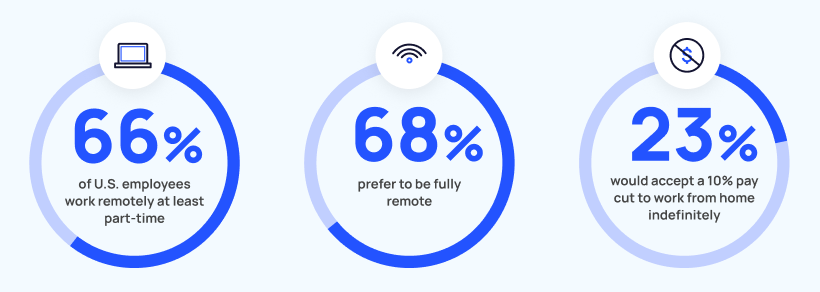
graphic showing employee work from home statistics
Source: Zippia

Growth of Work from Home Opportunities

Fully remote workers alone have quadrupled since 2018 and account for 26.7% of employees, and a staggering 16% of American companies have gone fully remote, while today, work from home jobs represent 15% of all employment opportunities in the US.

  • 59% of workers say they are more likely to choose an employer that allows remote work over one that doesn’t 2.
  • 40% of workers believe they are more productive working at home compared to being in the office.  2.
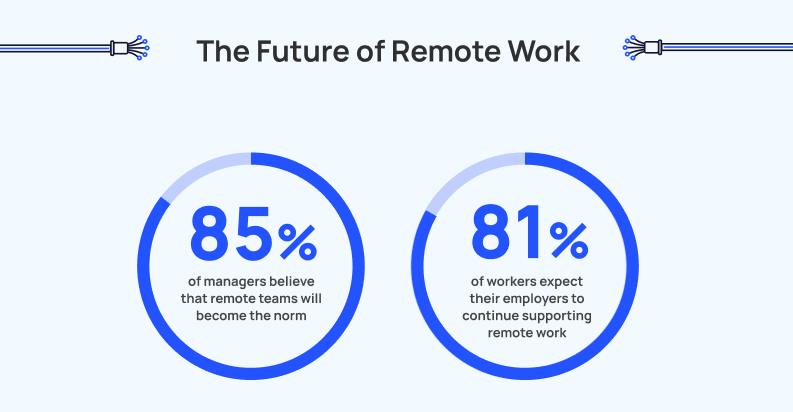
  • 85% of managers now believe that teams of remote workers will become the new norm. 74% of workers agree that remote work opportunities make them less likely to leave a company 2.
  • Employee turnover reduces by 50% when employees have access to a remote work option, indicating that remote work environments positively impact employee retention 2.
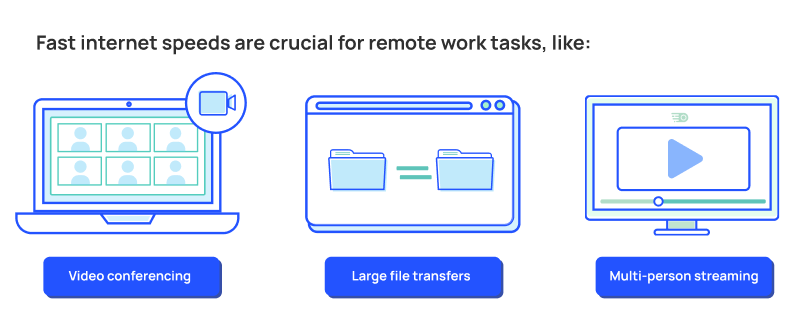
graphic showing work from home tasks that benefit from decent internet speed

The Crucial Role of Internet Speed When Working from Home

Fast internet speeds are key for video conferencing, transferring large files, and accessing cloud-based applications–all of which are routine tasks for today’s remote workers. Delays and buffering can lead to missed deadlines, inefficient work, impaired communication, and general frustration. Reliable internet is critical for individuals and organizations seeking to optimize their work from home setups.

internet speed quiz

How much internet speed do you need?

Our easy 1-minute quiz can quickly help you determine what internet speed is best based on your online activities and household.

Speed Quiz

The Need for Speed: States with Fastest Internet Speeds

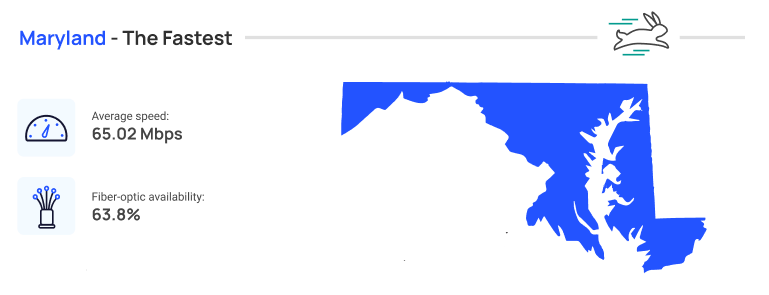
Maryland – The Fastest

graphic showing Maryland internet speed statistics

The fastest average internet speed in the United States is in Maryland, with an average speed of 65.02 Mbps, making it an ideal location for work-from-home activities, such as video conferencing, large file transfers, and remote collaboration. Fiber internet is available in over 63% of the state.

Other Top Performers

  • New Jersey (59.58 Mbps)
  • Delaware (59.08 Mbps)
  • Rhode Island (56.77 Mbps)
  • Virginia (55.98 Mbps)

These states have high percentages of the population with access to wired or fixed wireless broadband, and Maryland notably has 63.8% of the population with access to fiber internet service.

(Sources: 1 2)

The Slow Lane: States with Slowest Internet Speeds

graphic showing alaska internet statistics

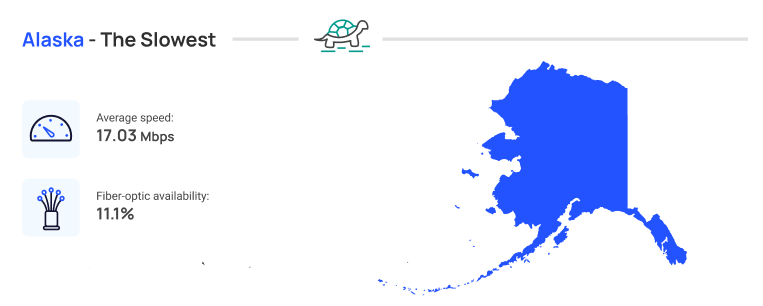
Alaska – The Slowest

The slowest average internet speed in the United States is in Alaska, with an average speed of 17.03 Mbps. Speeds this low contribute to slower downloads, buffering during video conferences, and limitations while accessing cloud-based applications. Compounding high-speed internet access challenges, only 11% of the state has access to fiber internet.

Other Slow Performers

  • Mississippi (24.77 Mbps)
  • Idaho (25.30)
  • Montana (25.70)
  • Maine (26.05)

For Alaska, we know that 86.6% of the population has access to wired or fixed wireless broadband, but only 11.1% have access to fiber internet service. In Mississippi, 74.1% of the population has access to wired or fixed wireless internet, and only 76.1% have access to at least 100 Mbps broadband–the lowest ranking among all states. 

(Sources: 1 2)

Factors Affecting Internet Speed & Performance

Bandwidth availability, network latency, network congestion, and the number of connected devices can all influence internet speeds. Understanding these factors and their potential impact on remote work activities allows you to address any bottlenecks and optimize your internet connection.

Internet Connection Types for Work from Home

graphic showing different internet connection types for remote work

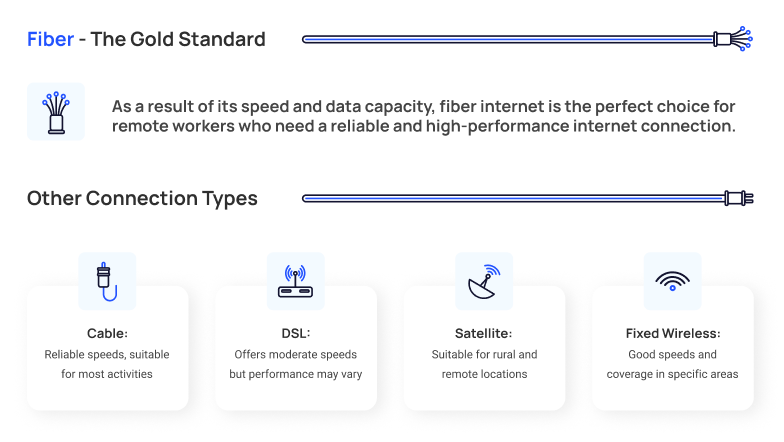
Choosing the right internet connection type is vital for working from home, as each offers varying speeds and capabilities. Consider the following internet options:

  • Fiber Internet: The gold standard for high-speed internet, fiber-optic connections provide unparalleled speed and data transmission capacity, ideal for bandwidth-intensive tasks.
  • Cable Internet: Widely available and provides reliable speeds, suitable for most work from home activities.
  • DSL Internet: Offers moderate speeds and utilizes existing telephone lines, but performance may vary based on distance from the provider’s network hub.
  • Satellite Internet: Suitable for rural and remote locations where other connection types are limited, but may experience higher latency and potential weather-related disruptions.
  • Fixed Wireless Internet: Utilizes wireless signals from nearby towers to deliver internet access, offering good speeds and coverage in specific areas.

Fiber Internet: A Game-Changer for Work from Home Jobs

Fiber internet is a game-changer for remote workers. Unlike traditional copper-based internet (cable or DSL internet), fiber-optic connection supports faster speeds, synchronous download and upload speeds, lower latency, and carries more data. As a result, it makes simple work tasks like video conferencing, file transfers, and multi-person video streaming a breeze.

Featured Fiber Internet Provider

  • Best internet protection
  • Unlimited data included
  • No credit checks

The Future of Working from Home

graphic showing stats for the future of remote work

The importance of a dependable, fast internet connection cannot be overstated as the trend of working from home continues to reshape the U.S. job market. Assessing your internet speed can be an enlightening step in optimizing your home office setup and finding the best internet connection for remote work. 

Here’s a quick roadmap to turbocharging your work-from-home internet experience:

  • Test Your Internet Speed: Run an internet speed test to measure your current connection’s performance and determine if it meets your needs.
  • Compare Internet Providers: Compare prices and speeds of different internet service providers in your area. This can help you find options that offer faster speeds and better value.
  • Engage Your Current Provider: Reach out to your existing internet service provider and inquire about faster plans or potential discounts.

Improving your home internet speed can have a significant impact on your work productivity, peace of mind, and overall satisfaction. Whether you’re in a state with fast or slow average speeds, you don’t necessarily have to move to get better internet. To find out what internet speeds are available at your address, simply drop your zip code below. We’ll instantly compare plans from all the major providers in your area so you can find the best internet for your work from home needs.

Infographic: Work from Home Internet Speeds

work from home states with fastest and slowest internet speeds infographic

Keith Carlson
Keith is a Contributing Writer for HighSpeedOptions with a background in writing, SEO, GEO, and marketing. He has written for and contributed to organizations in the non-profit, financial, and enterprise internet and cable service industries. At HighSpeedOptions, Keith covers everything from broadband news to emerging technologies and how they complement different lifestyles and budgetary needs. In his free time, Keith enjoys spending time with his family, reading as many books as he can, and photography.

VPN Protocols: A Complete Guide

HighSpeedOptions prides itself on providing honest, quality content. While we may be compensated when you make a purchase through links on our site, all opinions are our own. Here's how we make money.

The average VPN has at least a couple of VPN protocols to offer, but what’s the difference between the likes of OpenVPN and IPsec, and will there be an impact on performance for the average user?

What Is a VPN Protocol?

graphic showing vpn protocols between devices and server

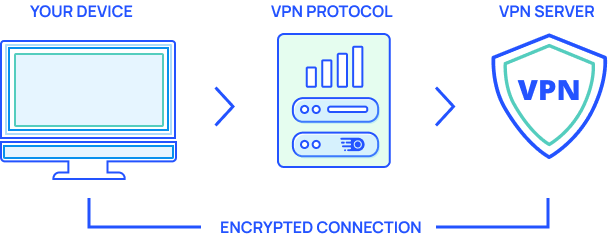
A virtual private network (VPN) protocol is a set of instructions that are used to transmit your online traffic safely, often while assigning the user with a new IP address. There are many protocols available, from famous open-source options to proprietary, specific-use protocols.

The type of protocol used will have an impact on aspects such as internet speed and security. You can guess that this is especially important for the end-user. Combined with the base speeds offered by your internet providers, this is especially important for the end-user.

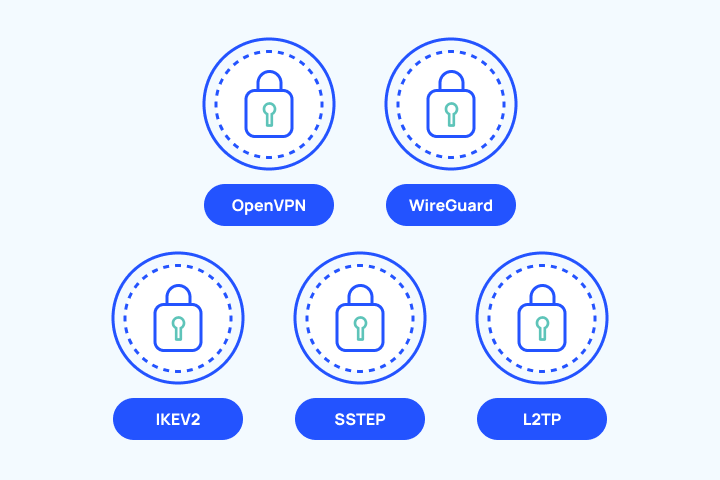
For simplicity, here are the most common VPN protocols in use today.

OpenVPN

OpenVPN was created and released in 2001 by James Yonam, who is the current CTO of OpenVPN Inc. It earns the name due to being open-source, and it’s available on all major platforms and comes with strong industry recommendations.

OpenVPN uses OpenSSL for encryption and authentication, with a choice between UDP (User Datagram Protocol) or TCP (Transmission Control Protocol) for transmitting the data to and from your device.

The main difference between the two is that UDP is faster. Although, it’s more likely to encounter errors due to lost data packets. This means that TCP is often preferred unless it’s for an intensive task such as online gaming.

Pros

  • Open-source software licensed under GNU GPL
  • Widely accepted as one of the most secure protocol options while using TCP
  • Free to download and use so long as you can configure it or your VPN offers it outright

Cons

  • Slightly dated compared to modern releases
  • Not the fastest protocol, but it’s available with most commercial VPN apps
  • Requires third-party software and certificate files to be installed

L2TP

Layer 2 Tunneling Protocol (L2TP) supports VPN networks but lacks encryption. To enhance privacy, it’s commonly used alongside IPsec, forming the combination known as L2TP/IPsec.

L2TP/IPsec verifies transmitted data twice, impacting connection speeds. However, it offers robust security measures compared to other protocols. It serves as the successor to PPTP, which we discuss later.

Pros

  • Widely compatible with the majority of platforms and operating systems
  • Uses AES-256 bit encryption
  • L2TP/IPsec is a solid combination for encryption and authentication

Cons

  • L2TP/IPsec uses UDP port 500 which is easily detected and blocked by firewalls
  • L2TP on its own is not very useful
  • Not as widely available across premium VPN providers

IPsec

IPsec is a protocol utilized to ensure the security of data transmitted across public networks. It achieves this by encrypting IP packets and verifying the integrity of the transmitted data. The acronym “IP” refers to “Internet Protocol,” while “sec” denotes “secure.”

To bypass firewalls, IPsec employs UDP, facilitating the passage of IPsec packets. It operates in either Transport mode or Tunnel mode, with the latter being the default mode. Tunnel mode encrypts the entire data packet, while Transport mode is well-suited for secure communications.

In addition to L2TP, IPsec can be combined with other protocols such as IKEv2, as discussed later on. Moreover, it can function as a standalone solution for Virtual Private Networks (VPNs).

Pros

  • Solid authentication
  • Known for its robust network security
  • Available via transport mode or tunnel mode

Cons

  • IPsec will have an impact on speeds and performance while in use
  • There are potential restrictions due to firewall issues
  • IPSec has an inconsistent standard for its own compatibility

SSL/TLS

Secure Socket Layer (SSL) is utilized to encrypt data packets, ensuring a secure connection within the browser. SSL certificates also help in establishing a reliable connection with the correct server.

Initially released in 1994 by Netscape Communications Corporation, SSL aimed to enhance web session security. The Transport Layer Security protocol (TLS) succeeded SSL and is now widely adopted by modern VPN services. Introduced in 1999, TLS was developed to address severe security vulnerabilities discovered in SSL.

Although SSL and TLS are oftentimes used interchangeably, it is mostly TLS that is being referred to. (TLS v1.0 was initially developed as SSL v3.1, which explains the frequent confusion between the two terms.)

Pros

  • An SSL VPN provides end-to-end encryption between the VPN client and its servers
  • SSL used in online payment authentication due to its high security
  • Google algorithm prefers SSL over other authentication methods to rank pages

Cons

  • An SSL VPN will actually use TLS due to serious security flaws found within the protocol
  • OpenVPN is an example of an SSL VPN, so it’s not compatible with IPsec or L2TP
  • Not as commonly used by VPN providers as OpenVPN or IKEv2

SSTP

Initially created by Microsoft as a proprietary choice, SSTP (Secure Socket Tunneling Protocol) leverages an SSL/TLS channel. It made its debut with the introduction of Windows Vista. SSTP boasts effortless firewall evasion capabilities and enables access to restricted content. Due to its Windows-centric design, it is not the most compatible option.

Pros

  • Seen as a more secure alternative to the likes of PPTP or L2TP/IPsec for Windows
  • SSTP may offer similar speeds and security to OpenVPN
  • Helps bypass firewalls better than other protocols

Cons

  • Being solely owned by Microsoft isn’t ideal from a privacy perspective
  • Can have an impact in terms of connection speeds while the VPN is active
  • Not ideal for non-Windows software like Linux or macOS

PPTP

Point-to-point tunneling protocol (PPTP), the elder sibling of SSTP, dates back to the Windows ’95 era, and is now obsolete. We strongly advise against using it, except for situations where you need to access faster speeds on outdated hardware or have no other protocol options available. It is important to note that PPTP is prone to various known vulnerabilities due to its weak encryption.

Pros

  • It’s a fast protocol option, especially on older devices
  • Native built-in support for many popular operating systems including Windows, Android, MacOS and iOS
  • Fairly easy to set up on devices if not offered by VPN provider outright

Cons

  • Obsolete, because of various security vulnerabilities
  • Many issues stem from Challenge/Response Authentication Protocol (CHAP), or inadequate hashing algorithms
  • Less reliable compared to SSTP since it lacks data origin verification and data integrity process

WireGuard 

WireGuard, an acclaimed protocol, is a newer encryption solution that offers simplicity, enhanced security, and easier auditability. Developed by Jason A. Donenfeld, a prominent cryptographer at Edge Security, WireGuard saw its first stable release, version 1.0.0, on March 29, 2020.

With its exceptional speed, WireGuard is often used in speed tests for reviewing purposes. However, it is currently considered an experimental protocol and has yet to be widely adopted by providers.

Pros

  • One of the fastest protocols overall, making it great for streaming and torrenting
  • Roughly 4,000 lines of code vs OpenVPN’s 70,000 lines of code
  • Strong encryption, with no known security flaws

Cons

  • Only a handful of premium VPNs offer it as its so new
  • Security concerns as it hasn’t been vetted as long as protocols like OpenVPN
  • It requires separate servers, distributions, and key management, which is another hurdle to VPN providers supporting this protocol

IKEv2

IKEv2, commonly used alongside IPsec, is a favored solution that strikes a perfect balance between rapid connection speeds and robust encryption. Originally a collaboration between Microsoft and Cisco, it presented a significant upgrade to the Internet Key Exchange back in 2005.

With a Diffie-Hellman key exchange algorithm and support for AES 256-bit encryption, IKEv2/IPsec ensures strong security without any known vulnerabilities. Offering stability and quicker performance compared to its counterparts, it stands out in the competition.

Pros

  • IKEv2 is one of the faster protocols available considering the level of encryption
  • Typically used with IPsec, another reputable protocol for privacy
  • Good stability, and deployed by many commercial providers

Cons

  • Easier to block with the use of firewalls due to the use of UDP port 500
  • Offers limited support for devices outside the Windows and Apple ecosystems
  • ome open-source versions exist, but it’s primarily a close-sourced development of Microsoft and Cisco

Additional Proprietary Protocols

As the name suggests, proprietary protocols are typically developed and used by a single company, or in some cases are licensed out for further use. They claim that it gives them an edge over the competition listed above, as it will have been specifically designed to work with their network.

Lightway is a very new VPN protocol released by ExpressVPN in the summer of 2021. They note that, “nine out of ten beta users reported that Lightway got them connected to the VPN faster than before.”

Another example would be Catapult Hydra by Hotspot Shield and its parent company, AnchorFree. According to them, “AnchorFree used to use standard IPSec and OpenVPN protocols to power Hotspot Shield but found major performance and latency challenges with it, therefore we created our own proprietary Catapult Hydra to address the issues of VPN latency.”

There’s also NordVPN’s repackaged version of WireGuard that they branded as NordLynx. They claim that with it, users can “experience WireGuard’s speed benefits without compromising your privacy.”

Pros

  • Proprietary protocols tend to be responsive as they were designed solely for the VPN service
  • They’re still a worthy additional feature and are always worth testing out
  • Specialty protocols can be very attuned to specific use cases

Cons

  • Many are still in beta mode, and may not be as stable as other options
  • Expect VPN services to embellish the results of their tests ever so slightly. (It’s unlikely that speeds will be many times faster than using an OpenVPN/WireGuard/IKEv2 solution.)
  • Rarely available outside the VPN service which it was created for and by

Best Protocol for Speed

WiFi leeches graphic

Speed is key to accessing content without lag or buffering, and it’s one of the most important aspects for the average VPN user. To this end, it’s hard to look past proprietary options that have been custom-built for the job at hand. 

IKEv2 should be a little faster than OpenVPN, while the barebones nature of PPTP also makes it speedy. WireGuard is a great protocol, but we recognize that it’s still in development. 

Overall, The best protocol for speed depends on the task at hand, as well as your typical internet speeds, and the provider selected. Surfshark is our pick for best VPN for streaming thanks to P2P support, while CyberGhost has a massive high-speed server network. 

Best Protocol for Privacy

graphic for weak password vulnerability for online security

Online privacy is often disregarded in favor of features like access to streaming services, but it’s becoming ever more important as multiple companies compete for our personal data. 

The best protocol for privacy has to be OpenVPN at this moment in time, as it’s the industry standard for a reason. IKEv2 is a great pick for the strongest encryption and security, although it’s worth mentioning that WireGuard has no known major vulnerabilities.

We’d couple the use of OpenVPN/NordLynx with NordVPN for the best results in terms of security and privacy. IPVanish also has robust security features. Further options include ProtonVPN, while Mullvad is an audited privacy-focused service that uses OpenVPN and WireGuard for tunneling. 

Best Protocol for Compatibility

graphic showing vpn compatibility across different devices

What if you plan to use a protocol across different devices, and a range of operating systems? The ideal protocol for compatibility has to be OpenVPN, given it’s a solid option that can be used across a wide range of apps and devices. In comparison, WireGuard is great, but it’s not readily available with many VPN services

However, the “best protocol” might be dependent on the VPN provider you’ve selected, as they are likely to have various options that differ depending on the platform. 

For example, NordVPN offers OpenVPN, IKEv2/IPsec, and WireGuard via NordLynx, with their proprietary protocol used as the recommended setting. 

IPVanish has the following protocols available including IKEv2, OpenVPN, L2TP, IPsec, and PPTP. (OpenVPN works with every operating system, whereas WireGuard is only available for Windows, iOS, macOS, Android, and Fire TV.) To access Chrome with IPVanish, you’ll have to use OpenVPN or L2TP. 

Best Protocol for Content

graphic showing vpn protocol for content and online gaming

Isn’t the best VPN protocol for streaming the same as the best VPN protocol for speed? Not necessarily, as it’ll be more dependent on whether the VPN is able to access content like US Netflix in the first place. They will also need local servers in the location you would like to connect to, and a constant list of new IPs. Protocol selection will have an impact on speeds, and the same is true for streaming and torrenting. 

Final Thoughts

Clearly, the protocol selected will have a major impact on a VPN’s performance and security. Some protocols are now obsolete, offering poor levels of encryption that are easily cracked, while others are still in the development stage but make for viable options in the long term.

Ideally, a VPN provider will have a large selection of protocols to select from within its app, giving the user the opportunity to decide which is best for any given scenario. At the very least, OpenVPN and IKEv2/IPsec should be included as standards.

Keith Carlson
Keith is a Contributing Writer for HighSpeedOptions with a background in writing, SEO, GEO, and marketing. He has written for and contributed to organizations in the non-profit, financial, and enterprise internet and cable service industries. At HighSpeedOptions, Keith covers everything from broadband news to emerging technologies and how they complement different lifestyles and budgetary needs. In his free time, Keith enjoys spending time with his family, reading as many books as he can, and photography.
What Is the Xfinity 10G Network & How Do I Get It?

HighSpeedOptions prides itself on providing honest, quality content. While we may be compensated when you make a purchase through links on our site, all opinions are our own. Here's how we make money.

5G is still fairly new and making waves for wireless communication, but you’re likely familiar with it. So, you may wonder if Comcast’s recent announcement of Xfinity 10G is twice as good. What even is Xfinity 10G, and how do you get it? All good questions. We’ll explore what it is, what it isn’t, its availability, and how you can get it.
What Is Xfinity 10G?

It turns out that 5G and 10G are completely different things, which is causing some frustration in the telecom and wireless industries, and amongst consumers. 5G refers to the Fifth Generation of cellular and wireless networks. Whereas Xfinity uses “10G” to indicate an internet speed of 10 gigabits per second (Gbps).

Rather than thinking of Xfinity 10G as a massive step forward in wireless communications, think of it as a rebrand of Xfinity’s product suite, primarily its internet service.

Because that’s exactly what Xfinity 10G is…a new brand name.

But there’s a little more under the hood than just a new moniker. It represents the aspirations and future capabilities of the internet provider’s already impressive network. 

The Future of Xfinity Internet

No new internet plans come with the announcement of the Xfinity 10G rebrand. Its top speed is 1.2 Gbps, with 3 Gbps available in very limited markets. But it is a not-so-inconspicuous indication of where the company wants to take its network in the next few years.

Comcast declares on its website that the Xfinity 10G Network “delivers a powerful connection to our customers that will continue to get smarter, faster, more reliable, and secure. It is the network that our customers use today and the network that will power their connectivity experience in the future.”

Make no mistake that Xfinity and other cable internet providers have their sights set on a network that provides internet speeds reaching 10 Gbps.

Products are currently in development with CableLabs, a think tank that designs and develops the latest cable technology used by cable operators around the globe, that will make these speeds possible over a cable network.

Given how quickly fiber internet providers have reached the 5 Gbps benchmark, it is crucial for the cable industry to deploy this technology soon in order to keep up with the gigabit race.

What Xfinity 10G is Not

While following the same naming convention of cellular and wireless data networks, Xfinity 10G is not a wireless network that is seemingly twice as fast as the current fifth generation (5G). 

Xfinity 10G is not even in the same category as the current 5G wireless network cell carriers use today.

It’s easily confused, but it is a new name for Xfinity’s current land-based cable network that will evolve over time and bring the best Xfinity has to offer to its customers in terms of internet, entertainment, and online experiences.

Xfinity 10G Compared to Fiber Internet

Two of the greatest advantages fiber internet has over cable internet are symmetrical speeds and ultra-low latency. To remain competitive in the ultra-fast internet speed space, Xfinity is developing technology that will unlock these features for its existing copper network. 

The company states that by the end of 2023, it will begin rolling out the technology for a lower latency feature. This is most meaningful to consumers that game online and work from home, as lower latency improves response times and video conferencing stability. But keep in mind that although cable latency isn’t as fast as fiber latency, Xfinity’s latency is already acceptably low for these activities. It’s just going to get better.

Baked into the technology that allows for lower latency is a significant speed boost and potential for symmetrical speeds. Once this technology is fully deployed, which Xfinity anticipates will be complete by 2025, Xfinity 10G will be well-positioned to directly compete with fiber internet capabilities.

Looking for Xfinity 10G?

internet graphic

Can I Get Xfinity 10G?

Great news! If you’re a current Xfinity internet customer, you’re already on it! As I mentioned, Xfinity 10G is not a new product. It’s not even a product. It is a new brand name for Comcast’s existing network that signals where the provider is taking the network in the future. 

Xfinity 10G Internet Plans

There are a number of Xfinity 10G internet plans to choose from, with speeds starting at 25 Mbps. It does offer a 3 Gbps plan, but availability is quite limited as of now. Its most popular plan is the 1.2 Gbps plan, which is widely available within Xfinity’s service areas. See below which plan is right for you or learn more on our Xfinity provider page.

  • Same-day installations
  • 8+ million free WiFi hotspots
  • Unlimited data available
FAQ

Xfinity 10G FAQs

Currently, no. Xfinity 10G is a new brand name for its existing network and products available on the network. While 3 Gbps is possible in limited areas, the 1.2 Gbps plan is the most popular. The “10G” in the new name is an indication of the improvements Xfinity will be making over the next few years.

No, it is simply a new brand name for its existing internet network. Xfinity offers a variety of speeds and plans, all of which are now branded as “Xfinity 10G.”

The two are not even comparable. 5G is the latest generation (fifth generation – 5G) of mobile technology that has replaced 4G and LTE, while 10G is a reference to an internet speed: 10 Gbps. Xfinity chose the name, Xfinity 10G Network, to indicate high-speed internet and its future speed capabilities.

Today! If you currently have an Xfinity internet plan, you’re already on the Xfinity 10G network. It is simply a brand name for its existing network. Not currently an Xfinity customer? Enter your zip code here to see if the Xfinity 10G network is available in your area.

Xfinity currently offers a 3 Gbps internet plan, but it has limited availability. Its most popular plan at 1.2 Gbps is widely available within its service area.

Final Thoughts

Despite any initial confusion caused by the new brand name, Xfinity’s 10G network is now accessible to everyone within its service area. What’s most important about the new brand name is the direction Xfinity is going and the enhanced network that will be available to millions of customers in just a few short years. It will be exciting to see what it means for us consumers as the fiber and cable industries engage in a ground race to achieve the fastest internet speeds currently possible.

Want access to the Xfinity 10G network? Drop your zip code below to see if it is available in your area.

Keith Carlson
Written By
Keith Carlson
Written By
Keith Carlson
Keith is a Contributing Writer for HighSpeedOptions with a background in writing, SEO, GEO, and marketing. He has written for and contributed to organizations in the non-profit, financial, and enterprise internet and cable service industries. At HighSpeedOptions, Keith covers everything from broadband news to emerging technologies and how they complement different lifestyles and budgetary needs. In his free time, Keith enjoys spending time with his family, reading as many books as he can, and photography.

Starlink Maritime: Satellite Internet for Boats

HighSpeedOptions prides itself on providing honest, quality content. While we may be compensated when you make a purchase through links on our site, all opinions are our own. Here's how we make money.

Not long ago, Starlink made it possible to get high-speed internet in RVs. Now it’s offering high-speed internet to vessels at sea with its Maritime satellite internet service. Starlink Maritime provides unprecedented internet access at sea and revolutionizes the way vessels communicate and access information.

  • High-speed satellite internet
  • Low-latency connection
  • No annual contracts

Since it uses the same low-earth orbit (LEO) satellite constellation used for its fixed-address satellite service, customers can expect similar reliability and performance on their boat or yacht. Starlink Maritime satellite internet features:

High-speed internet

Starlink Maritime can provide download speeds of up to 220 Mbps. This is much faster than the internet speeds that are typically available to vessels at sea.

Low latency

Since Starlink’s satellites orbit at a lower altitude, it’s capable of a much lower internet latency, clocking in at less than 20 milliseconds. This is important for applications that require real-time communication, such as video conferencing and maritime navigation.

Global coverage

Starlink Maritime can provide internet service to vessels in any location on Earth. This includes rural and remote areas, even in the middle of the ocean.

Easy to use

Starlink Maritime is easy to set up and use. The system includes a user-friendly app that allows users to manage their internet connection.

The service includes a specialized maritime antenna and modem, designed for the harsh marine environment. The antenna is self-orienting, ensuring optimal satellite alignment without manual adjustment. In terms of hardware, Starlink has designed a marine kit, which includes all necessary equipment for installation on most vessels.

Starlink as a satellite internet provider is faster and has lower latency, especially compared to other satellite internet providers. Its satellite array is under continual development with future expansion planned. This means that its service could see significant speed and performance gains.

Starlink Maritime is more expensive than most satellite internet; however, since it is designed for the most remote of areas and harsher conditions, a higher price is expected. Maritime plans start at $250/mo., and the one-time hardware cost is $2,500.

As with all satellite internet services, Starlink Maritime can also be affected by weather conditions. Heavy wind, rain, and snow can cause interference and outages that degrade performance and overall internet speeds.

Other Satellite Internet Providers

ProviderStarting PriceMax Download
Viasat$64.99/mo. – $169.99/mo.25 Mbps – 150 MbpsCheck Availability
HughesNet$44.99/mo.25 MbpsCheck Availability
ProviderViasat
Starting Price$64.99/mo. – $169.99/mo.
Max Download25 Mbps – 150 Mbps
Check Availability
ProviderHughesNet
Starting Price$44.99/mo.
Max Download25 Mbps
Check Availability

Who It’s Designed For

Starlink Maritime satellite internet is designed for any maritime user who requires reliable, high-speed internet access at sea. This includes commercial shipping operators, offshore energy companies, maritime research organizations, and luxury yacht owners. It also provides an invaluable communication lifeline for ships in remote areas, enhancing safety at sea.

Starlink Maritime satellite internet represents a significant step forward in marine internet connectivity. It brings high-speed internet access to the sea, opening up a host of opportunities and benefits for maritime users. While there are disadvantages and limitations, particularly in terms of cost, the advantages could far outweigh these for many users. As the service continues to develop and improve, it has the potential to revolutionize the way we connect at sea.

Keith Carlson
Written By
Keith Carlson
Written By
Keith Carlson
Keith is a Contributing Writer for HighSpeedOptions with a background in writing, SEO, GEO, and marketing. He has written for and contributed to organizations in the non-profit, financial, and enterprise internet and cable service industries. At HighSpeedOptions, Keith covers everything from broadband news to emerging technologies and how they complement different lifestyles and budgetary needs. In his free time, Keith enjoys spending time with his family, reading as many books as he can, and photography.

What is a VPN & Why Should I Use One?

HighSpeedOptions prides itself on providing honest, quality content. While we may be compensated when you make a purchase through links on our site, all opinions are our own. Here's how we make money.

Whether you’re using public WiFi or a reputable internet provider, safeguarding your privacy and data online is crucial. A Virtual Private Network (VPN) is one of the easiest ways to do so. Here’s what a VPN is (and isn’t) and why you should use one.

What is a VPN?

Very simply, a VPN is a tool that creates an encrypted connection between your device (laptop, phone, etc) and a remote server. It can be a software app or a device, often embedded in a WiFi router. The “tunnel” a VPN establishes prevents hackers, governments, or anybody else from snooping on the data you are sending and receiving. It also masks your IP address so that websites can’t track you or identify your location.

Need reliable and secure internet? Search your area for the best service and provider.

internet graphic

Why You Should Use a VPN

Are you a frequent traveler? Do you access the internet via public WiFi? Do you watch a lot of content on popular streaming services? Shop online? Privacy advocate? Here are a few reasons why you should use a VPN:

Enhanced Privacy

The prime reason to use a VPN is online privacy. Without one, internet providers can log everything you do online – where you go, what you send and receive, and when you’re most active. A VPN encrypts data before it leaves your device, ensuring your online activities remain private. Even if someone intercepts the data, they won’t be able to decipher it.

Secure Public WiFi

Free WiFi at cafes, airports, and hotels is convenient, but often unsecured, leaving your online activities vulnerable to snoopers and cybercriminals. A VPN secures your connection on public WiFi, safeguarding your data even on insecure networks.

Circumventing Geo-Blocks

Ever been frustrated by geo-restricted content? A VPN hides your location and tricks websites into thinking you’re somewhere else, giving you access to content you can’t normally get, such as accessing Netflix libraries in other countries.

Preventing Bandwidth Throttling

Internet providers sometimes slow down your internet speed if they detect heavy data usage, known as bandwidth throttling. A VPN can prevent this by masking your activity from them, ensuring a smoother experience whether you’re streaming, gaming, or browsing.

Protecting Your IoT Devices

Many Internet of Things (IoT) devices, such as smart locks and other wireless home security devices, smart appliances, and wearable technology, lack security measures, making them vulnerable to hackers. Though VPNs can’t protect most IoT devices directly, they can reduce the risk of a successful attack by shielding the network.

A VPN will protect your personal data, maintain your online privacy, and allow you to securely access region-restricted content.

Promoting Freedom of Expression

Internet censorship is a major concern in some countries where authorities may block access to certain content and information. In such areas, a VPN is an invaluable tool that helps bypass these restrictions and exercise their right to freedom of expression and information.

Evading Location-Based Price Targeting

E-commerce platforms and online travel agencies sometimes offer different prices based on your geographic location. This is known as price discrimination or dynamic pricing. By using a VPN, you can mask your location, potentially unlocking better deals and avoiding unjustified price hikes.

How a VPN works

When you turn on a VPN, your data is routed through an encrypted tunnel to a VPN-operated server before returning to the public internet. Again, any data sent back to your device is rerouted in the same way. This effectively masks your IP address from online snoopers because your web traffic comes from the VPN server instead of your actual location or device. It also encrypts your online data as it passes through the VPN tunnel, protecting you from things like identity theft and speed throttling.

Limitations of a VPN

A VPN isn’t 100% secure and it isn’t antivirus software. While a VPN may offer malware-blocking features, it’s not going to be as effective as standalone antivirus software, which is specifically designed to safeguard your device from malware and viruses.

A VPN isn’t a password management tool. A few premium VPNs like NordVPN offer a password manager addon (i.e. NordLock), but most do not. If that’s the case for your VPN, consider using a password tool like LastPass to prevent account breaches.

VPNs have come a long way over the years, but they’re not bulletproof. Here are a few disadvantages of VPNs:

  • Free VPN services are risky
  • Quality VPNs cost money
  • Can slow overall internet speed
  • VPN connections can suddenly drop
  • VPN blocker technology exists
  • Not compatible with all devices

Final Thoughts

While a VPN is not a standalone solution to all cybersecurity threats, it’s an effective weapon for online security. It goes a long way in protecting your data, enhancing your privacy, and providing you with a safe, unrestricted browsing experience. Considering the minimal cost and effort involved in setting up a VPN, the benefits are undoubtedly worth your consideration for overall privacy, cybersecurity, and as an essential part of your toolkit of online privacy tools.

Keith Carlson
Written By
Keith Carlson
Written By
Keith Carlson
Keith is a Contributing Writer for HighSpeedOptions with a background in writing, SEO, GEO, and marketing. He has written for and contributed to organizations in the non-profit, financial, and enterprise internet and cable service industries. At HighSpeedOptions, Keith covers everything from broadband news to emerging technologies and how they complement different lifestyles and budgetary needs. In his free time, Keith enjoys spending time with his family, reading as many books as he can, and photography.

Safari vs. Chrome: Which Browser is Better?

HighSpeedOptions prides itself on providing honest, quality content. While we may be compensated when you make a purchase through links on our site, all opinions are our own. Here's how we make money.

Safari and Chrome dominate the browser market, but which is better? Your browser choice can affect how you experience speeds from your internet providers. Compare the top two browsers to find the best fit for you.

Apple Safari

Baked into Apple’s iOS and MacOS devices, Safari is a robust and feature-rich browser. While it excels at privacy, it does have it’s downsides. Here are a few things to keep in mind when considering Apple’s native browser:

Pros

  • Safari is built from the ground up to work with Apple devices
  • Exceptionally strong privacy features
  • Seamlessly syncs in the Apple ecosystem
  • Performs well on iOS and macOS, with increased battery life and fast page loading
  • Clean, intuitive user interface

Cons

  • Fewer add-ons & extensions compared to Chrome
  • Struggles to compete with Google’s suite of online services
  • Only compatible with iOS and MacOS devices
  • Fewer customization options

Google Chrome

Google’s Chrome browser dominates in terms of market share, but there are some security and privacy risks to consider. It’s a must-have if you live in the Google ecosystem and its customization is unsurpassed.

Pros

  • Compatible with a range of popular Google services, including Gmail and Maps
  • Feature-rich user interface
  • Wide variety of native browser apps and extensions
  • Fast, open-source browser
  • Compatible with many devices

Cons

  • Google’s data collection raises privacy concerns
  • The same goes for many Chrome extensions and apps
  • Power hungry, which leads to rapid battery drain
  • Uses more CPU and memory than the native Safari browser

User Experience: Chrome

Side by side, Safari and Chrome check off both of these boxes by sporting a minimalist layout that’s easy to navigate. However, one browser clearly goes the extra mile.

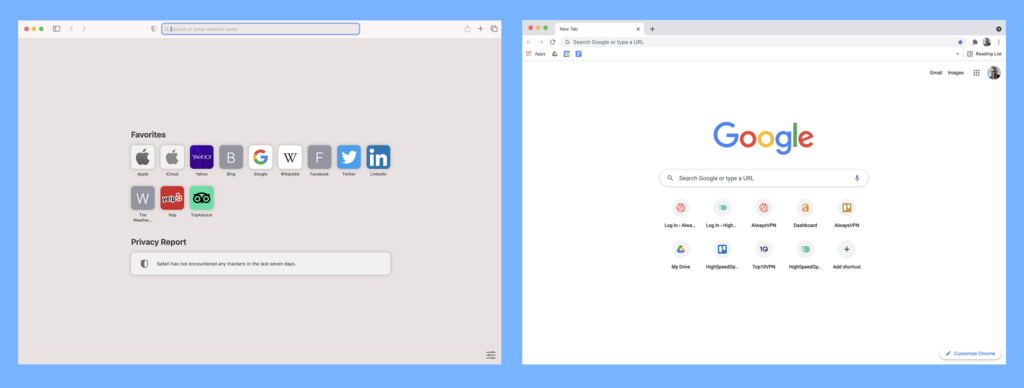
Safari offers a standard tabs organizer, a bookmark manager, privacy settings, and a historical archive. However, the tabs organizer is a little inconsistent across devices. You’ll find a nice grid layout on desktop and a stacked deck on mobile that quickly becomes an endless scroll.

In comparison, Chrome acts as a hub for all Google products. It comes with the same abilities Safari has as well as seamless integrations with Gmail, Google Drive, Google Translate, Google Nest devices, and in-app settings. If you live entirely within the Google ecosystem, Chrome is a must-have.

When it comes to user experience, Chrome takes the lead with its sleek interface, and ease of use.

Features: Chrome

When choosing between Safari and Chrome, features are a significant factor, aside from user experience. Personalizing the browser, merging multiple apps in one window, and performing more actions attract users.

Both Chrome and Safari share common features like bookmarks, reading lists, and history logs across devices. However, the real differentiator is browser extensions. Extensions enhance and modify a browser. While Safari offers only 350 extensions, many of which are pay-to-use, Chrome has over 175,000 extensions in the Chrome Web Store, making it the clear winner for features, along with its Google app integrations.

Privacy & Security: Safari

Chrome and Safari are big on security measures – blocking popups by default, utilizing a Safe Browsing database to prevent malware, and frequently releasing software updates to fix bugs. However, privacy is an entirely different story.

Safari collects data for website recommendations and UX improvements, but offers easy opt-out options. The “Privacy Report” shows trackers blocked weekly, and Private Browsing masks browsing history and blocks cookies. Safari also provides a “Hide My Email” feature to create unique forwarding addresses and Touch ID or Face ID for purchase verification.

Google Chrome isn’t shy about collecting all your data with vague privacy policies and loose tracker practices. Predictive searches, URL suggestions, and even Private Incognito mode becomes a threat to user privacy. It’s hardly surprising since the tech giant’s primary revenue stream is advertising.

Unlike Google, Apple doesn’t rely on ads to keep the lights on, which allows it to put users’ privacy first. If you care at all about your personal privacy online, the choice is a no-brainer.

Device Compatibility: Chrome

Chrome works on all major platforms including Android, Linux, iOS, macOS, and Windows. So, whether you’re all-in on Apple products or prefer to mix things up, you can access your Chrome information across devices.

Safari is limited to iOS and macOS devices. Unless you have an iPhone, iPad, or Mac computer, you’re out of luck. The winner here comes down to what hardware you use. Safari is the default browser on all Apple devices, but if you want more flexibility, Chrome will work across all of your devices.

Performance: Safari

If used for general, light browsing, Safari and Chrome perform similarly in terms of speed and power consumption. However, when you start to work in multiple tabs, Safari is far superior.

Google Chrome’s 12-hour power consumption is significantly greater than Safari. Keep this in mind if you travel or spend long hours away from an outlet.

Safari offers better hardware-software integration, which is no surprise since it only works on Apple devices. On average, it loads websites 50% faster than Chrome and lasts 1.5 hours longer when browsing or streaming videos. This is because Safari uses minimal RAM while running compared to Chrome. If you rely on fast internet speeds, we recommend using a lightweight browser like Safari every time.

Safari vs Chrome: Final Verdict 

After analyzing both browsers, we found Chrome to be the best choice. It offers seamless integration, advanced features, and compatibility across devices. But for those prioritizing privacy, Safari is your go-to option. It’s equipped with built-in defense mechanisms that you can rely on.

Keith Carlson
Keith is a Contributing Writer for HighSpeedOptions with a background in writing, SEO, GEO, and marketing. He has written for and contributed to organizations in the non-profit, financial, and enterprise internet and cable service industries. At HighSpeedOptions, Keith covers everything from broadband news to emerging technologies and how they complement different lifestyles and budgetary needs. In his free time, Keith enjoys spending time with his family, reading as many books as he can, and photography.

Chrome vs. Firefox: Which Browser is Better?

HighSpeedOptions prides itself on providing honest, quality content. While we may be compensated when you make a purchase through links on our site, all opinions are our own. Here's how we make money.

Leverage your internet service with the ideal browser. Here we’ll cover the pros and cons of Mozilla Firefox and Google Chrome.

Quick Links

Google Chrome

Google Chrome has a lot going for it: endless browser extensions, user-friendly apps, and stackable services. But it’s not bulletproof. Keep the following in mind before making Chrome your default browser.

Pros

  • 200,000+ extensions
  • Native Google products integration
  • Constant updates
  • Quick browsing speeds

Cons

  • Google data privacy concerns
  • High RAM usage

Mozilla Firefox

Mozilla Firefox is something of a unicorn. It doesn’t have nearly the same number of users as Chrome (3.5% versus Chrome’s 65% market share) but offers almost equal value. Firefox provides a secure web browser with reliable privacy and security measures, which are checked by open-source software, as well as a friendly user experience. Here’s what else separates Firefox from Chrome.

Pros

  • Top choice for privacy
  • Quick download speeds
  • Open-source
  • Integrated security features

Cons

  • Fewer extensions
  • Slightly slower than Chrome
  • Less compatibility

User Experience: Tie

Your overall experience will differ depending on your browser needs. For example, if you need Google services integration, Chrome is your ideal choice. 

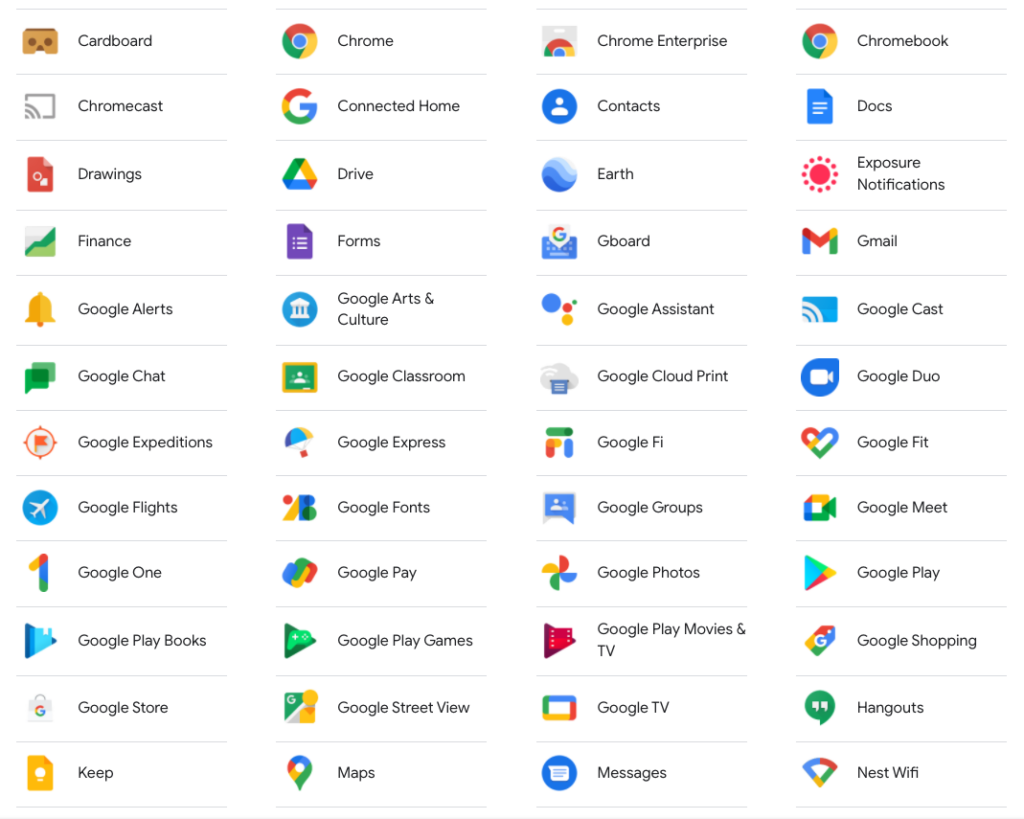
Google excels in customization due to the volume of Chrome browser extensions. And that’s not including Gmail, Google Drive, Google Translate, YouTube, and everything else included within their expansive ecosystem. It’s a collection of services that can’t be matched.

Google services screenshot displaying a range of Google applications
Various services owned and offered by Google.

As a lightweight option, Mozilla Firefox is arguably better if you’re planning to leave multiple tabs open, and it’s a winner if you’re more interested in privacy features, including blocking trackers and cookies. 

While some users may prioritize Google’s ecosystem and seamless user experience, others may value Firefox’s advanced privacy features more. Ultimately, the choice is yours to make. .

Features: Chrome Wins

Google Chrome offers additional features such as spell-checking and auto-filling forms, although the majority are also available with Firefox. 

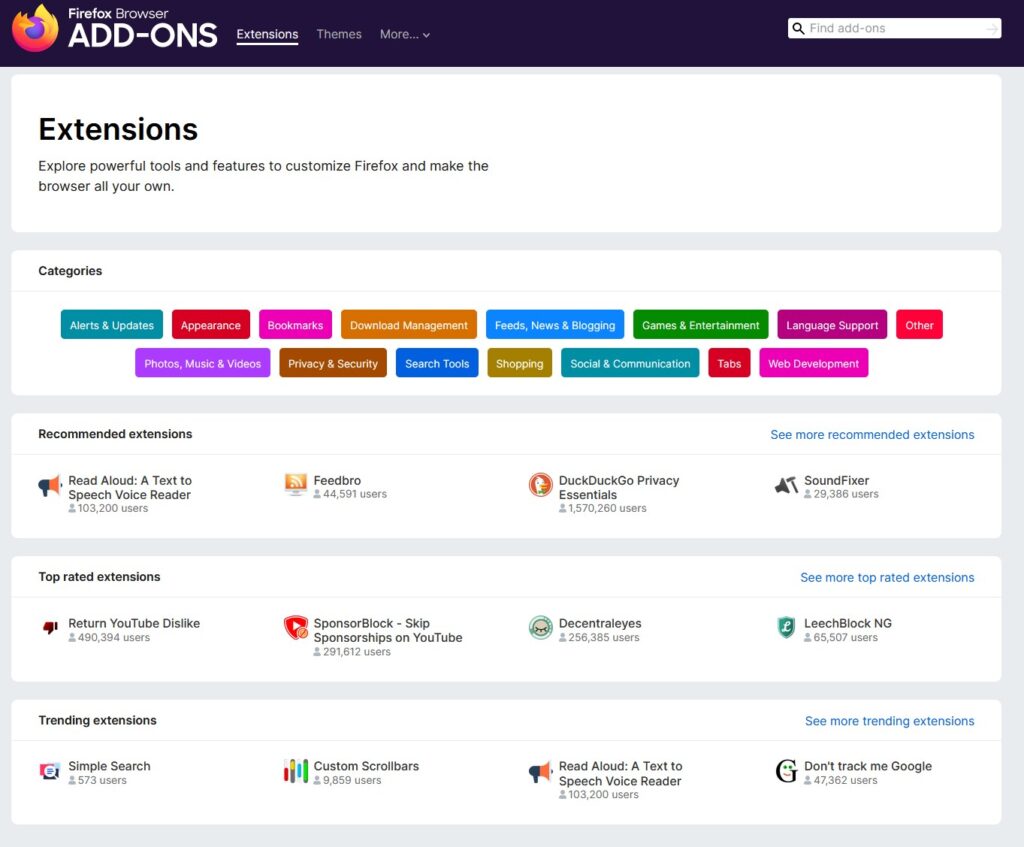
However, Chrome benefits from a massive library of third-party extensions which can be used to customize the overall experience, vastly exceeding what’s available for Firefox. (Google Chrome has over 175,000 extensions, offering a mix of themes and features.)Integration with services like Gmail and Google Docs is a major bonus if you’re constantly switching tabs, and is likely to be more beneficial for the average user.

That’s not to say that Firefox doesn’t have its own range of add-ons, including personalized recommendations for extensions and themes, such as ad-blockers or antivirus software

Firefox extensions screenshot showcasing various add-ons

Many of Firefox’s features are built-in, including a screen capture tool, and a reading mode that only shows important text on a web page. However, their 2021 roundup notes that only one-third of Firefox users have actually installed an add-on, which suggests that the majority are happy with using the browser as is.

If you’re choosing between Firefox or Chrome and you’re most interested in additional features, Google Chrome is a clear winner. 

Privacy & Security: Firefox Wins

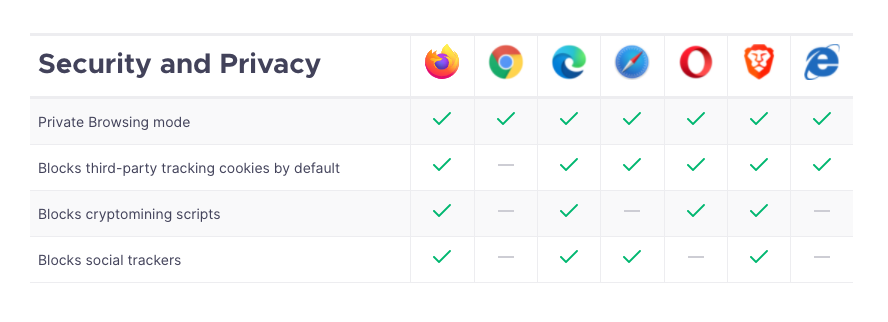
Firefox would be our pick for online privacy, especially as it blocks various trackers and offers an array of additional anonymity features.

Chrome is secure, but it’s not an ideal choice in terms of privacy. Given how much data Google already collects about you and all users, it may be wise to limit the exposure of your data by using Firefox.

Security and privacy browser comparison graphic illustrating different browser security features
Source: Mozilla

Chrome is lacking when compared to almost every other browser on the market. Clearly, Google isn’t the best option if you’re concerned about privacy or anonymity.

Device Compatibility: Chrome Wins

The majority of devices and sites are compatible with both browsers, but your experience with Chrome will likely be seamless. Given its dominant market share, it makes sense to ensure that a site or service works properly with Chrome.

Firefox is compatible with most sites and devices, but they might be designed for the browser one with the most market share. 

Once again, the sheer size and scale of Google comes into play, as the majority of sites and services are forced to factor in for Chrome during the design phase.  

Performance: Tie

Chrome requires a lot of hardware resources (specifically RAM) that will affect performance, especially compared to Firefox’s lightweight setup. 

An example would be Chrome prerendering, which will gradually be applied to the most likely navigation destination, aiming to improve load times at the expense of memory. Extensions, like an ad-blocker, will also draw down memory if they have to interact with web page content.

There are extensions for Firefox, however, they’re less resource-dependent, which leads to better performance, especially when you have multiple tabs open.

You can access high speed internet with either browser with minimal lag, as long as you’re using a reasonably modern device. But if you frequently have multiple tabs open, we recommend Firefox, but you really can’t go wrong with either browser. 

Firefox vs Chrome: Final Verdict

Google Chrome is a capable browser; statistically, you’re probably using it to read this article. While it integrates well with Google services, be aware of the amount of data Google collects and find ways to mitigate it.

Mozilla Firefox is a solid contender, but its lack of market share may lead to limitations in terms of device and site compatibility. However, it’s still worth testing out Firefox, especially if you’re trying to maintain privacy.

Keith Carlson
Keith is a Contributing Writer for HighSpeedOptions with a background in writing, SEO, GEO, and marketing. He has written for and contributed to organizations in the non-profit, financial, and enterprise internet and cable service industries. At HighSpeedOptions, Keith covers everything from broadband news to emerging technologies and how they complement different lifestyles and budgetary needs. In his free time, Keith enjoys spending time with his family, reading as many books as he can, and photography.